Towards the end of 2021, Microsoft made a number of announcements via Message Center that will impact calls that route to and from Microsoft Teams via Direct Routing. If you’re using Direct Routing, it’s important to review these items and ensure you won’t be affected in the coming months.
Let’s take a closer look at what’s changing, and what you need to do to prepare.
MC299923: Trusted Certificate Authorities for Direct Routing SIP Interface are Changing
Action required by February 1st 2022
What’s the change?
Starting from February 1 2022, the Direct Routing SIP interface will only trust certificates that are signed by Certificate Authorities (CAs) that are part of the Microsoft Trusted Root Certificate Program.
What does this mean?
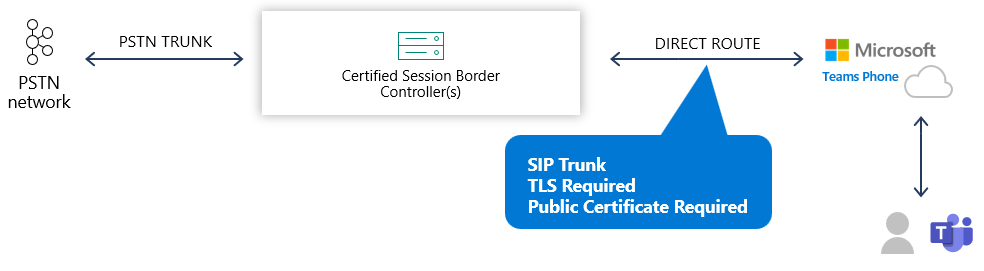
Direct Routing is a Microsoft term for a SIP trunk between a Session Border Controller (SBC) and the Microsoft 365 Cloud. To ensure communications are secure between SBCs and M365, Direct Route trunks must use TLS for signaling. This in turn means that your SBCs must have a certificate installed that is publicly trusted, and more importantly trusted by Microsoft.
Teams Direct Routing Overview
If you do not have a supported public certificate on your SBC from February 1st onwards, your Teams Direct Route will no longer be supported and calls between Teams and your SBC will fail.
How do I confirm I won’t be affected?
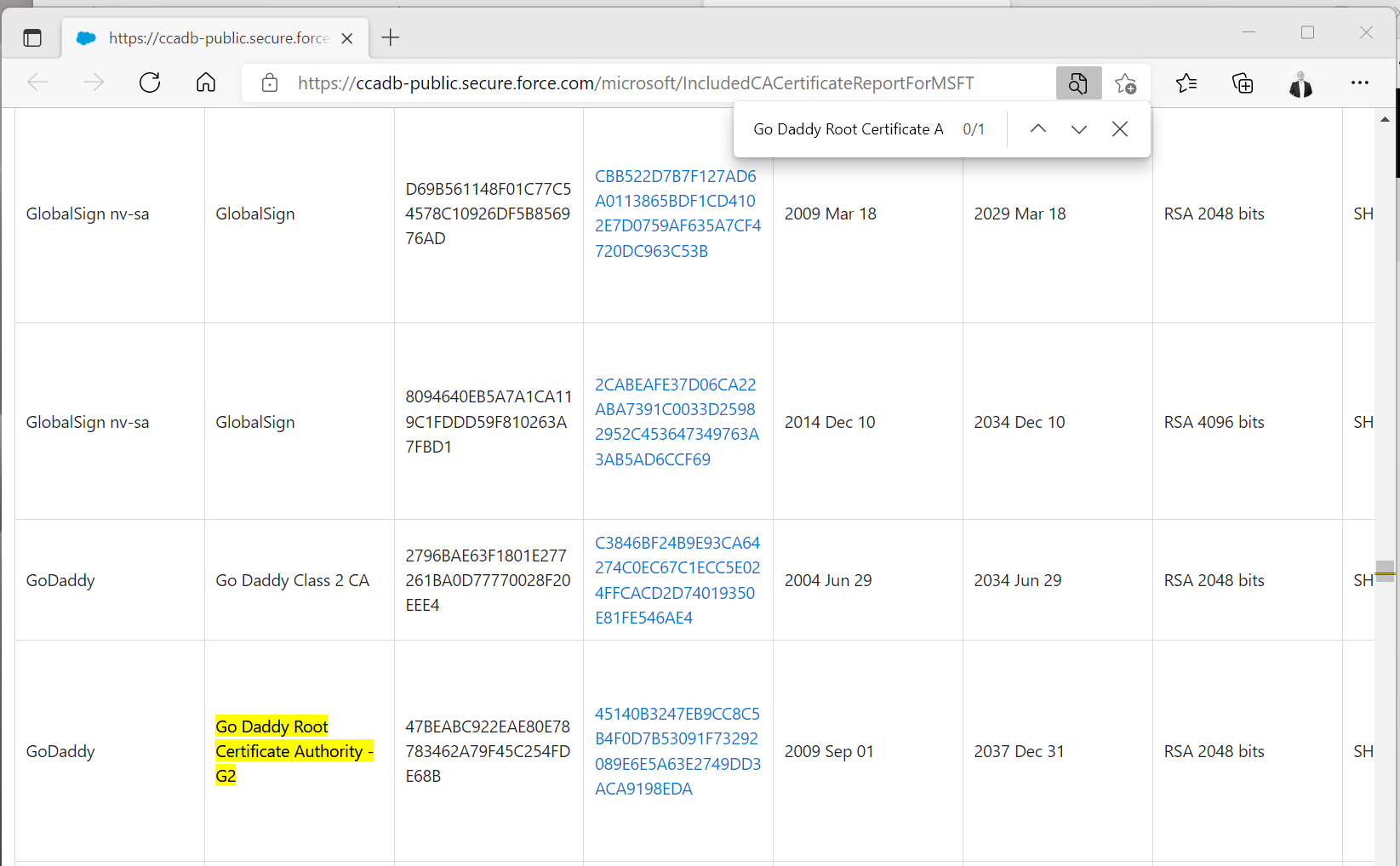
You can find a full list of supported public Certificate Authorities (CAs) here. In the below example, I have reviewed what public CA is being used for a Direct Route between a Ribbon SWe Lite SBC and Microsoft Teams. Searching for the certificate issuer on the supported list confirms that this is a supported public CA:
Ribbon SWe Lite – Identify Certificate Issuer
Confirm Issuer CA Supported
MC307310: SIP-ALL FQDNs will no longer be Supported
Action required by March 1st 2022
What’s the change?
On March 1 2022, Microsoft will be removing support for sip-all.pstnhub.microsoft.com and sip-all.pstnhub.gov.teams.microsoft.us FQDNs from Direct Routing configuration.
What does this mean?
For some time now, Microsoft have published the two sip-all FQDNs outlined above to make it easy to identify all Microsoft IP addresses I should expect to see traffic from for Direct Routing deployments. These should not be confused with the FQDNs that should be used for routing, as outlined here:
Teams Direct Routing Connection Points
When configuring SBCs for Direct Routing, the sip, sip2 and sip3 FQDNs should be configured as per Microsoft requirements in a priority list as shown below (examples below are from a Ribbon SWe Lite SBC but same approach applies regardless of SBC vendor you are using). This would ensure that calls route via the closest Microsoft Point of Presence to my SBC based on my geographic location, but also ensures I have redundancy from another M365 datacentre location in the event of an outage:
Teams Direct Routing Connection Points – Ribbon SWe Lite
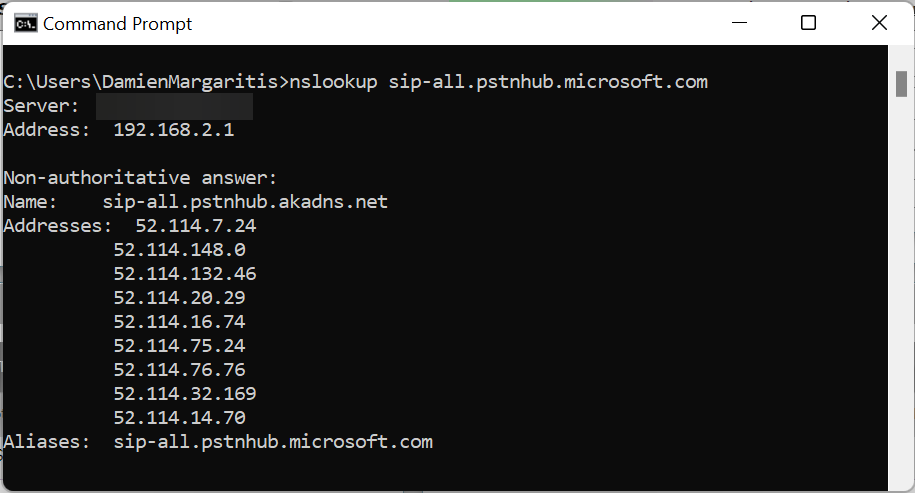
However, when configuring the Teams Signaling Group to limit where I should expect SIP traffic to come from, it became common practice to use SIP-ALL.pstnhub.microsoft.com which would resolve to all IP addresses that all three of the FQDNs listed above resolve to:
sip-all.pstnhub.microsoft.com – Resolved IPs
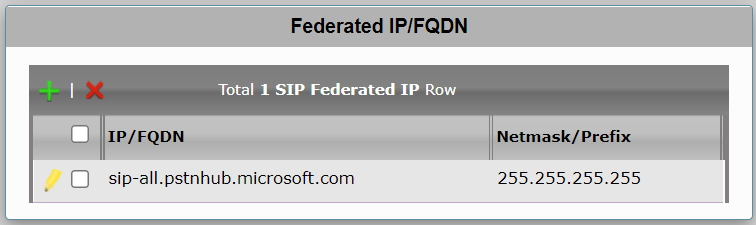
This was a much simpler approach than adding all three FQDNs when configuring signaling groups or ACLs:
Ribbon SBC – Federated IP/FQDN list for Teams Direct Routing
What do I need to do?
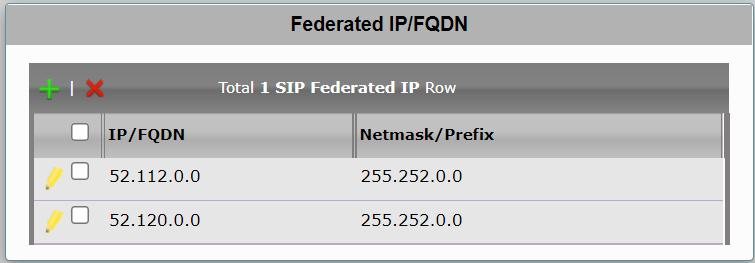
If you are using Direct Routing, check your ACL\Federated lists that limit traffic between your SBCs and Microsoft Teams. If you are using either of the sip-all FQDNs, update those lists to use the full Microsoft Teams IP subnet ranges:
52.112.0.0/14
52.120.0.0/14
Ribbon SBC – Updated Federated IP/FQDN List
This also goes for anything else sitting between your SBCs and M365 – if your firewalls were using sip-all to limit traffic, they should be updated also.
MC299922: Direct Routing Will Stop Processing SIP Requests which have ‘Replaces’ Headers
Action required by April 5th 2022
What’s the change?
Starting on April 5 2022 (previously January 3, 2022), Direct Routing will stop processing SIP requests which have Replaces headers.
What does this mean?
Understanding this change and possible implications requires a little more of a deep dive into the SIP Protocol itself, but in short it will be required to ensure your SBCs are not sending Replaces headers within SIP INVITES to Teams.
What do I need to do?
For Ribbon SBC deployments (SBC Edge and SWe Lite), there will be an update released (before April 5th one would hope) that will address this requirement. For AudioCodes Mediant SBCs, you can find a fix here. For other SBC makes and models, check with your respective vendor.
MC297438: TLS1.2 Enforcement for Direct Routing SIP Interface
Action required by February 1st 2022
What’s the change?
On February 1st 2022 (previously January 3rd 2022), to provide the best-in-class encryption, Microsoft will begin retiring Transport Layer Security (TLS) versions 1.0 and 1.1 and begin obligating TLS1.2 usage for the Direct Routing SIP interface.
The move to TLS 1.2 is to ensure that services are secure by default and in alignment with the rest of Microsoft 365 services.
What does this mean?
To prevent cyber criminals from accessing sensitive data as it moves through the internet, over the years various cryptographic protocols have been introduced, one of which being Transport Layer Security (TLS). We’ve stepped through various iterations of TLS: namely TLS 1.0 and 1.1, with 1.2 now being the lowest iteration that Microsoft will support for anything that communicates with Microsoft 365.
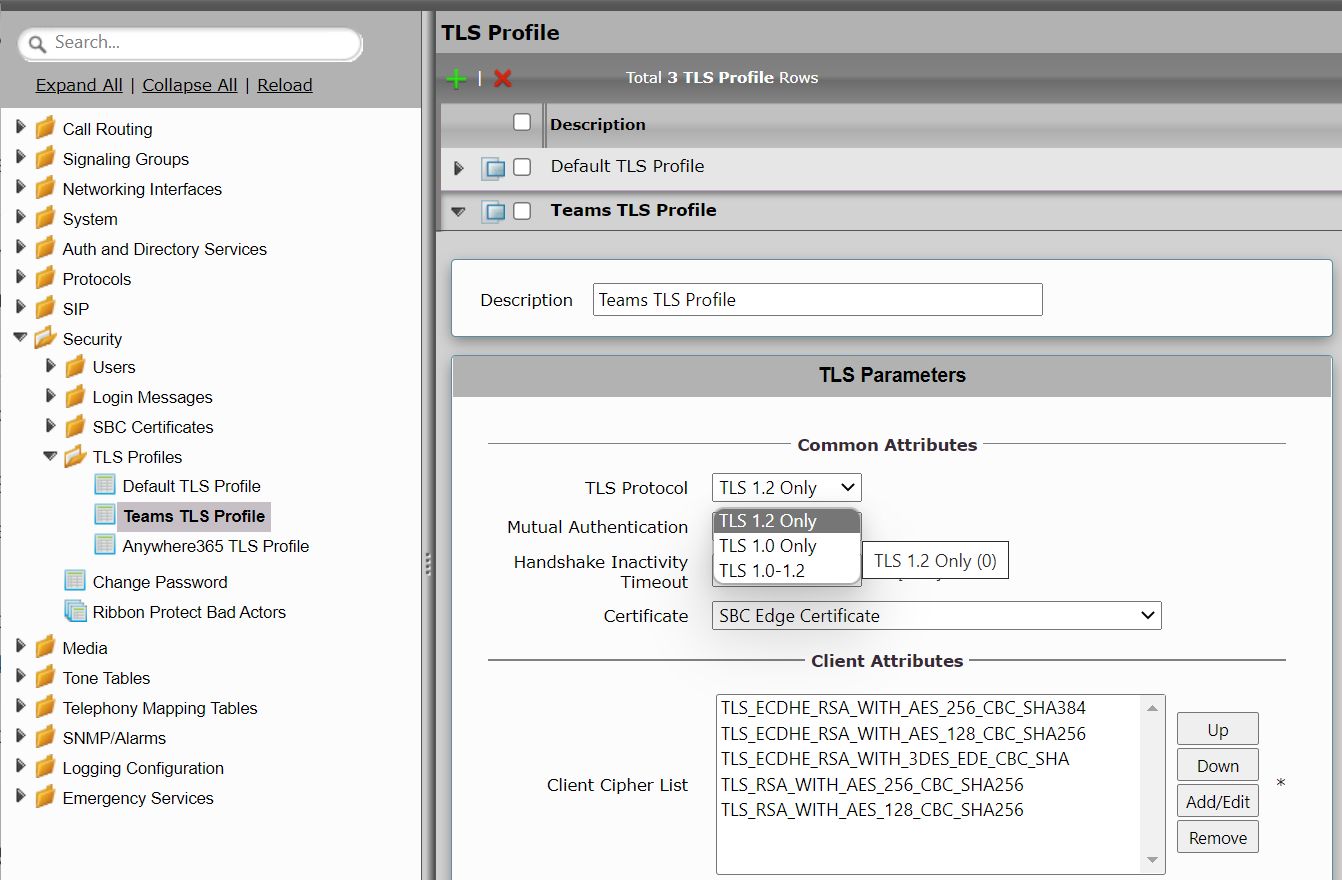
If TLS 1.2 is not selected as your TLS Protocol for Direct Routing post February 1st 2022, Your Direct Route trunks will cease to work and calls between your SBCs and Teams will fail.
What do I need to do?
If you are using Direct Routing, ensure that TLS 1.2 has been selected as the TLS Protocol:
If your organisation is using Microsoft Teams and your Microsoft 365 tenant is hosted within the Australia region, there are two ways that PSTN calling can be introduced to your Microsoft Teams environment:
Use Telstra Calling (calling plans)
Use Direct Routing
Given its deployment flexibility and ability to support a wide range of deployment scenarios, more often that not we see Direct Routing as the chosen technology to meet an organisation’s needs when adding PSTN calling to Microsoft Teams. Whether an organisation wants to migrate from an existing PABX platform to Teams Voice over time, or has an existing Skype for Business environment where infrastructure already exists that natively supports Direct Routing with Teams, it’s relatively quick and easy to augment the existing telephony environment and introduce Teams Calling.
What is Direct Routing?
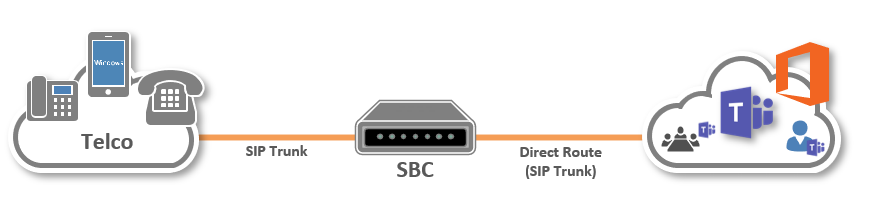
Plainly speaking, a Direct Route is a SIP trunk between a Session Border Controller (SBC) and Teams: it’s one of two call legs between Teams users and a telco trunk provider:
When an SBC is configured to interface with Teams via Direct Routing, we need to let the SBC know where it needs to send calls to (and receive calls from) in order to support PSTN calling. No matter where you are in the world, the same configuration is used, with the following Fully Qualified Domain name (FQDN) resolving to the closest Teams Direct Route infrastructure in relation to the SBC:
sip.pstnhub.microsoft.com
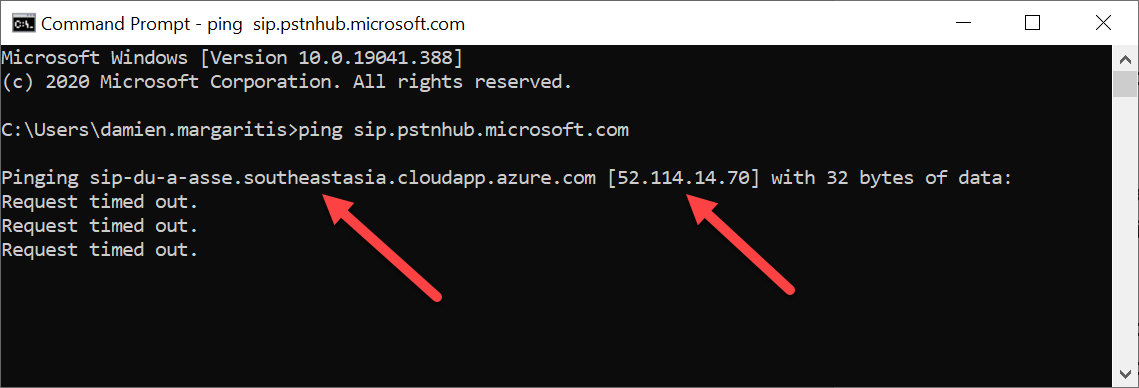
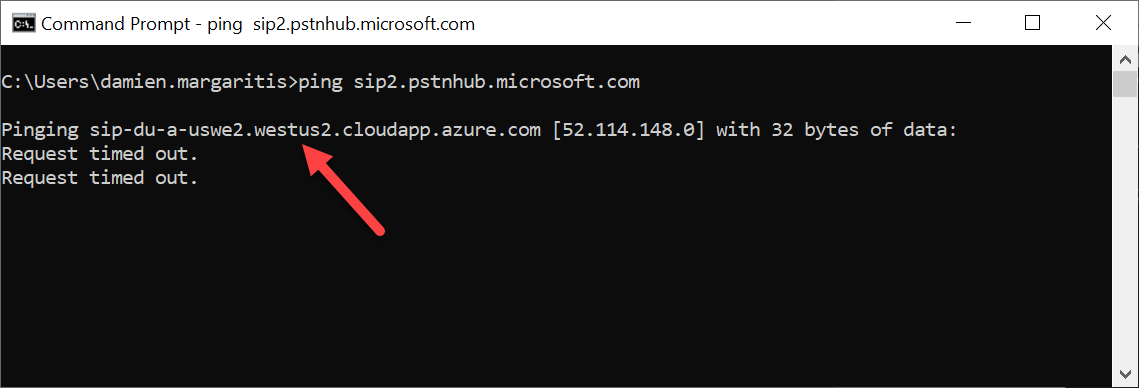
Today in Australia, if I resolve the above FQDN, Teams Direct Route SIP infrastructure that’s returned is located in South East Asia (Singapore), with an IP address of 52.114.14.70. This is where my SBC will send SIP signalling when setting up a call:
Just in case there’s an outage with infrastructure located closest to the SBC (in our case, SE Asia), Microsoft also publish the following FQDNs that will resolve to secondary and tertiary infrastructure located somewhere else in the world. So again, when resolving these FQDNs from an SBC located in Australia, they return the following:
sip2.pstnhub.microsoft.com (United States)
sip3.pstnhub.microsoft.com (Europe)
As the examples above show, historically SIP signalling for Teams PSTN calling has not routed via Teams infrastructure located in Australia. That is not to say that media associated with my call follows the same path: infrastructure that supports media traversal (Media and Transport relays) have been deployed and available in Australia for some time, it’s just the signalling component that negotiates and sets up the call that’s been routing via infrastructure that resides off shore for Australian Tenants.
New Infrastructure Deployed in Australia
In order to cope with increased traffic (mainly due to COVID-19), and to reduce latency, Microsoft have recently deployed additional infrastructure in Australia that will handle SIP signalling for Direct Routing. This ensures that all traffic associated with Teams PSTN calling (signalling and media) stay within Australia and should mean call setup is quicker for Australian tenants.
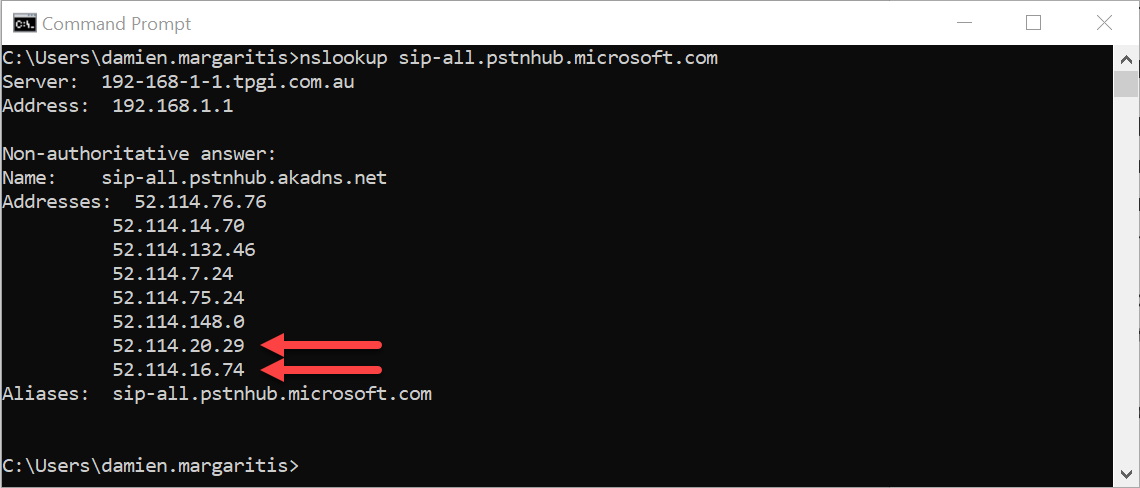
One other FQDN that Microsoft publish that is related to direct routing is sip-all.pstnhub.microsoft.com. This one is useful, as it resolves to all IP addresses that an SBC might use globally when Direct Routing is deployed. Looking at the IP addresses that are returned when resolving this record, note two new entries:
These IP Addresses represent SIP infrastructure that has been deployed in Australian data centres to support local SIP signalling for Australian tenants.
How do I use them?
Today, these IP addresses are not being returned when resolving the primary Direct Route FQDN sip.pstnhub.microsoft.com from Australia. We expect this will be the case soon, however if you want to use them anyway, you can!
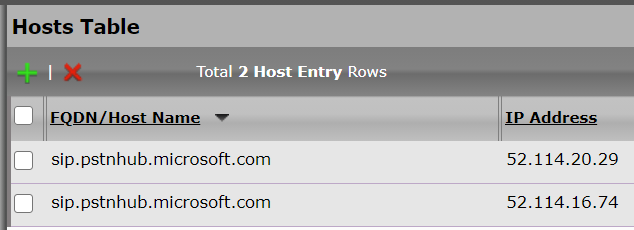
Add static DNS host entries to your SBC (the following example is from a Ribbon SWe Lite virtual appliance) using the two new IP addresses for infrastructure located in Australia:
Confirm that SIP Signalling is routing to one of these IP addresses:
This configuration won’t be necessary once Microsoft’s primary FQDN for direct routing resolves to these IP addresses automatically. But until then, manual configuration lets you take advantage right away.
For the last 4 years, I’ve been involved with supporting UHack: The University of Tasmania’s annual weekend-long event that sees teams of participants come together to create something innovative. The event runs from Friday evening though to Sunday afternoon, with mentors from various backgrounds providing guidance along the way, culminating in a panel of judges on Sunday afternoon who review the teams’ submissions and ultimately crown the winners.
Historically, UHack has been an in-person event: participants from around Tasmania would gather at the three main UTAS campuses (Hobart, Launceston and Cradle Coast) and work through the weekend to develop their innovation. Mentors would be on-site, with some video conferencing allowing participants in the north of the state to also access mentors who have tended to be concentrated at the Hobart campus.
Of course, given the global COVID-19 pandemic that has affected all of us this year, many events have been disrupted and have needed to move to an online format. UHack also found itself needing to adapt and pivot to a complete online solution ensuring it didn’t disrupt the event activities and submission of entries. The critical impact of this change to the event was on time. The project team needed a technical platform for the event with only weeks to work through the many use cases, build and give access to participants in the lead up to the main event. They also had to ensure that the change didn’t impact the flow of communication and activities, and that all those involved, whatever their role, could come together easily, and with minimal training time, using this platform. The fast pace of the event has relied on physical proximity to bring together multiple roles, deliverables, checkpoints and many largely unnoticed resources – all of which now needed to be accessible, responsive and smooth to replicate the UHack experience in an online environment. And it all had to be set up quickly, as preparation and registration was already in train.
In previous years, even though an in-person event, there have been multiple platforms to capture data across the event: EventBrite for registration, MeetUp for lead up information sessions, DevPost for submitting deliverables. If you’re interested, check out Richard Charnock’s blog about last year’s experience, including a first outing for Teams, primarily as a communication tool. Here’s Richard taking a well earned rest in the “Mentor Pen” in between sessions:
This year, given that all participants would now be remote, the focus was to build a much more integrated solution that reduced the need to move across applications or platforms. The immediate desire was to utilise an education tenant and Microsoft Teams to build out the event, along with as many out of the box apps and features as possible to save time. We will dive deeper later in this blog into the technical journey and platform detail. Firstly, let’s talk about the overall experience of moving a weekend hackathon to a remote competition and experience.
How did a hackathon differ run completely remote?
UHack is a great event. Each year it brings people together with a fantastic sense of community and energy. Participants are students and members of the general public who simply turn up, join groups and head into an intense phase – measurable in hours – to create an idea and develop that into a business model. During this, the event team floor-walk. They pop into rooms and chat to groups to answer questions, address concerns and give updates. It is very much about people coming together.
A key factor for moving this event online was bringing this UHack community together. How do you replicate the communication and team feel through technology?
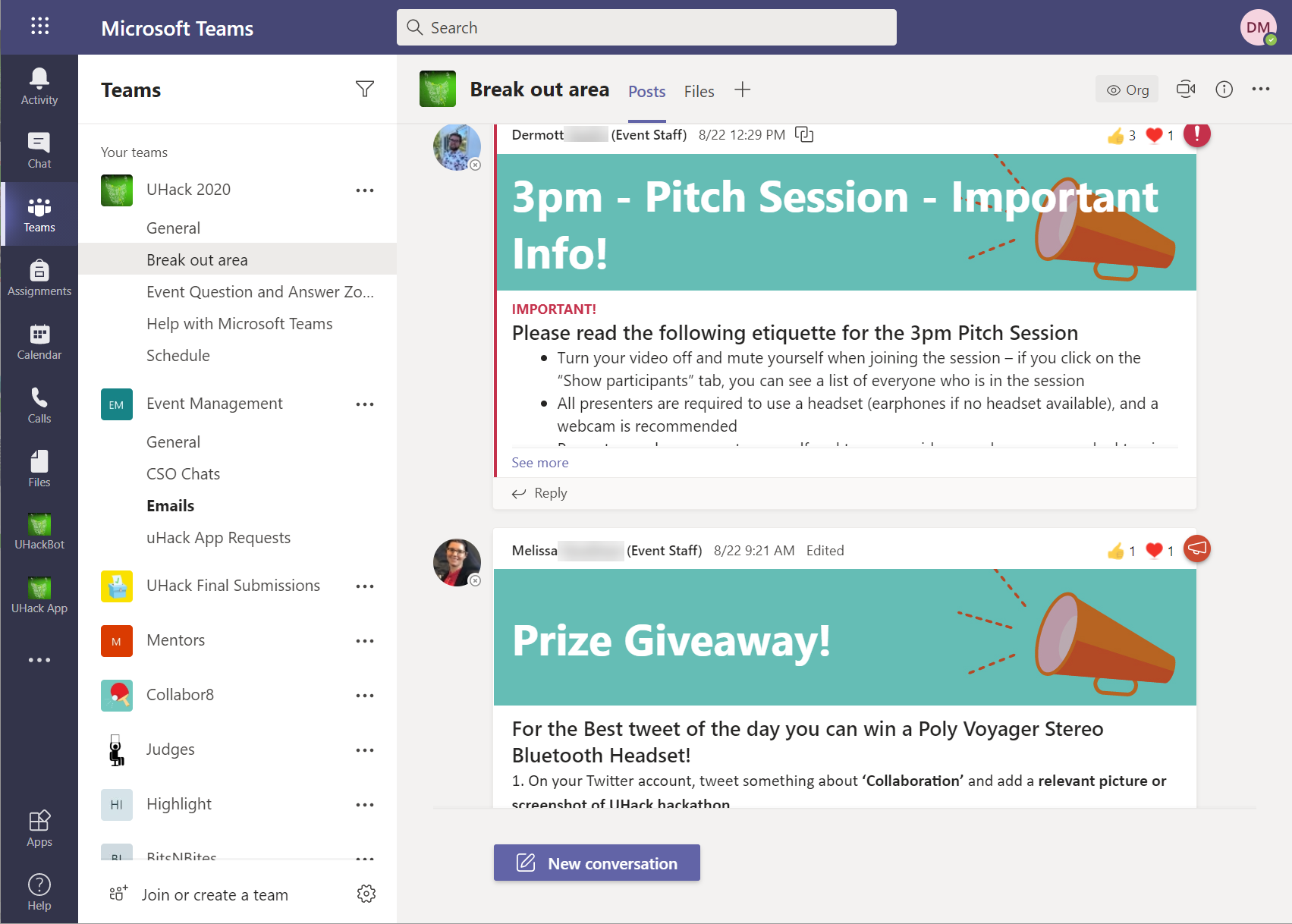
The immediate answer was Microsoft Teams as the central platform and hub. Teams and channels for the event wide communication, break out social space, questions to the event team, private Teams for each group of participants and spaces for judges, mentors and the event staff to communicate.
If you want to see a little more of what we created within Microsoft Teams, check out our intro sway. The imbedded video will take you on a walkthrough of the various Teams, Channels and Apps that came together to support UHack this year.
What we built was an instant community, and by contrast with the timescales in a conventional organisation for uptake of a social platform, in this instance we needed uptake to be high right away. What was great to see was that as soon as participants were registered and had access to the platform, there was a lot of activity in the breakout channel looking for a team to join and general discussion. See below for some further thoughts on the overall experience, with further wins and challenges.
The overall platform experiences
Microsoft 365 had several built-in apps and services that not only integrated easily, but enabled some easy wins across the event such as:
Meetings and Live events – Using Microsoft Teams to support UHack meant that we had a single tool that could handle not just the collaborative requirements to run a hackathon, but also all communications requirements. Both opening and closing ceremonies were held using Live Events, with mentor sessions, information sessions and other sessions that had typically been held face to face in previous years all being held via Teams meetings. This also made it simple to record meetings and live events directly to Microsoft Stream and share them out to all UHack participants.
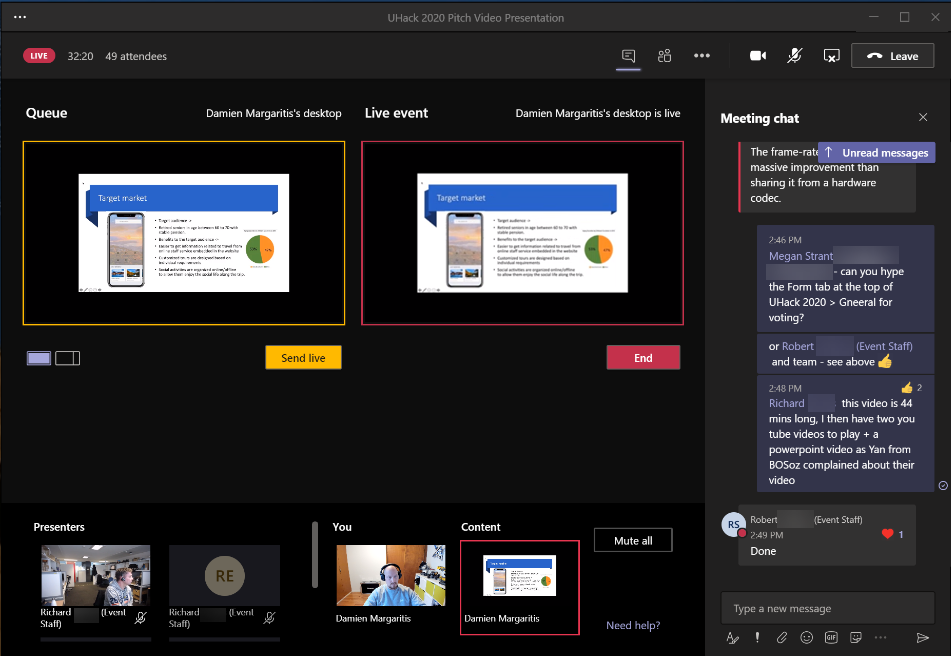
Here’s one example: the pitch presentation Live Event:
Bookings – this app was quick to setup and make edits. Having a participant choose a timeslot to meet with a mentor with it, and then automatically book a Teams Meeting in a Mentors calendar, meant less applications for Mentors to access and learn. They simply followed what was in their calendar and only needed to know how to join Microsoft Teams meetings.
Having Bookings create timeslots from free/ busy time in a Mentors calendar was easy to work with. We simply advised each mentor to setup their availability and block out breaks and this fed into Bookings as meeting timeslots.
Microsoft Forms was used to create a scoring system for judges. Having this as a tab in the Judges Team general channel simplified their experience with a single space to access and complete the work. It was easy at the end to export everything into Excel and use a pivot table to manipulate data to create winners across divisions.
Communication through posts in the event wide channel made it easy to broadcast updates and provide information to all participants, or to communicate directly in either the judges or mentors’ spaces.
Using tags in Microsoft Teams was a great way to alert the event team as a group of people, rather than having to type all their names to @mention. Simple feature with big impact.
Having everything combined through Microsoft Teams meant we all ‘lived’ in one place and had easy access to all aspects across the platform for the event weekend.
A fast-paced event brings with it challenges. Some of these we had to rapidly overcome to ensure the event ran smoothly and activities were delivered:
UHack has participants from a diverse range of backgrounds, for many of whom English is their second language. This means communication must be clear and follow-up questions must adequately support the participant. This is much easier to handle face-to-face where you can gauge if they understand or need more support. This was harder with online posts in Teams. We really had to think about language in an announcement or instructions and if it was a clear explanation. When people posted a question, at times the reply post wasn’t always resolving their confusion and a Teams call was needed to discuss further.
The importance of clear roles across the event. At times we had several people responding to posts. It was potentially unclear which name was the person to assist. We did have display names clearly indicate who was staff, mentor, participant etc, but there may have been too many people posting and replying which should be more streamlined in events like these.
The quality of data was a challenge that increased stress and challenges leading up to the event opening ceremony. You can clarify an email address when a participant registers standing at a desk; however when the event is 100% remote the data input is critical. Several typo’s in registration data lead to bounce backs and some manual follow up.
We used a separate education tenant for the event and provided everyone accounts. This separate profile and account worked well for Live Events and consistent data, however it can mean people don’t log in to that account and see activity. Having a guest account enables people to tenant switch and notifications in their Microsoft Teams application are more obvious.
And finally, of course a key challenge as with many events and technology is human error. People not understanding the basics of Microsoft Teams led to replies not connected to posts and thus not being seen, or not checking their calendar and joining a mentor meeting, and in the ‘assignments’ area of Teams some not clicking ‘submit’ on their final entry. A lot of lessons were learned by everyone involved in the event.
As ever, there were challenges: many of these were behind the scenes or quickly remediated and we all moved forward.
Without COVID-19, UHack may have shifted forward with slight technical platform innovation. What we have seen in 2020 is a massive shift – a technical revolution. The crisis drove a massive change which everyone involved enthusiastically rolled up sleeves and adopted with minimal hesitation or barriers.
Let’s now dive deeper into how we solved some of UHack’s requirements within the Microsoft 365 ecosystem:
Microsoft 365 Tenant
Given that not all UHack participants are students of UTAS, we weren’t able to use the existing UTAS tenant to support UHack. This was to ensure security and privacy was maintained, but also would have led to longer lead times to develop the UHack platform itself. If we were working in with an existing production tenant that supported an entire university, development of applications, creation of teams and user onboarding would not have bene possible in the time frame available. Luckily, work on the previous year’s UHack event has meant that a separate UHack tenant had already been setup and was sitting idle ready for us to use. This tenant is an education tenant: this ended up being crucial, as we used education-specific Teams features to support assignment submissions for UHack teams.
To support participants, an Office 365 A1 licence was sufficient. This gave them access to Teams, Microsoft Stream, online Office apps, and everything else required during the event. A1 was also sufficient for Judges, however for Mentors who needed to be bookable via the Microsoft Bookings app, they required an A3 license. The tenant had 25 of these licenses available to support this.
Onboarding
In previous years where UHack was an in-person event, participants would turn up to one of three UHack locations and “manually” register their teams, or even create\join a new team on the day. Transitioning the event to being fully online meant that this would no longer be possible, and users would need to be onboarded to Microsoft Teams prior to the commencement of activities.
Onboarding required a number of things to occur:
Create accounts for participants in Azure Active Directory
Add participants to specific groups to ensure they received appropriate Office 365 licensing, and to automatically add them to the right Teams
Communicate login and other pertinent information to each participant via email
How was this achieved?
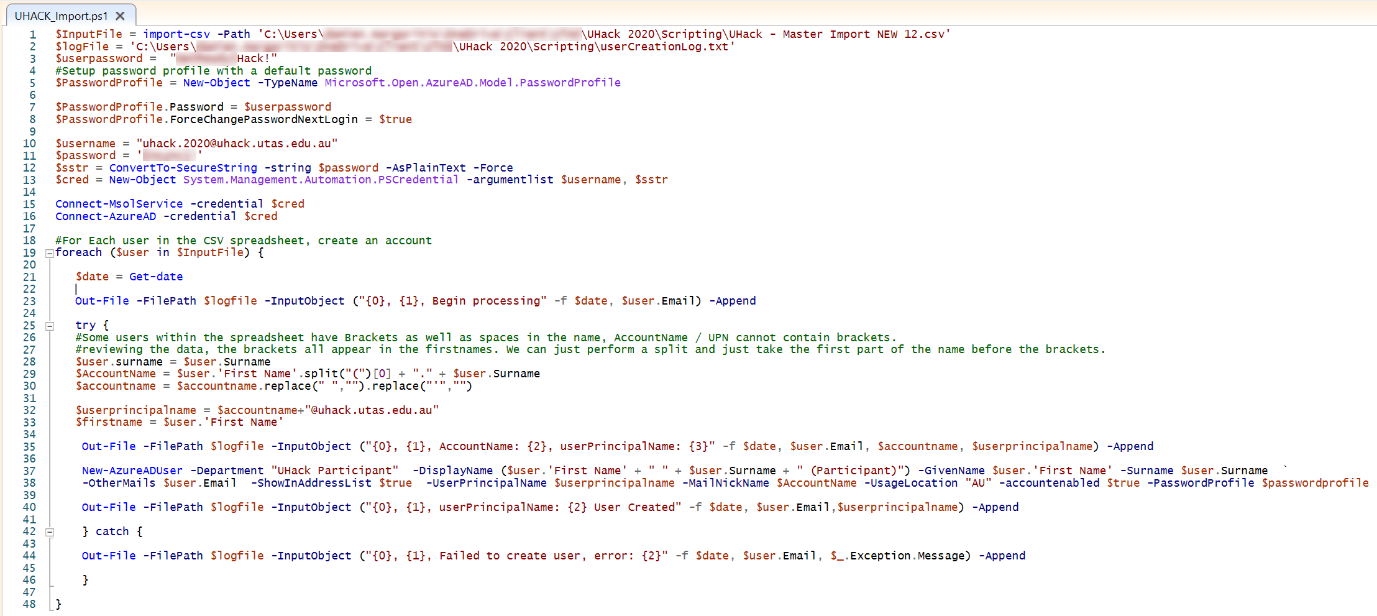
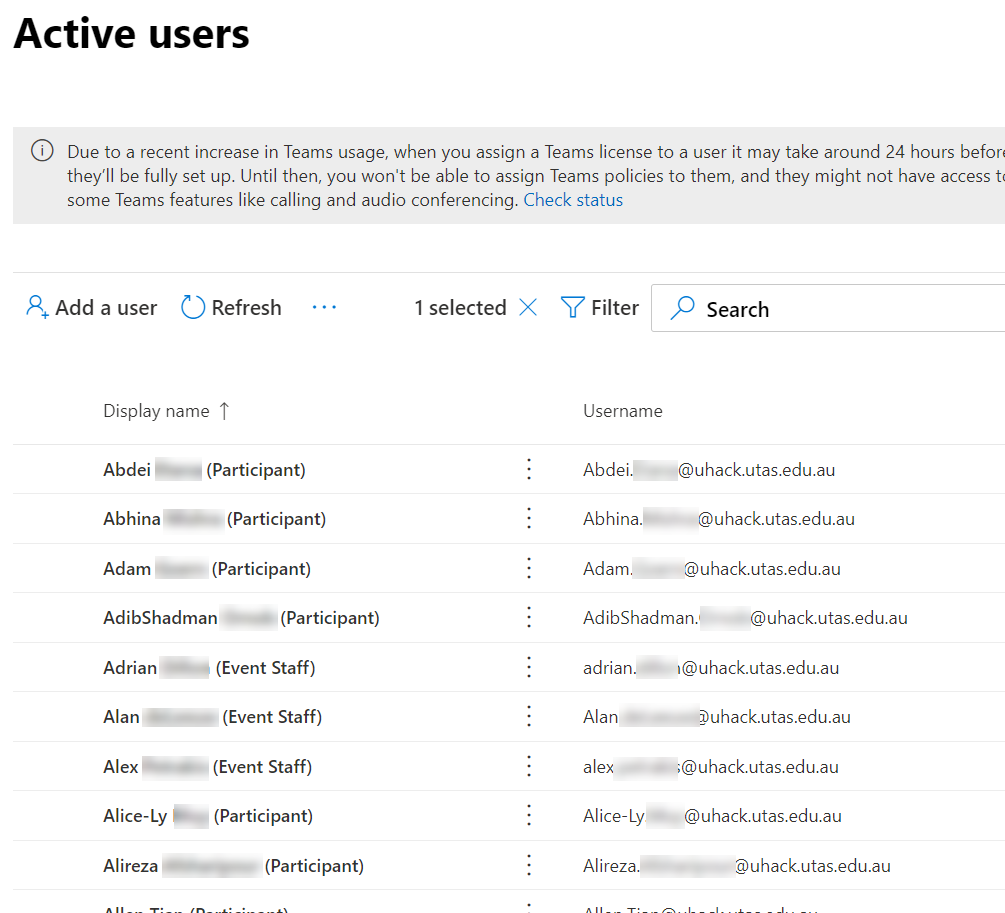
Since its inception, UHack has used Eventbrite to support user registration for UHack, and this year was no different. This year however, data from Eventbrite was the primary input data to PowerShell scripting developed to support user onboarding and email communications. The first step was to create all participants in Azure AD:
Key actions the script completed for each participant:
Set initial password for participants
Force participants to reset their password to something unique at first login
Appended “(Participant)” to display name to make it easier to identify Participants in Teams during the UHack event
Set Department to “UHack Participant” (used for dynamic group membership and automatic licensing\Teams membership)
Alternate email address attribute set to email address used to register via Eventbrite: supporting easy password reset without requiring a participant to register a mobile\email address for password reset
Now that participant accounts had been created, we now needed to get an individualised email out to every participant letting them know how to login, where to find additional information, and how to get in touch with UHack event staff if they had any problems. Initially, mail merge was investigated as a way to achieve this, but was dismissed due to complexity (who remembers how to mail merge?).
Instead, PowerShell was again the winner and would allow us to use the same master participant list that was used to enable users in Azure AD. To do this, the script used for user enablement above was modified to send an email instead.
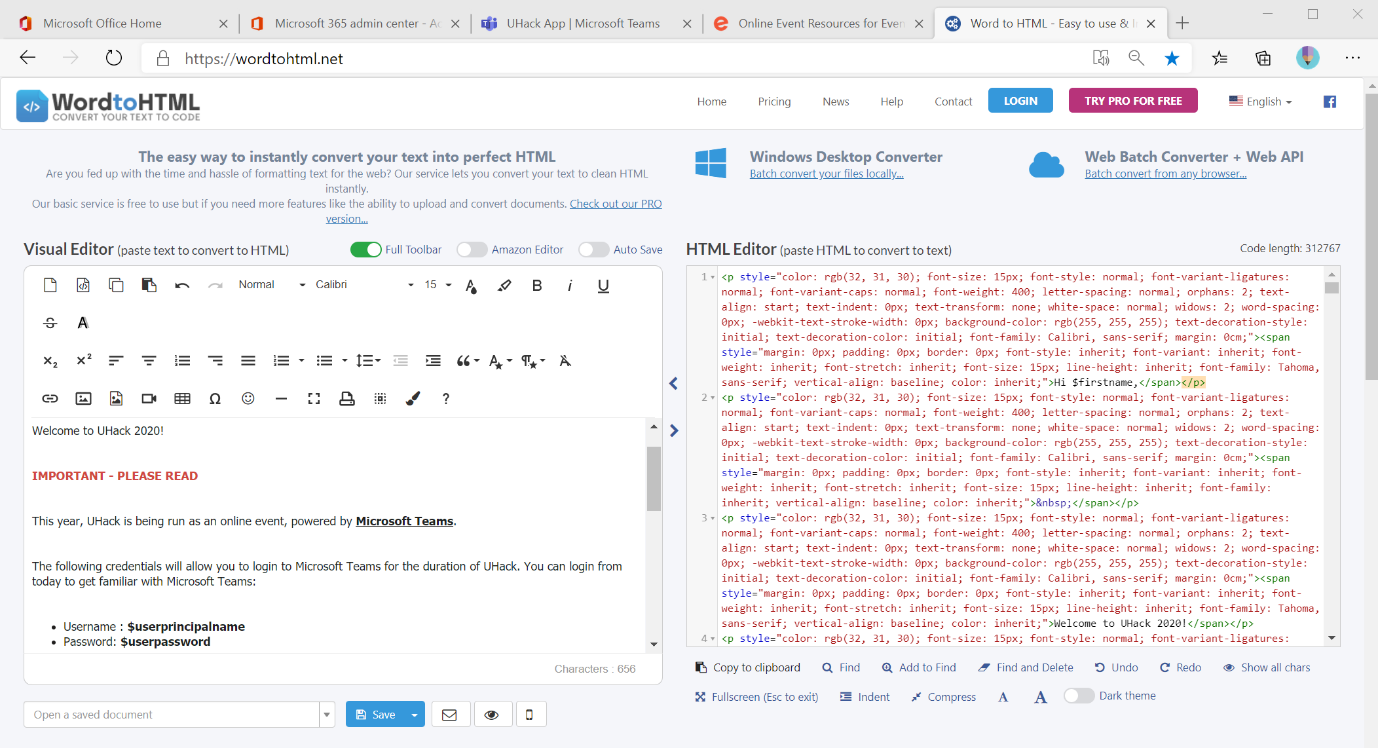
This did require email content to be in HTML format, fortunately sites like https://wordtohtml.net/ make it easy to design in plain test and output the HTML you need:
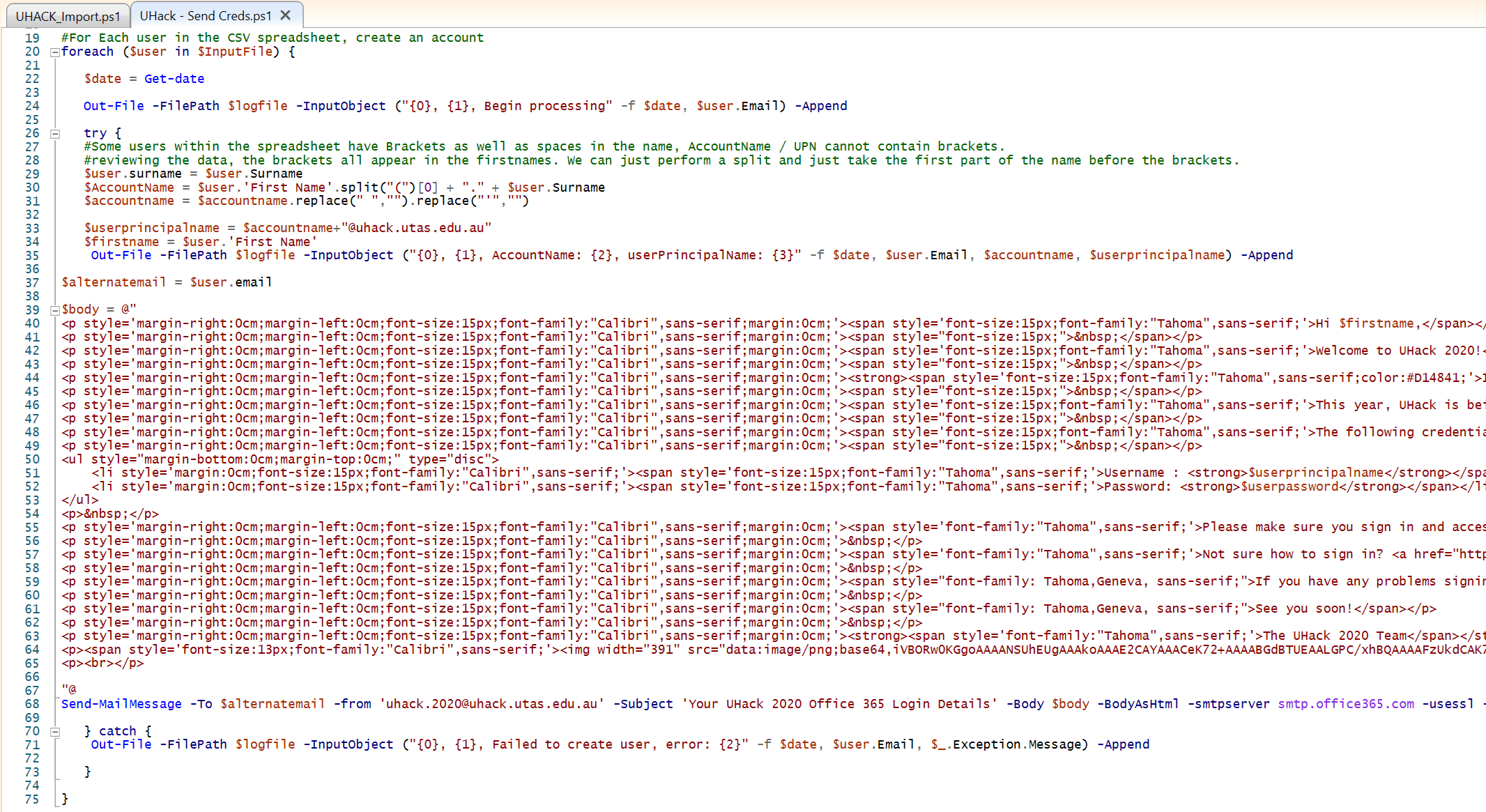
Once we had HTML content ready to go, the following script was used:
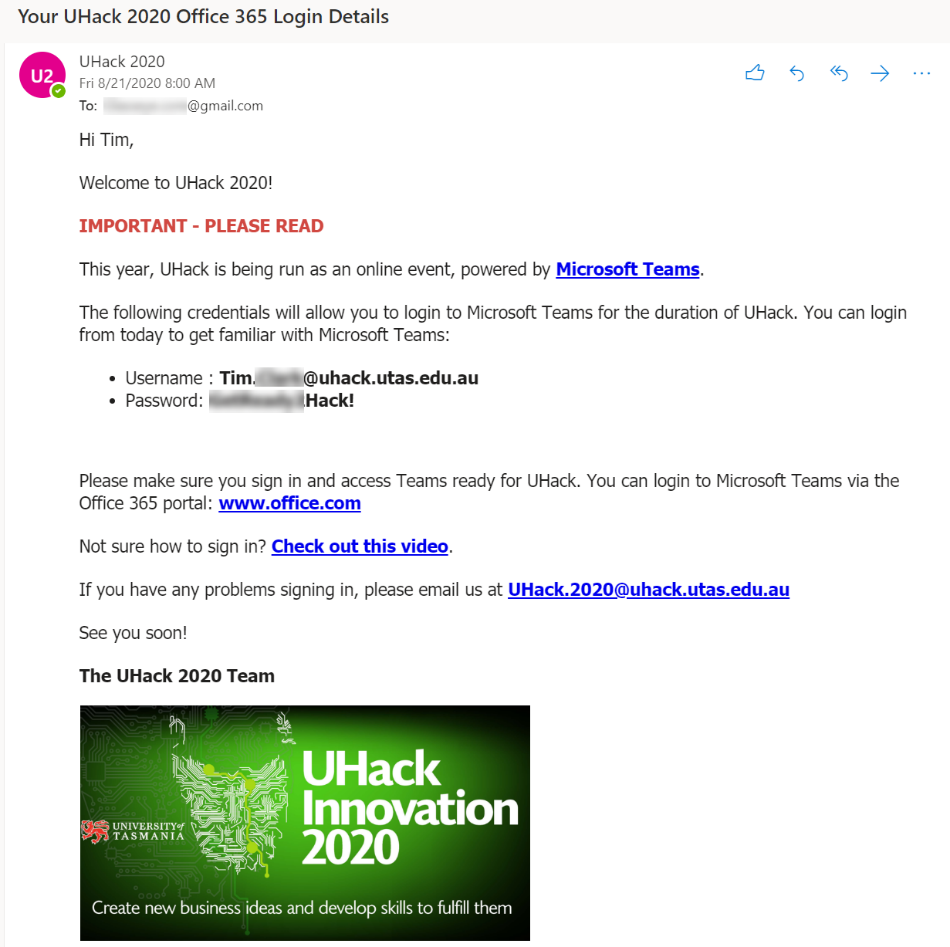
With the resultant email sent to all participants:
Onboarding Assets
Given the radical shift in how UHack would be delivered in 2020, we wanted to make sure that we were able to give participants as much information about what Microsoft Teams was, how it was being used to support UHack, and how to login to the UHack tenant. Links to resources that would achieve this were imbedded in the welcome email: Microsoft Sway was used to create a presentation that explained what was different about UHack this year, and to provide an asset that was dynamic and updateable in the leadup and during the UHack weekend.
In addition to Sway, Camtasia was used to record and edit a first time login video for UHack participants. In under an hour, Camtasia allowed us to record, edit and publish a professional looking video that helped removed friction from the first-time sign in process:
UHack App
In delivering UHack as a pure online event for 2020, there was a desire to provide a single location within Teams where participants could check the schedule, get helpful tips and info, and provide a way to find more details on mentors. Given the relatively short amount of time available to come up with a solution, we needed to find something that could meet our requirements with a minimal amount of development.
Earlier in the year, Microsoft released a template Power App that aimed to provide a user-friendly experience to connect users with information about a crisis. We had deployed this for a number of organisations as a way to communicate during the COVID crisis, presenting it as an app within the Microsoft Teams client.
It would save a lot of time if we could use this as the base of an app for UHack, and that’s precisely what we did. Here is what the Crisis app looks like when deployed with defaults:
And here’s what our UHack App looked like. Company News was repurposed as the UHack schedule, World news (which was initially an RSS feed from the WHO) was repurposed to take an RSS feed of any social content that mentioned UHack 2020. Emergency Contacts became Mentors, a single location where participants could see all mentors listed, click on a link to read more about a Mentor (SharePoint site) or make a Mentor booking with the Bookings app:
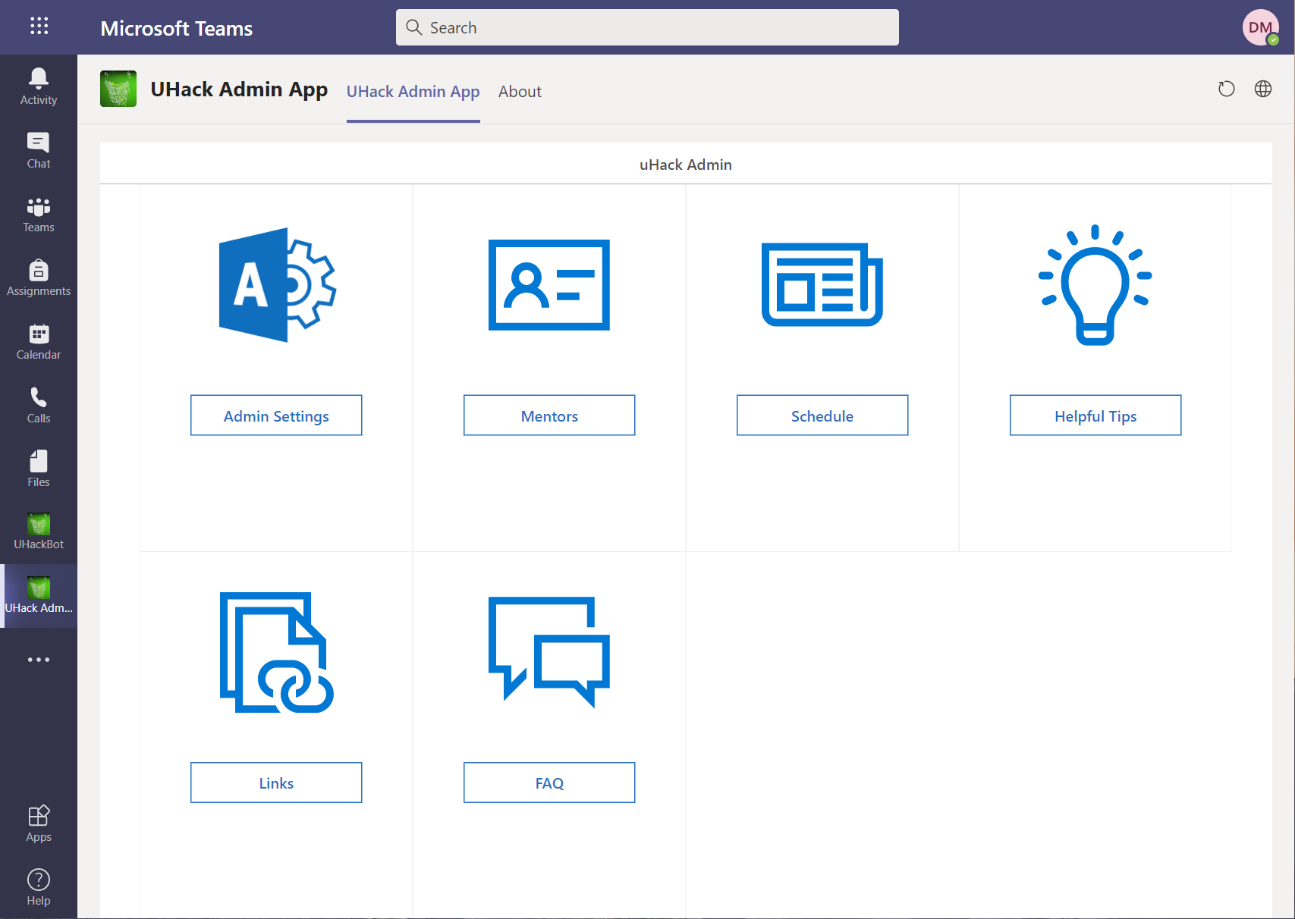
Content within the app was controlled with a corresponding Admin app that allowed event staff to update the schedule, add helpful tips, links, or anything else for the duration of the event:
With minimal effort, we were able to take an off the shelf app template and turn it into something that supported our needs for UHack.
UHack Bot
One other use case we wanted to support was the ability for participants to ask questions, get an automated answer, but also have a mechanism to ask a person if they were unable to find the answer they were after. Building chat bots within Teams is relatively straight forward, with lots of resources available to help you along the way:
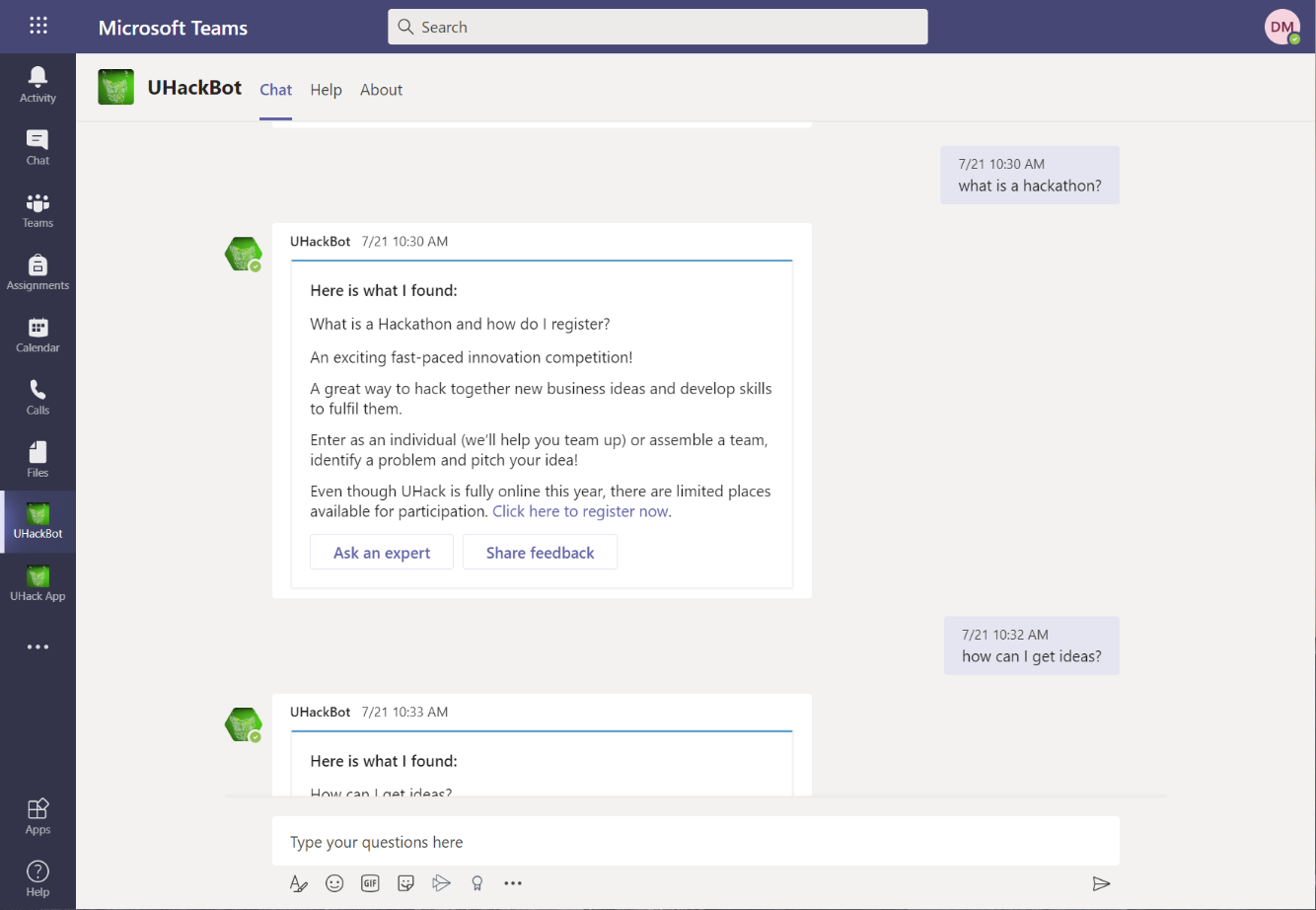
Within the time constraints we were working with, we were able to build a bot that presented useful information to participants:
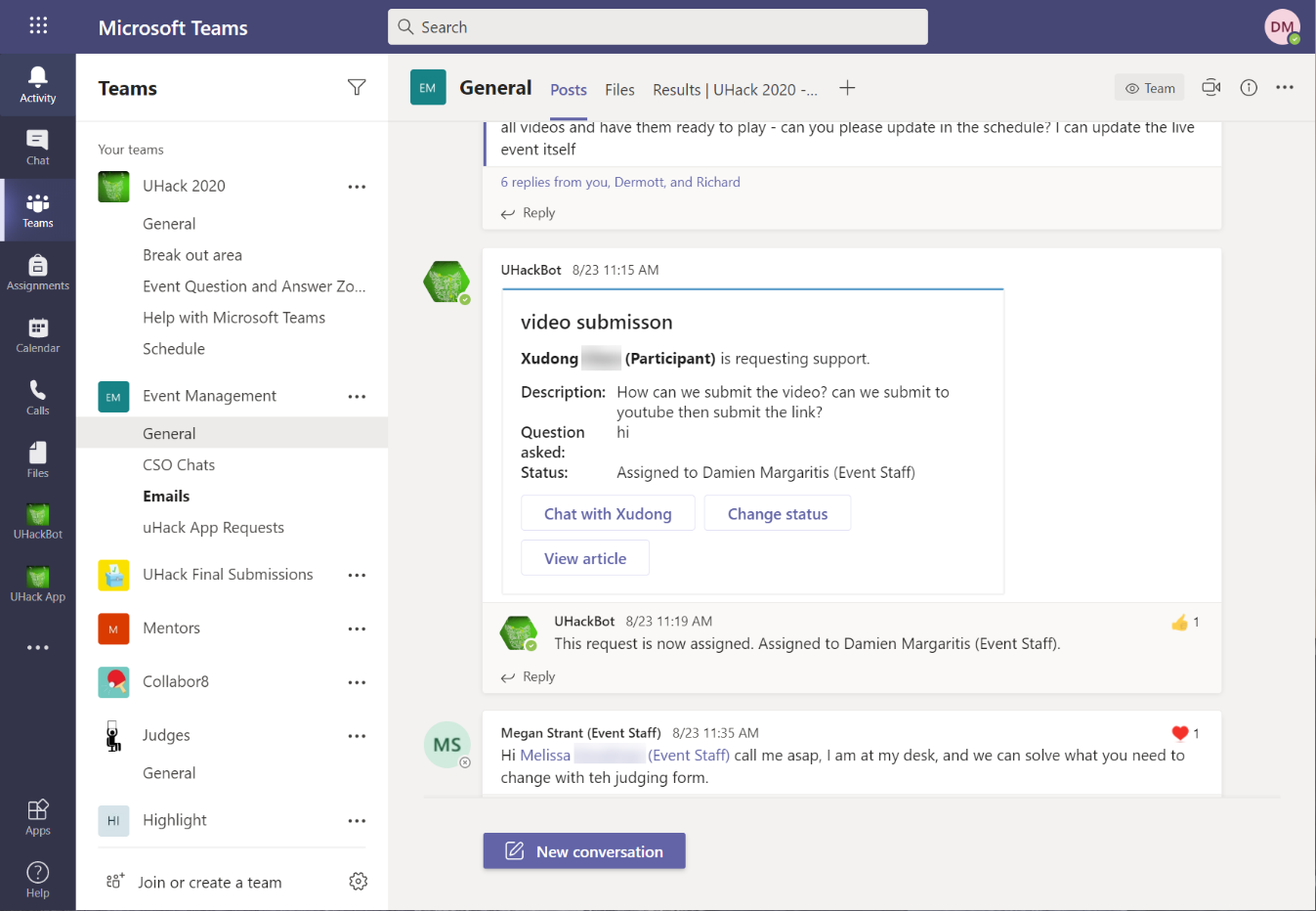
As well as ensuring any queries the bot couldn’t answer were directed to the Events Team to action:
Bookings App
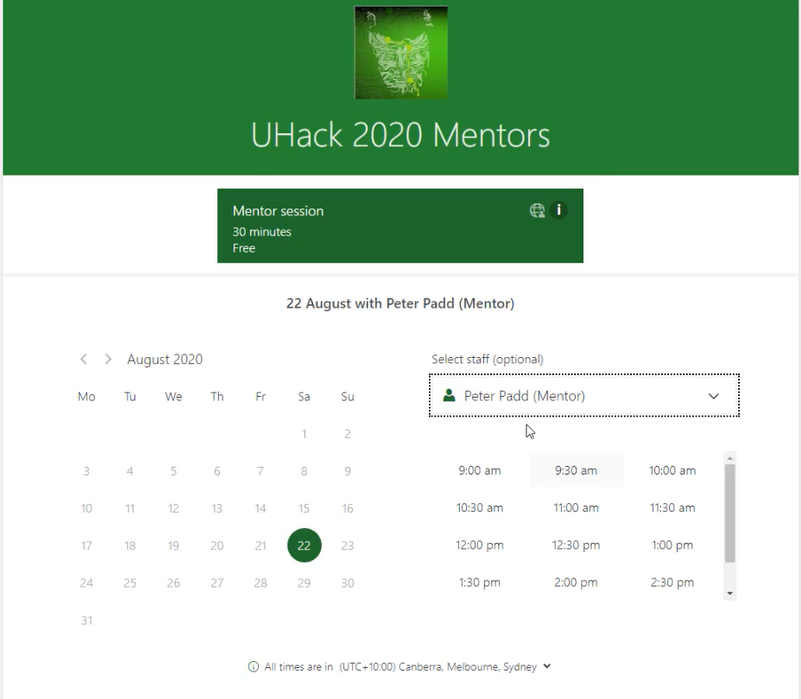
UHack 2019 was the first year that we deployed Microsoft Bookings to support booking mentors, but this year it was more important than ever given that all participants were remote. In addition, the Bookings app in 2020 automatically created the booking as a Teams meeting – ensuring participants and mentors had a quick and seamless way to meet throughout the weekend:
UHack Submissions
When participating in UHack, each team is required to submit the following:
A Business Model Canvas
A 2-minute pitch video
Their innovation submission files
In previous years, UHack submissions were handled by Devpost. This year, however, given that the event was being held on Microsoft Teams, we wanted to find a way to support submissions natively within Microsoft Teams. We also needed to ensure we had a mechanism in place that would allow us to get submitted files prepared ready for judging: all while taking into account that all participants, event staff and judges were scattered throughout Australia.
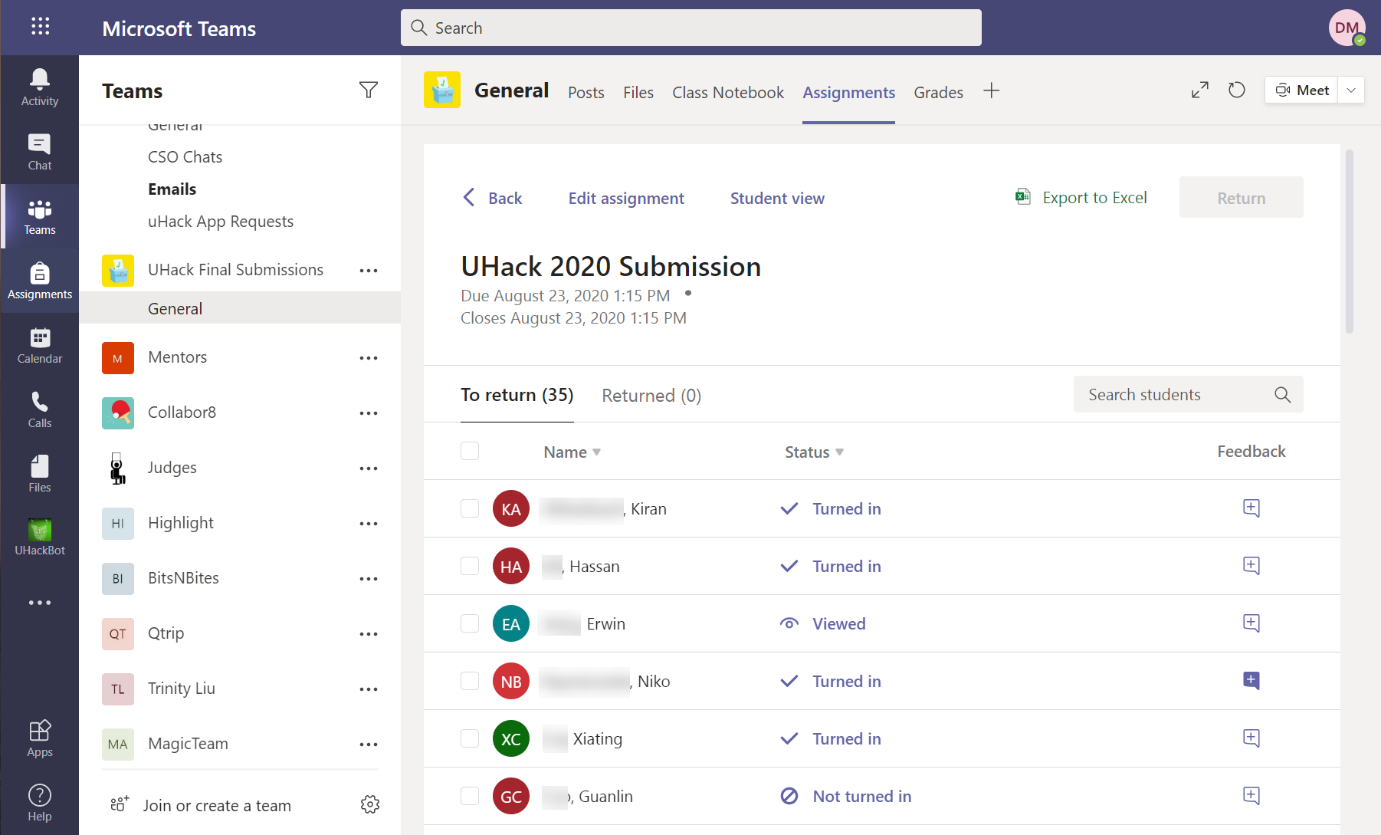
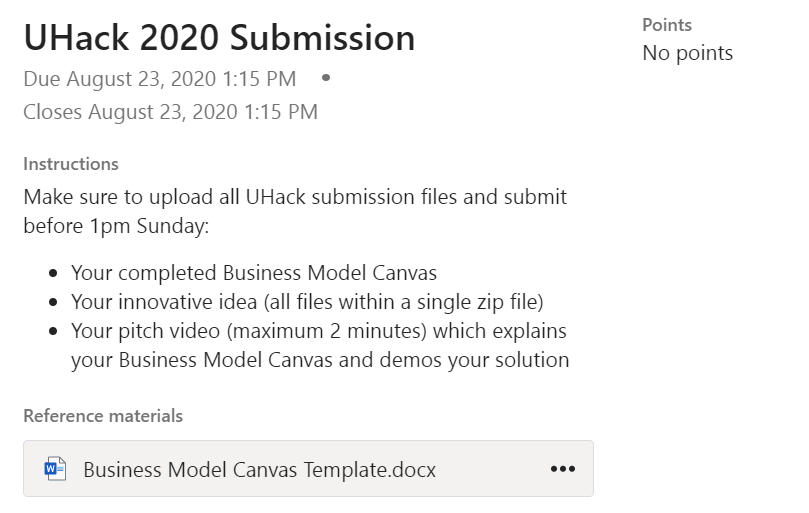
Given that UHack was being held on an education specific Microsoft 365 tenant, this meant that we had access to Assignments in Microsoft Teams to support UHack submissions. We created a single UHack Final Submissions Team, added a single team captain per hacking group to the Team, and created a single UHack 2020 Submission assignment within the team. We took this approach as not every UHack participant needed to submit an assignment: one submission per group. If we had added an assignment to each Teams private Team, every participant would have had the ability to submit, making collecting submissions much harder. Introducing the concept of a team captain and a single UHack submissions teams solved this. Assignment submission also provided a mechanism to ensure everyone had access to the same template documents and instructions, in this case a Word template for the Business Model Canvas:
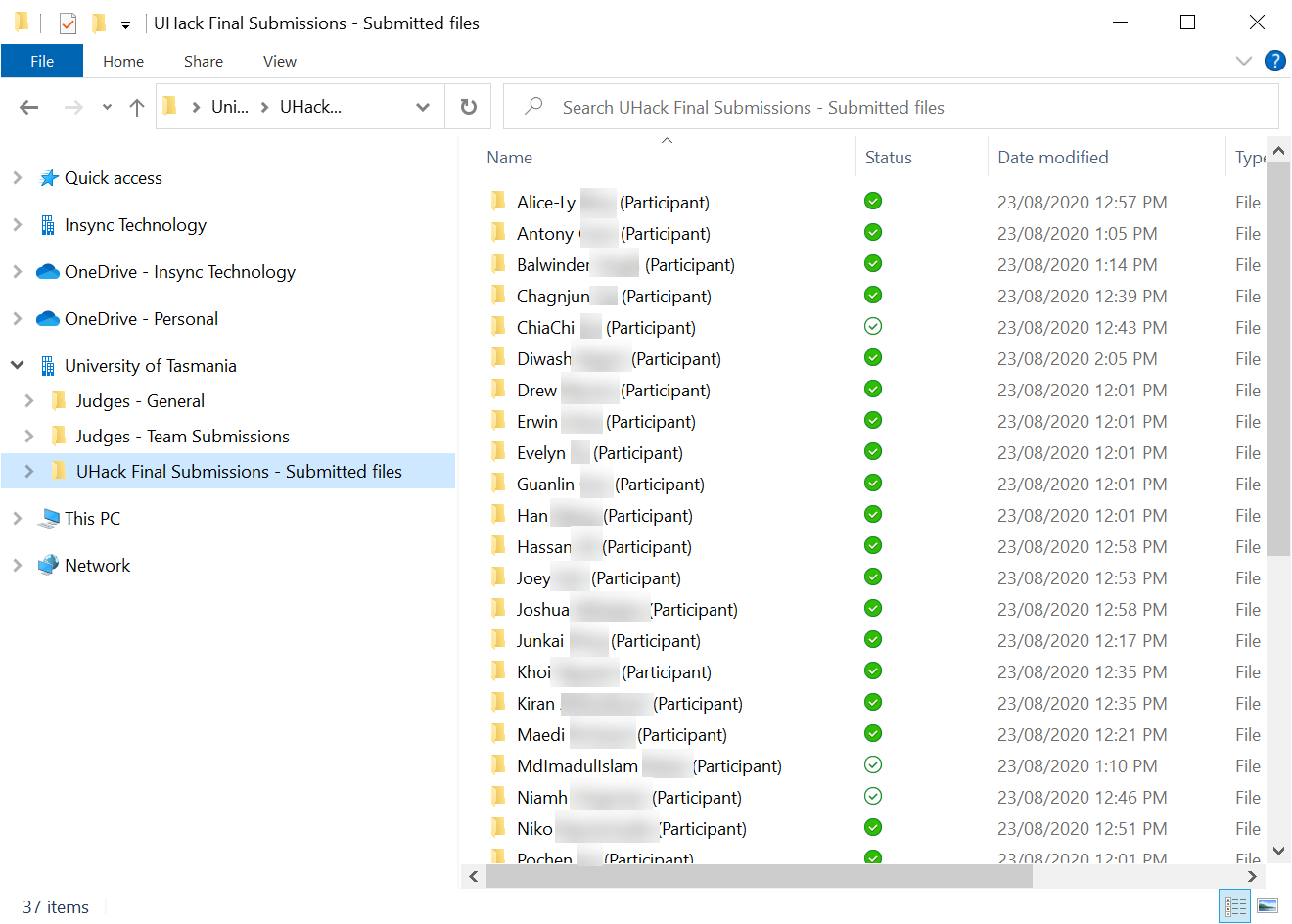
Once all Teams had submitted their work, our next challenge was how to get these files to a Team created specifically for the judges. Whilst it was possible to manually click on each and every submission, download submitted files and upload to another location, we needed something that was quicker and more streamlined. To achieve this, we discovered where submitted files are actually stored in SharePoint, and synced this library to our own PCs:
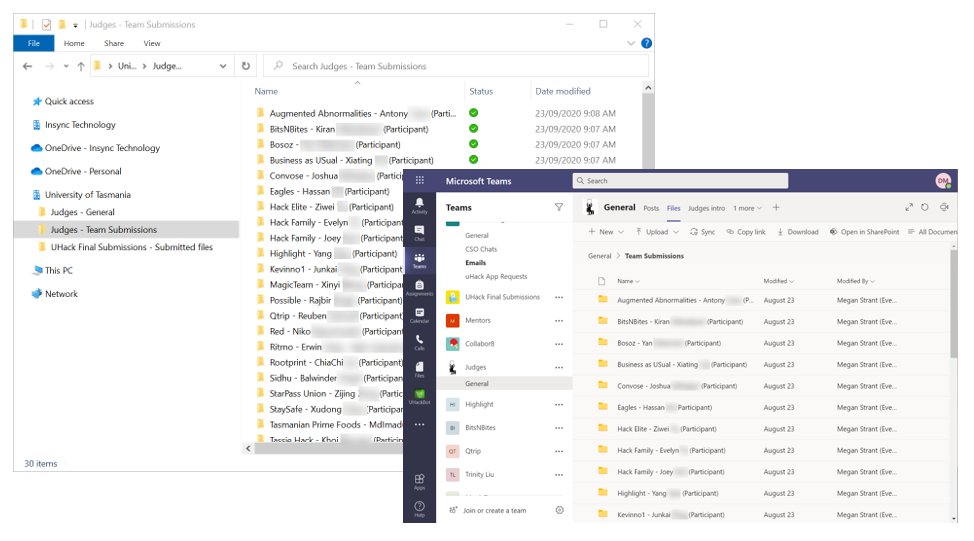
From here, it was much easier to review submitted files, format as required and copy across to the synced SharePoint library from the Judges Team. This allowed the remote Judges to access files quickly and easily:
Some closing reflections…
It wasn’t until the dust had settled and all the post-hackathon wrap-ups had been done that we realised how big a change we had made. Of course, we had built a model of one aspect of the “hybrid workplace” we are all now starting to envision. But more than that –
First, in terms of space: once UHack escaped the limitations of physical space based on all the people and all the action being in one place, it actually became, in principle, boundless. The event serves to promote innovation in Tasmania, but by the time UHack 2021 comes around we’re sure there will have been much discussion of how to attract attendees, mentors and others from outside Australia, never mind the state.
Second, in terms of time: we transformed UHack from an onsite event (one that only worked if you literally went to it) to an online event in a matter of weeks. This took a lot of skill and focus, and a certain level of sleep-deprivation: but it also demonstrates what can be achieved with the ever-improving tools available in Office365. It will only get easier.
And of course the world is now full of online events replacing their onsite predecessors. Commsverse, Ignite, M365 May, TeamsFest… these are not just replacements – they are in many ways improvements, certainly in terms of accessibility, participation, scope and choice. We can’t wait to be involved in the next one. We’ll see you there!
Let’s not beat about the bush: We’re living through some very unusual times. As I write to you, from a government-imposed State of Emergency to deal with the fallout from COVID-19, I can’t help but be thankful for the technologies in place that have allowed me to keep working, to stay in touch with colleagues and loved ones, and to assist other organisations with rapidly enabling their own remote working capabilities – all from the relative safety of my own home.
Since the inception of my organisation in 2013, we have always been “remote ready”: we were born in the cloud, and even before Teams came along, we were using technologies like SharePoint Online, OneDrive and Skype for Business to deliver remote working capabilities. Microsoft Teams is simply the latest iteration of this, bringing both communication and collaboration workloads into the one client experience, as well as making it easier than ever to extend on “out-of-the-box” capabilities deploying custom Teams apps and Bots to solve business issues. And whilst many organisations have been on their own individual journeys to Modern Ways of Working, if there’s one thing COVID-19 has achieved it has expedited these plans: legitimising the very reason organisations should be deploying these technologies in the first place.
One component of the Microsoft Teams platform that’s been getting a huge increase in usage of late is of course Online Meetings. As you would imagine, online meetings have been part of a typical “day in the life of” for me for some time, but now: it’s different. Online meetings have become my primary means of communication with clients, colleagues, and even family and friends (weekend Jackbox Games sessions via Teams are fantastic!)
Given the sudden surge in popularity of all types of online meeting platforms, what better time to review Microsoft Teams security: How does Microsoft protect me and my data?
The Elephant in the Room
Before I go through the various security features Microsoft Teams offers, I should of course address the very reason I decided to put this blog together in the first place. Microsoft Teams hasn’t been the only online meeting platform to see huge increases in usage over the last few weeks: Cisco’s WebEx, Google’s Hangouts Meet and Zoom have also seen huge increase in activity. Of these providers, it’s been the latter that has not only seen a huge increase in usage, but has also drawn a huge amount of criticism.
And for good reason.
There have been a number of security issues uncovered with Zoom over the last few months, continuing a trend that started well before the current COVID-19 crisis. Back in July 2019 we saw a serious zero-day vulnerability uncovered where Zoom were installing a local web server on Macs. Why? To remove clicks from the meeting join experience. In an interview with The Verge, Zoom’s Chief Information Security Officer Richard Farley said that:
“Ultimately, it’s based on the feedback of the people that have been following this and contributing to the discussion. Our original position was that installing this [web server] process in order to enable users to join the meeting without having to do these extra clicks — we believe that was the right decision. And it was [at] the request of some of our customers.
But we also recognise and respect the view of others that say they don’t want to have an extra process installed on their local machine. So that’s why we made the decision to remove that component — despite the fact that it’s going to require an extra click from Safari”
As expected, Zoom’s security woes have resulted in various government bodies (US Senate, Australian Government, Australian Defence Force), private organisations (SpaceX, NASA) and educational institutions (Singapore, New York City Department of Education) banning the use of Zoom for meetings. For security vulnerabilities identified to date (well, not including the most recent but all the others), Zoom’s CEO Eric Yuan has come out and apologised. Zoom is now committing to undertake a 90-day freeze on feature development in order to prioritise resolving these security issues. It does beg the question: is security not considered the most paramount deliverable when deploying any new feature or capability? Should feature delivery be at the expense of security, compliance and privacy?
It was at this point in the article that I was going to provide a (probably quite boring) list of each and every feature that Microsoft employs to ensure your security and privacy are protected when using Microsoft Teams. Rather than reinvent the wheel, you can find links to detailed information Microsoft provides in the Useful Links section at the end of the article. Instead, let’s start with some of the security issues Zoom has encountered, and work back through specific configuration and default behaviour that protects your security and privacy when using Microsoft Teams.
Zoom Offers New Privacy Option for Paid Accounts
Ok, so not a security issue per se, but one I think deserves a mention. In this blog post, Zoom said that, starting April 18th:
“Every paid Zoom customer can opt in or out of a specific data centre region. This will determine the meeting servers and Zoom connectors that can be used to connect to Zoom meetings or webinars you are hosting and ensure the best-quality service”
BRENDAN ITTELSON – CTO, ZOOM
The driver for this was of course the discovery that Zoom call traffic (specifically, transmission of encryption keys) had been routed via servers located in China, even though not a single meeting participant was actually in China. Given that it’s well within the rights of the Chinese government to legally request and obtain encryption keys for secure traffic that traverses their region, this is less than ideal.
What about Teams?
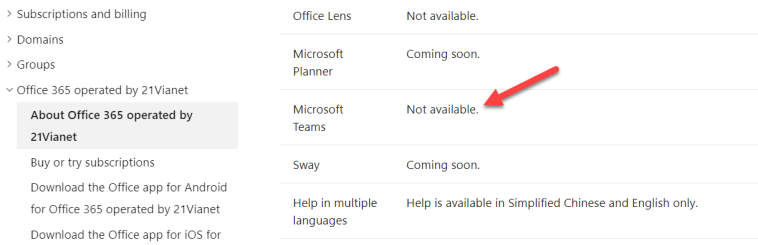
Whilst Office 365 does exist in China, it’s not operated by Microsoft: it’s operated by 21Vianet. Microsoft license their service and technology to 21Vianet, who only provide a subset of Office 365 capabilities, of which Microsoft Teams is not one of them:
So, unsurprisingly, Microsoft does not route any traffic (Teams or otherwise) via China. Moving on.
Zoom “rolls their own” encryption scheme
Leading on from the previous issue above, the same researchers that discovered Zoom call encryption keys traversed China also discovered that the encryption keys themselves were not up to industry standards. Zoom’s own security documentation claims that they can use “AES-256” encryption for meetings, although the use of the term can does not necessarily mean does. On further investigation, the researchers also found that:
“In each Zoom meeting, a single AES-128 key is used in ECB mode by all participants to encrypt and decrypt audio and video. The use of ECB mode is not recommended because patterns present in the plaintext are preserved during encryption”
So in summary, not only were encryption keys traversing a region where they may be subject to compromise, the keys themselves weren’t all that secure in the first place.
What about Teams?
All network communications in Teams are encrypted by default. No need to enable, it’s by design. All Teams services use a combination of Public Key Infrastructure (PKI) certificates and various industry-standard encryption techniques (OAUTH, TLS), and uses Secure Real-Time Transport Protocol (SRTP) to secure media streams (audio, video and content sharing). This includes the use of 256-bit Advanced Encryption Standard (AES) encryption. Check out this Microsoft Docs article for more details.
Zoombombing
If you’re not familiar with the term, “Zoombombing” refers to the practice of uninvited attendees joining a Zoom meeting, who may then decide to go forth and do things like share pornographic images with participants. Given the huge uptake of Zoom by not just businesses but also by educational institutions, this is far from ideal.
How does Teams Prevent this?
First and foremost, Teams provides the ability to disable “anonymous” meeting join for an entire Office 365 Tenant. This is configured from the Teams Admin portal under Meeting Settings:
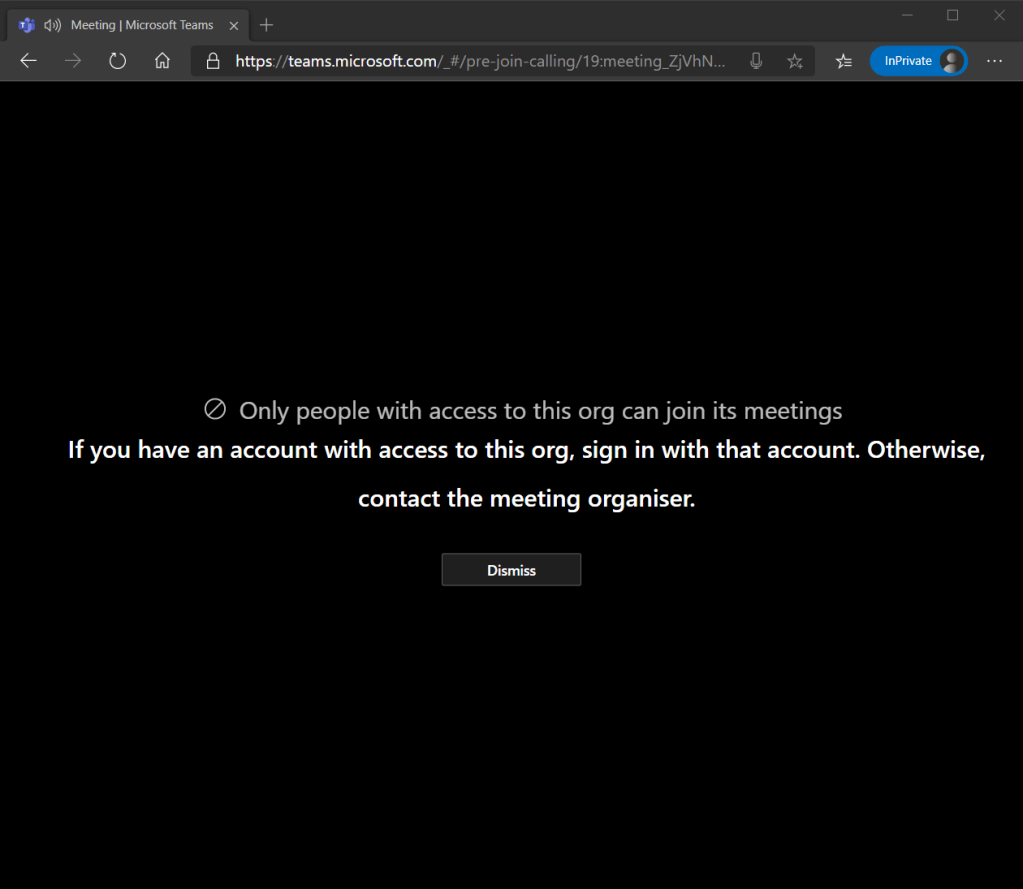
If I disable this, with a single setting I can ensure any meeting participant that wants to join meetings within my organisation must be an authenticated user. This means they need to be signed in with a valid active directory account. If a rogue user did somehow manage to get access to the meeting join link (say, a student copied it to a public forum or gave it to friends), and attempted to join as an unauthenticated user, meting entry will be denied:
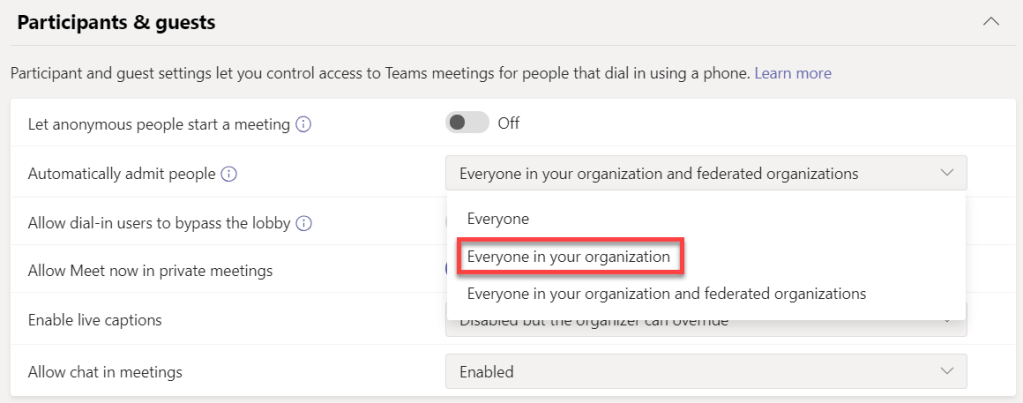
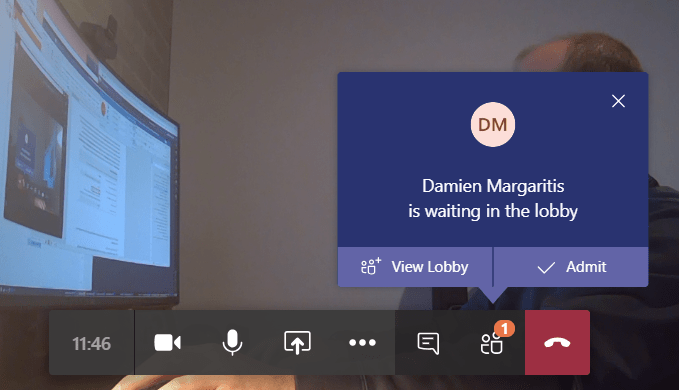
Now, disabling anonymous meeting join does not mean that no external participants can join your meetings, it just means that anonymous (unauthenticated) external participants cannot join your Teams meetings: externals can still join as long as they are authenticated against their own Office 365 Tenant. If you don’t want external authenticated meeting participants to automatically be admitted to your Teams meetings, you can configure the Teams Meeting Policy (more in this below) to limit automatic entry to Everyone in your organisation, rather than Everyone in your organisation and federated organisations. This will force them to the lobby to be admitted by the meeting organiser:
The Teams Meeting Policy
The Teams Meeting policy is used to control what meeting features are available to meeting participants for meetings that are scheduled by users in your organisation. The below screen grab shows what the default configuration looks like, which applies to all Teams users out of the box. You can of course create as many meeting policies as you like, allowing you to centrally control which users can do what:
Looking at the Participants and guests section above, and assuming that I’ve allowed anonymous meeting join for my organisation, I have granular control over how anonymous meeting participants join my meetings. Default settings do not allow anonymous participants to start a meeting, they are not automatically admitted to the meeting (must go via the meeting lobby), and dial-in (PSTN) participants must also wait in the lobby until admitted by a meeting organiser\presenter.
A Little bit on Meeting IDs
As a side note, a contributing factor to Zoombombing being able to occur in the first place has been the relative ease “Zoombombers” have been able to access a valid Zoom meeting ID. Meeting IDs were easily accessible (displayed in plain text) in the app’s title bar (since removed from Linux, Mac & Windows apps), and default password settings (no meeting password) also meant that Zoom permitted anyone to join a meeting as long as they had the Meeting ID, no password authentication required. Couple this with “War Dialers” – automated tools capable of finding valid Zoom meeting IDs and which ones are not password protected – and you can see why this might be an issue.
To be fair, Zoom are working to address these issues, and I understand what they were trying to do in the first place: make it super easy to join a Zoom meeting. Unfortunately, designing for this level of simplicity and not enforcing some sort of authentication mechanism by default has been a major contributing factor to Zoom’s security woes.
What about Teams?
To start with, there’s no concept of a personal, static Meeting ID within Teams meetings. Each meeting (ad-hoc or scheduled) has a unique meeting identifier, one that’s much more complex than a 9-11 digit number, and it’s never on display during a Teams Meeting. Here’s an example of a Teams meeting URL (before you try and join, I’ve changed two characters 😊):
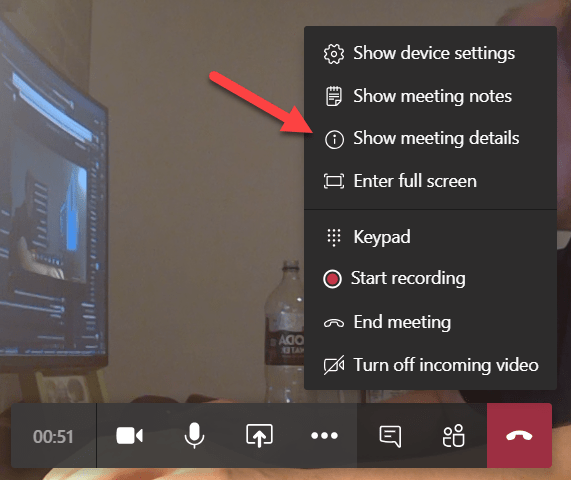
If you are in a meeting and you want to share meeting join information “manually”, Teams supports this by allowing you to copy all meeting join information to the clipboard and pasting into a medium of your choice:
500,000 Zoom accounts sold on hacker forums
As reported by Bleeping Computer, thousands of leaked Zoom account details have been appearing on hacker forums. Details being traded include a victim’s email address, password, personal meeting URL, and their Host Key (a 6-digit PIN used to claim host controls in a Zoom meeting).
Now, it should be noted that Zoom itself need not be hacked in order for these lists of compromised accounts to exist. Humans have a propensity to use the same password for multiple online services, so it only takes another service where you’ve used the same password to be compromised for a hacker to try their luck using your creds somewhere else – say Zoom for example.
Unsure if any of your passwords been compromised? Go and find out at HaveIBeenPawned?
How does Teams ensure this doesn’t occur?
Given that Teams is built on top of Office 365, Azure and other related Microsoft cloud technologies, it’s no surprise that authentication is handled by Azure Active Directory (Azure AD\AAD). Azure AD is Microsoft’s cloud-based enterprise identity service, and it provides things like Multi-Factor Authentication and Conditional Access to help protect your users from cybersecurity attacks. These security capabilities aren’t unique to Microsoft Teams: Azure AD underpins authentication across Microsoft’s entire ecosystem. I don’t use different credentials to access Teams than I do with any other Microsoft platform, including my Windows 10 PC. Couple that with Single Sign On (SSO), and I now have one set of secure credentials that I use to access my Microsoft devices and any subsequent applications I open without needing to enter in credentials over and over again (to be honest, I don’t use a password at all – I use Windows Hello).
Of course, given that we’re using one set of creds to access all our cloud services (including Teams), how does Microsoft protect me if my username and password are somehow compromised?
Multi-factor Authentication
If you don’t use Azure AD Multi-Factor Authentication (MFA) today, stop reading and get onto it. Right now. There is literally no easier way to protect against 99.9% of cybersecurity attacks. Deploying MFA ensures that access to you account is only possible if you have both the account password and access to a secondary device (sometimes referred to as “something you know, something you have”) that provides an additional layer of security. The concept isn’t new, it’s just a little more advanced than it used to be – who remembers these?
Today, we typically use an app on a smart phone to support MFA, and I don’t have to enter a code anymore, I can simply click approve:
To get the above screen shots, I actually had to “downgrade” MFA capabilities on my account, because today I’ve gone one step further and don’t use a password at all when I need to sign-in to Office 365, I use Passwordless MFA – check out more on that here.
Conditional Access
So, my account credentials are protected using MFA. What if I want to go even further?
Conditional Access is a feature of Azure AD that enables organisations to define specific conditions for how users authenticate and gain access to applications and services. For example, I can use a user’s location (in the office or remote? In Australia? Or Overseas?), the device they’re trying to use (is this a device registered against our organisation or not?), the application and even input from real-time risk analytics to decide whether to allow someone access to Teams:
Here’s an article from 2017 (yes, it’s been possible to do stuff like this for ages) that talks about using Conditional Access with Microsoft Teams.
Conclusions
I think it’s safe to say that the last few months have seen unprecedented change in how people around the world work, communicate, and stay productive. The trend to support “remote ways of working” is nothing new, but what is new is organisations moving to using these tools so rapidly in response to a global pandemic. Human nature is to gravitate towards a solution that provides the path of least resistance: it’s something we refer to in the IT world as “Shadow IT”. If you don’t give your users tools to help them be productive, they will find a way, and we’ve seen this occur on a mammoth scale with the uptake of Zoom to meet online meeting needs. Unfortunately, it’s come at a cost to security and privacy. You don’t have to take my word for it: when Zoom’s CEO Eric Yuan was asked if he would now prioritise security in the wake of all these security issues:
“If you asked me this question one year ago, I would hesitate to say yes. But now, absolutely yes. We’re going to transform our business to a privacy-and-security-first mentality.”
ERIC YUAN – CEO, ZOOM
For any new feature or capability being rolled out to Microsoft Teams, security and compliance are absolute fundamentals. Microsoft have a commitment to ensuring privacy and security for its customers before all others – there business and reputation depend on it. Jared Spataro, Corporate Vice President for Microsoft 365 captures this commitment perfectly:
“Now more than ever, people need to know that their virtual conversations are private and secure. At Microsoft, privacy and security are never an afterthought. It’s our commitment to you—not only during this challenging time, but always. Here’s how we’re working to earn your trust every day with Microsoft Teams”
JARED SPATARO – CORPORATE VP, MICROSOFT 365
For Zoom, a core focus on features and simplicity has come at the expense of security and privacy. If these things are important to you and your organisation, use Microsoft Teams.
Useful Links
Check out the following links for more on Microsoft Teams security and Meeting Policy configuration:
If you’re using Microsoft Teams, you’re no doubt aware that it provides a powerful platform for online meetings. Built on cloud first, “hyper-scale” technologies that actually originated from the Skype consumer world (as opposed to Skype for Business\Lync), you will have no doubt have noticed that the media stack within Teams provides an improved meeting experience and feature set than what was possible with Skype for Business.
In addition to joining meetings from the Teams desktop, web or mobile client, Microsoft Teams also supports a range of devices that extend the Teams meeting experience into your meeting rooms. There are a number of devices available that fall into the Teams “native” category, meaning that they each run Microsoft Teams software and sign into Teams without any sort of third-party gateway or interop service:
Surface Hub 2S; Microsoft’s premier collaboration device that also support native Teams meetings
Microsoft Teams Room Systems; suitable for a more traditional video conferencing experience but with more advanced feature sets
Whilst the breadth of Teams native devices for meeting rooms provides a great meeting experience, we of course may still require some sort of interop with other meeting providers in order to meet an organisation’s specific use cases. How do I achieve this?
Where We’ve Come From
If wo go back a few years to a pre-Teams world, VC interop was typically between two camps (well, protocols): SIP and H.323. Sure, it may have been a specific flavour of one of these protocols (Skype for Business SIP for example), but interop typically consisted of having a SIP environment on one side and H.323 on the other. It was then possible to deploy some sort of middleware in between (Polycom, Acano, Pexip), allowing endpoints from each disparate environment to call between and join meetings on the other.
Today however, things are somewhat more “involved”. We no longer only have SIP or H.323 environments to take into account when planning for interop. Aside from Skype for Business SIP and “standards based” SIP\H.323 (Cisco, Lifesize, Polycom) endpoints still in use by many organisations, we now also have a wide array of web-based, proprietary platforms which, on their own, provide great features and capabilities, but don’t necessarily make it easy to interop with each other. These cloud based solutions were borne out of necessity: SIP & H.323 protocols have been around for decades, and if meetings providers were to innovate, it made sense to develop online, web based platforms (Microsoft Teams, Zoom and WebEx for example) that left limitations of traditional protocols behind and allowed for the development of a much more feature rich and dynamic offering.
When using any one of these online meeting platforms, at least for users joining from a PC, the experience might be disjointed but it’s typically straight forward: click a link, join from a browser, or be directed to install a client that will allow a user to join a meeting as a guest. But what about joining another online provider’s meeting from my own meeting rooms? And if we add in the still common requirement to interoperate with both standards-based SIP\H.323 endpoints and any one of the various online platforms, how do I support these use cases? What technologies are out there that would achieve this, and with what advantages or limitations?
Interop solutions for Teams-based organisations
Given that I specialise in Microsoft’s Modern Workplace solutions (which the title of this article probably gave away), I start with the assumption that you are using Microsoft Teams as your core collaboration and communication platform. Which, of course, is much more than just a conferencing platform: it’s the core of your Modern Workplace strategy, supporting not only Communications capabilities (Chat, Calling and Meetings) but also Collaboration capabilities that tightly integrates with the rest of the Microsoft\Office 365 suite of products. If this sounds like you, read on.
Do I even need interop?
A valid question. Before delving into interop options, it’s important to understand your organisations specific use cases, and work back from there to develop your meeting room device strategy. If your organisation meetings any of the following criteria, you may not need any interop at all:
Meetings are scheduled for internal staff only
Your organisation always controls the scheduling of meetings, and external participants join via a web browser, their own Teams client, or via a dial-in PSTN number (note: an audio conferencing license required to support this)
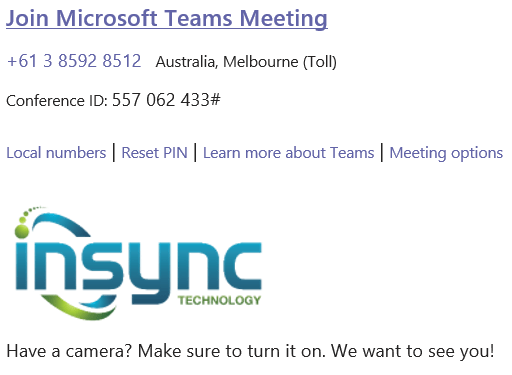
With no interop, and with an audio conferencing license assigned to my Office 365 account, here’s what a standard Microsoft Teams meeting invite looks like (logo\footer text is custom of course, configurable from the Teams Admin Portal):
With no interop, a far end participant has two methods to join my Teams meeting. They can click the Join Microsoft Teams Meeting link and join via their Teams client (if they are a Teams user) or web browser, or alternatively they can call the dial-in PSTN number, enter the Conference ID and be joined to my meeting. Dial-in access does not give the same rich experience as joining from the Teams client or a web browser, but I still consider it an important feature to include in Teams meetings invites: the “lowest common denominator” for meeting join if you will.
Before we get into interop scenarios, there is one last scenario that can be supported on Microsoft Teams meeting room devices that might meet your needs without interop, and that’s joining another organisation’s scheduled Teams meetings from your own meeting room devices.
Teams Meeting Join between Organisations – Without Interop
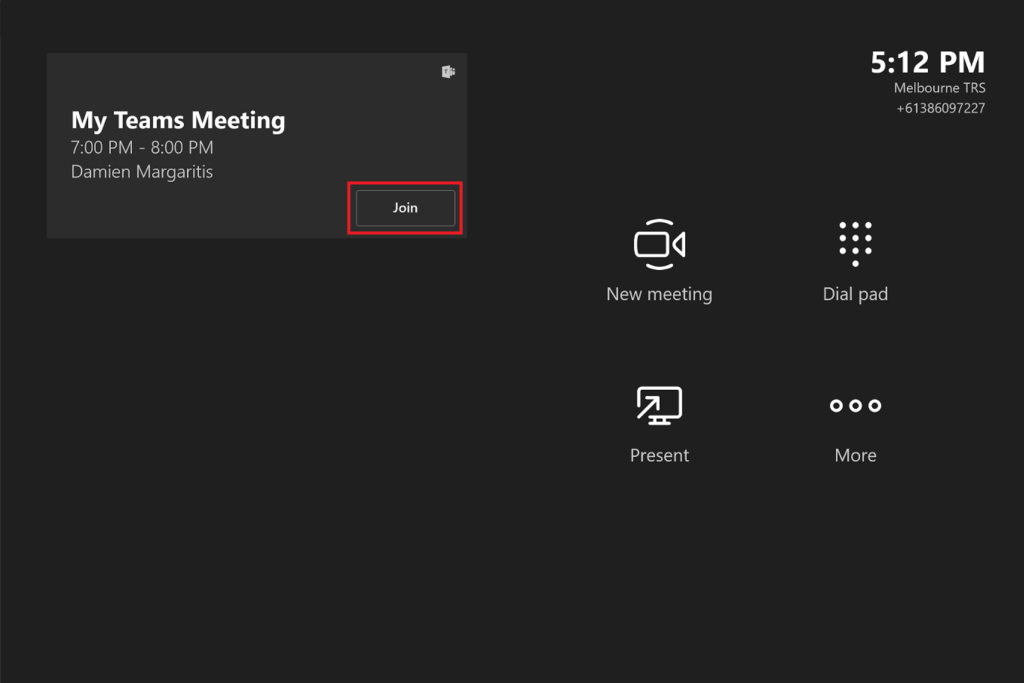
Assuming the above invite was sent to one of your native Microsoft Teams Rooms, a simple Join button would appear on your device, ensuring the meeting join workflow is simple and straightforward. We refer to this as One Touch Dial (OTD)
Here’s an example on a Microsoft Teams Room device:
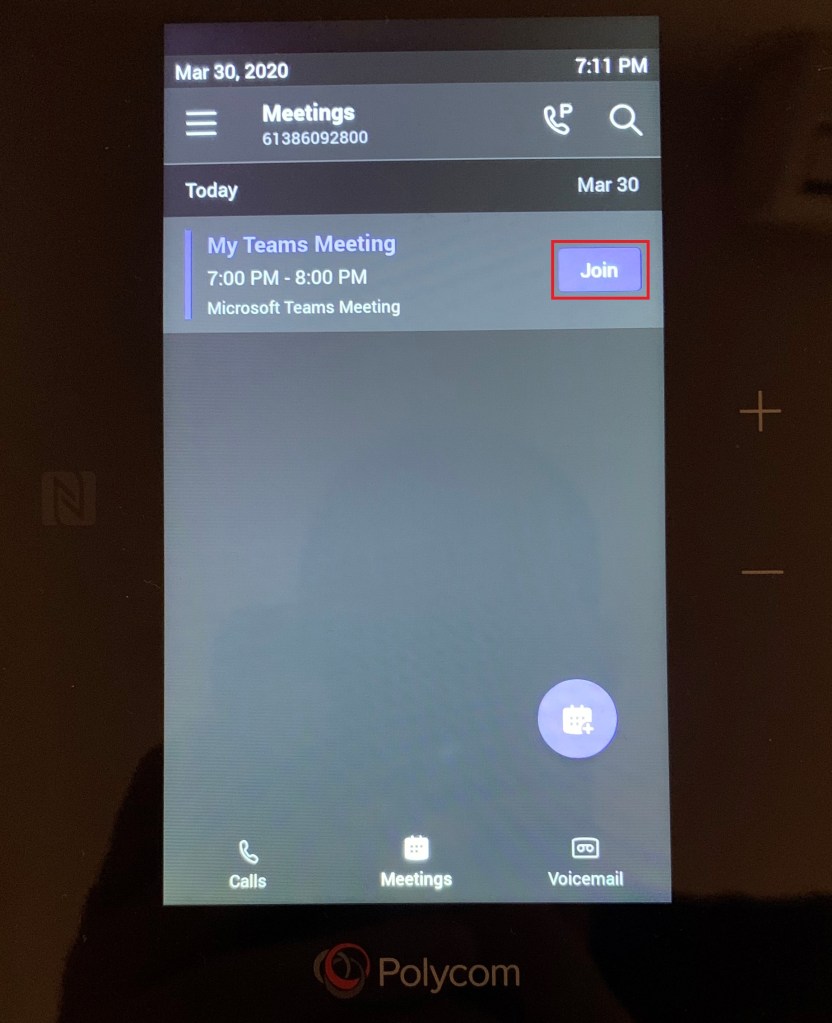
The same meeting sent to a Poly Trio device:
If you’re using Teams native room devices already, this might not be news to you. But what you may not know is that a Teams device can also support a One Touch Dial experience into another organisation’s scheduled Teams meeting.
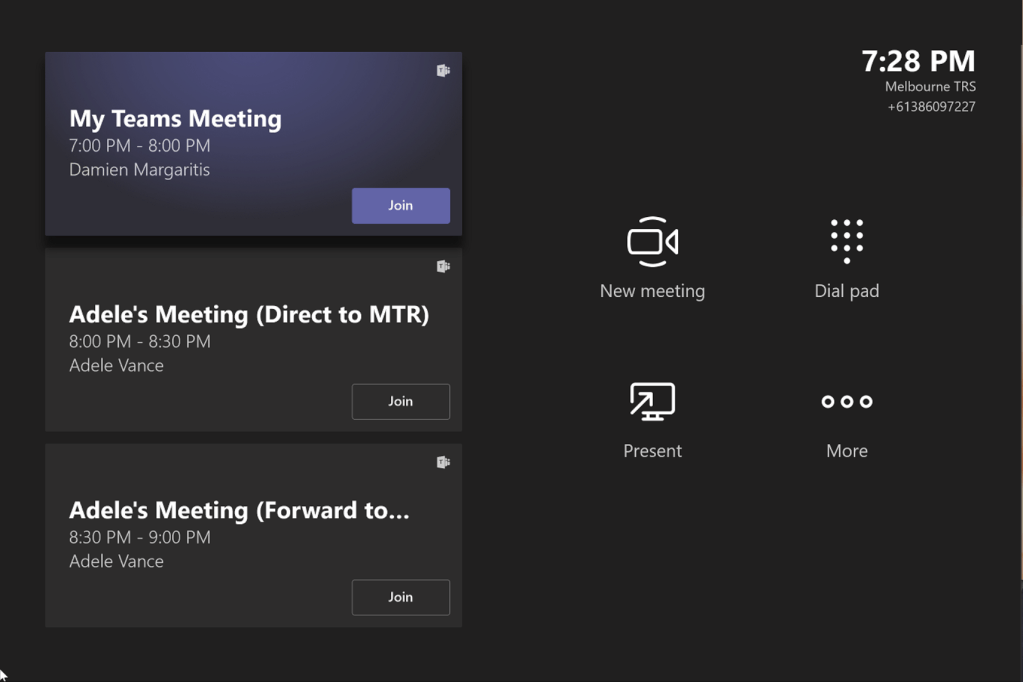
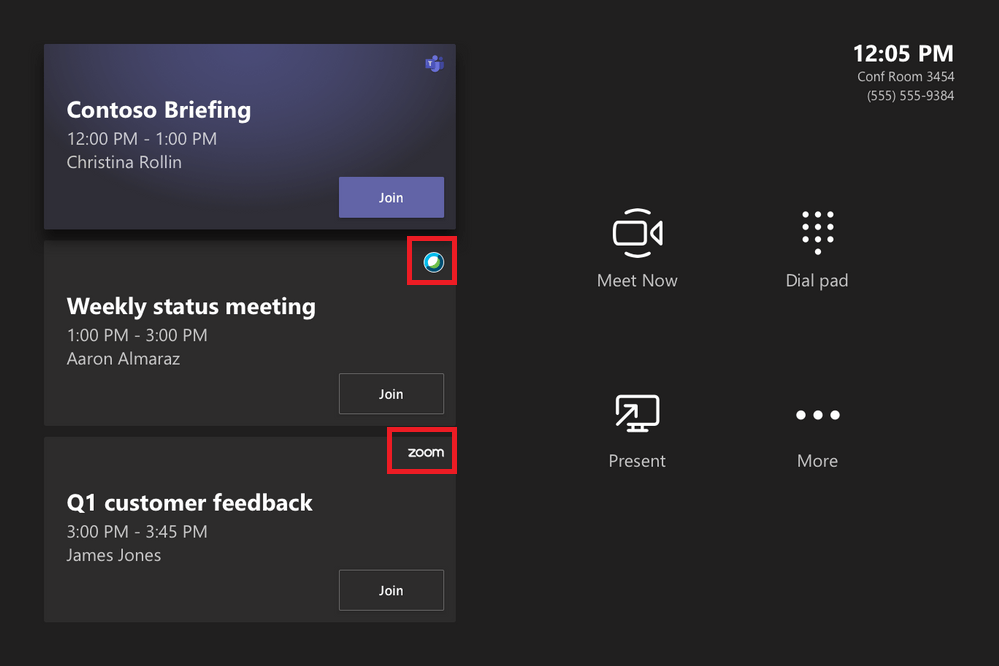
In the following example, the first meeting listed is my own internal Teams meeting. The second invite was sent direct from a user at another Teams enabled organisation (Adele Vance) direct to the room’s email address, and the last meeting invite was sent to my personal email address that I then forwarded to the meeting room (generally a more likely scenario than direct send):
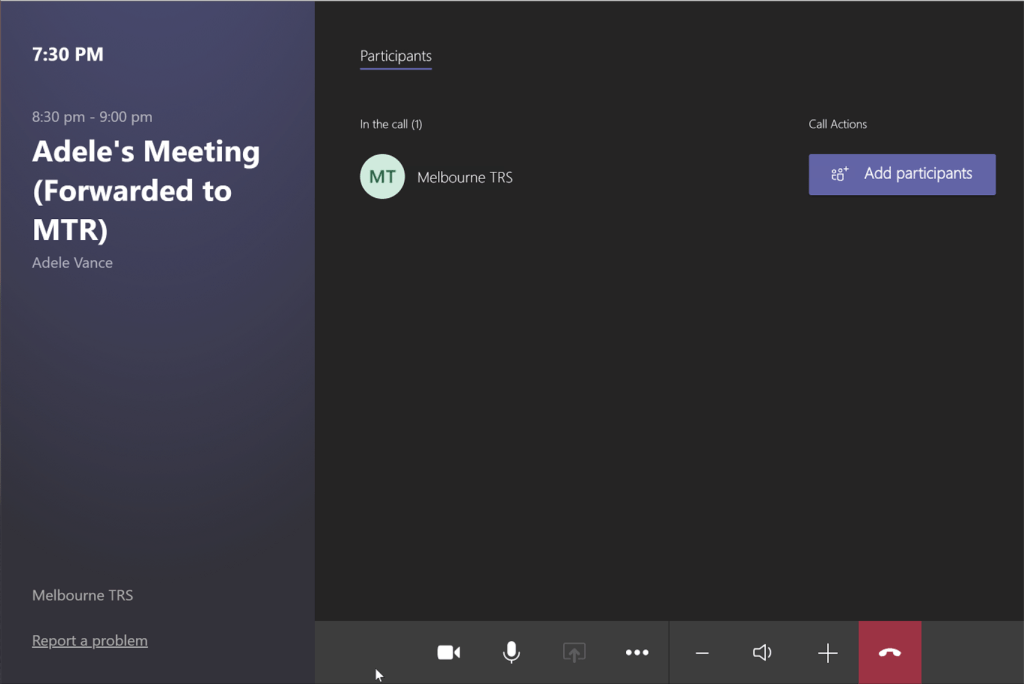
Note that both external meetings are shown, along with a Join button. Clicking this on either scheduled meeting grants me access to Adele’s scheduled meetings:
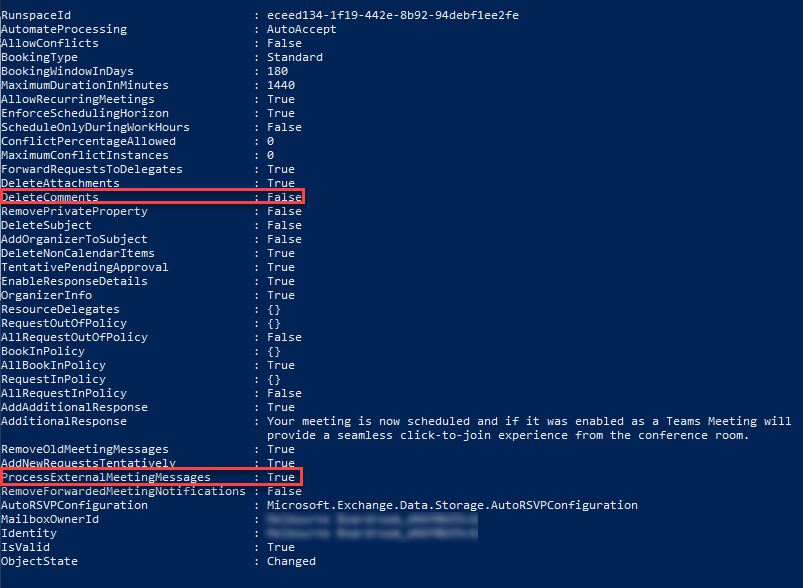
If this is all the “interop” you need, there’s some minor configuration required. Your IT admin will need to ensure the following settings are configured on each of the resource mailboxes where you want to support One Touch Dial into another organisation’s Teams meeting (of course, if you want to send meetings to another organisation’s meeting rooms, you will need to request they do the same):
From Set-CalendarProcessing:
-DeleteComments $false
-ProcessExternalMeetingMessages $true
If you’re reading this article in the first place, there’s a good chance that use cases for your organisation extend past what can be achieved natively with Microsoft Teams, and that some sort of interop is desired. Here, we’ll talk about two main technologies designed to add interop capabilities to Microsoft Teams: Cloud Video Interop and WebEx\Zoom Direct Guest Join for Microsoft Teams.
“enables third-party video conferencing systems to join Microsoft Teams meetings with high-quality audio, video, and content sharing capabilities, maintaining the Microsoft Teams workflow and experience”
In the context of CVI, a “third-party video conferencing system” is any conferencing system that uses “standards-based” SIP or H.323 protocols to communicate. For example, Polycom’s Group and G7500 series endpoints support standards-based SIP and H.323 calling, as do a number of Cisco endpoints, Lifesize, etc. The idea of CVI is to provide a mechanism for these endpoints to join scheduled Teams meetings.
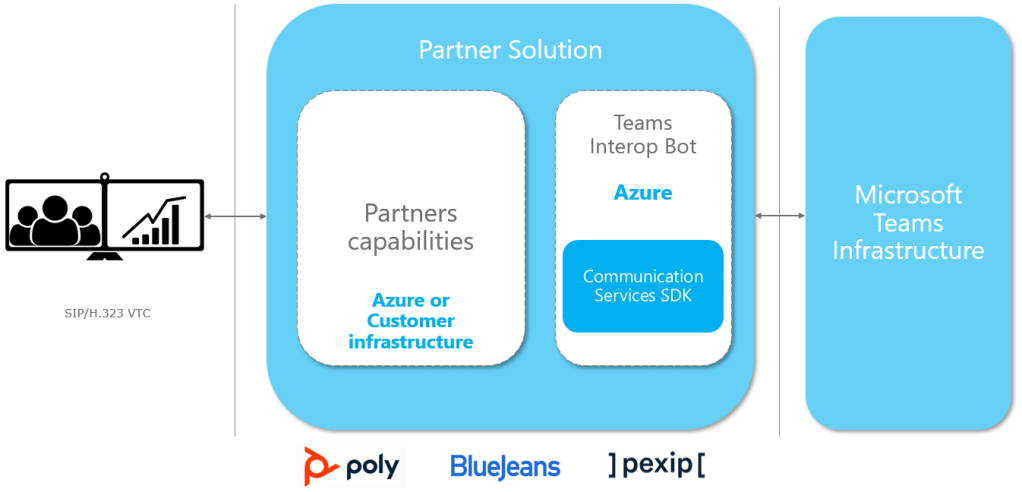
Rather that provide the service directly, Microsoft’s has worked with partners (Poly, BlueJeans and Pexip) to provide the Cloud Video Interop service to organisations that require SIP\H.323 endpoints to join their scheduled Teams meetings. Microsoft has built the core Teams Interop Bot that resides in Azure, with each of the partners able to wrap this core service with their own value-add and pricing structures:
Before continuing, a couple of important points as to what Cloud Video Interop does not support:
CVI does not support ad-hoc dialing directly to a Teams endpoint. It only supports CVI for scheduled Teams meetings
CVI does not support outbound dialing from a native Microsoft Teams device into a standards-based SIP or H.323 meeting\endpoint
What’s the Meeting Creation Workflow For CVI?
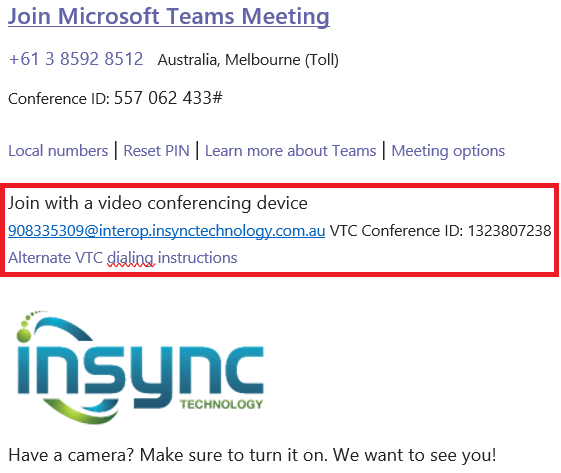
A key point in the description of the CVI service above is that it “maintains the Microsoft Teams workflow and experience”. If CVI is deployed within your organisation, there are no changes or additional decision points a user needs to take into account when scheduling an online meeting: They simply follow the same meeting creation workflow they have always following when creating a scheduled Teams meeting. The only difference appears in the meeting invite text itself:
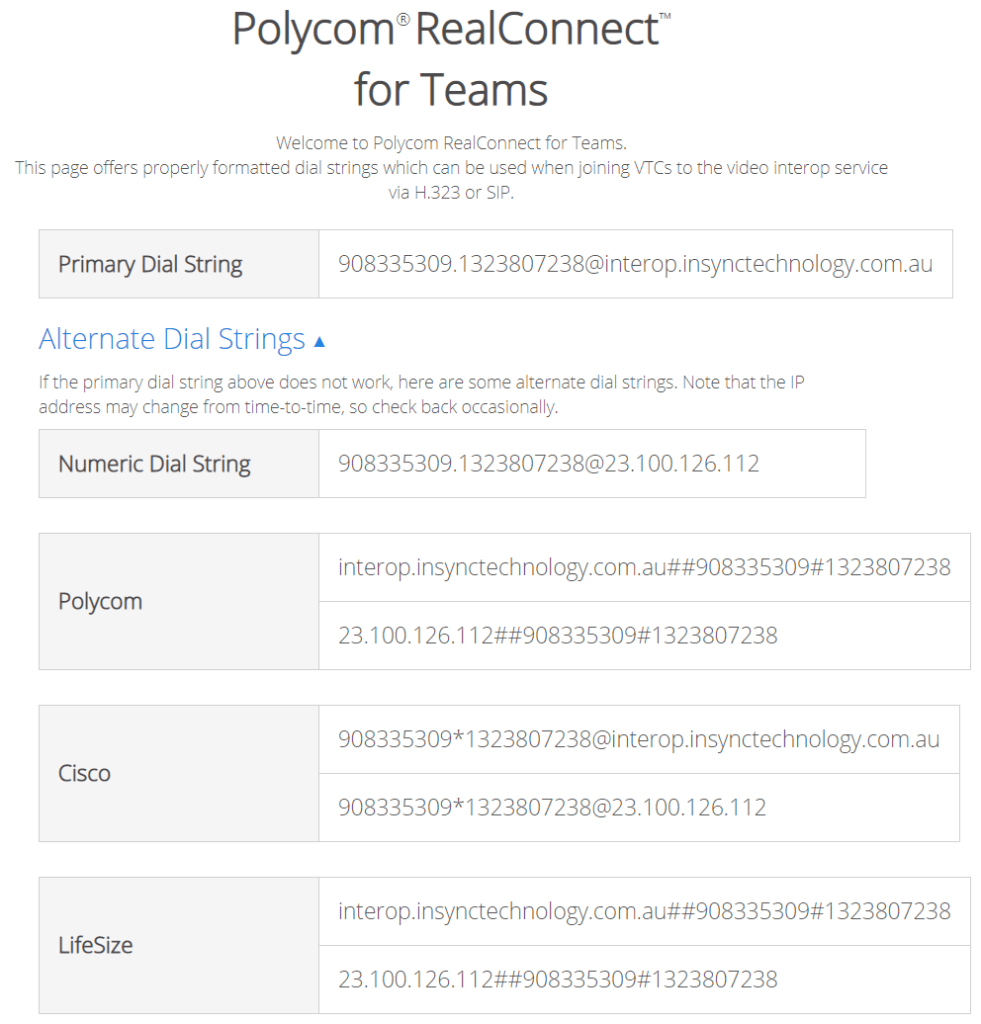
Note the additional text in the meeting invite, compared to the earlier meeting invite example. This is the only change a user will see when CVI is deployed within your organisation. The above example is using Poly RealConnect for Teams service with a custom domain, it’s in a similar format for BlueJeans and Pexip also. If someone wants to join this meeting from a standards-based SIP or H.323 endpoint, they either dial this string, or they can click on Alternate VTC dialing instructions to get additional dialing methods more suited to their specific endpoint:
CVI with your own Standard-Based Endpoints
With the above CVI service in place, we’re now in a position to support standards-based SIP\H.323 endpoints joining a scheduled Teams meeting.
Dialing the full dial string to enter a Teams meeting via CVI might be perfectly acceptable for external participants, but what if I still have standards-based endpoints within my organisation that I want to join my scheduled Teams meetings? There may be a number of scenarios where this might be the case:
I have an existing investment in standards-based endpoints that I need to sweat
I want to deploy Teams as my meetings platform before I’m ready to swap out my standards-based meeting room devices
I’m using Teams as my meeting platform, but outbound dialing into a standards-based SIP\H.323 conference is still a valid use case for my organisation. To support this, I have retained a number of standards-based endpoints
I’m migrating from Skype for Business to Teams within my organisation, have utilised Poly’s Group series endpoints for Skype for Business meetings in the past and need to add One Touch Dial support for Teams meetings to facilitate a smooth transition
If your organisation ticks any of the boxes above, then there’s additional capabilities that will streamline the meeting join experience on non-Teams native endpoints.
One Touch Dial
For standards-based endpoints still deployed within my organisation, being able to push a simple button to an endpoint ensures a streamlined meeting join experience: even for users joining Teams meetings from non-Teams native devices. Each of the CVI providers has a variant of this capability as part of their CVI offering. In this example, we’ll look at Poly’s One ouch Dial (OTD) service.
How it works
Poly’s OTD service is a fully cloud hosted solution which you get access to when you purchase the RealConnect for Teams CVI service. Essentially, the OTD sits between your Exchange environment (on-prem or online) and your standards-based endpoints, and performs the following:
Interprets inbound meeting invites
Manipulates the invite into a format that the endpoint understands
Forwards invite to the endpoint which is now able to display a simple Join button
Here’s an example of a Teams meeting display on a Poly Group series endpoint. All one needs to do is click join and they will be automatically connected into the scheduled Teams meeting with full audio, video and content sharing support in both directions:
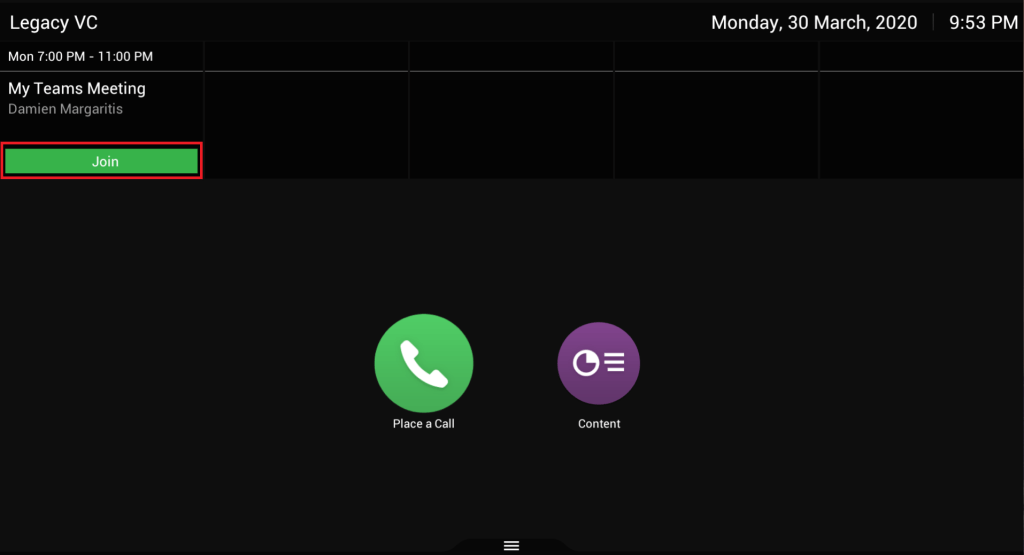
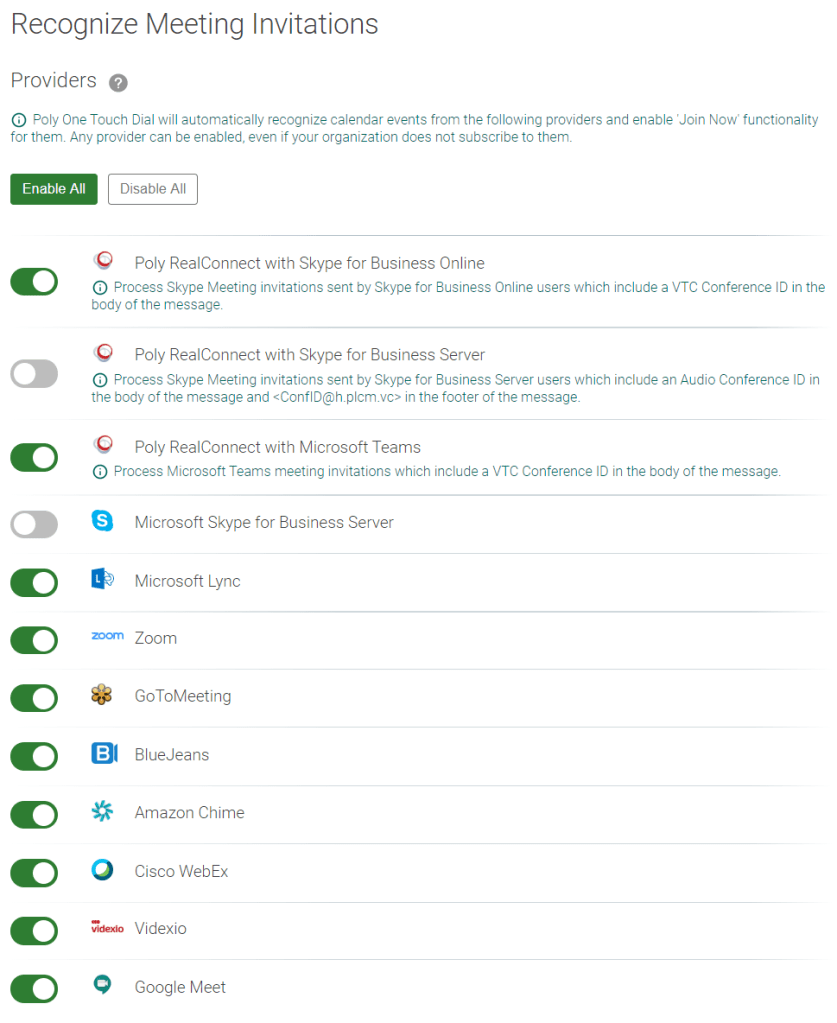
It should also be pointed out that Poly’s flavour of OTD is not just useful for simplifying Teams meeting join, it also supports this for a range of other providers:
If you want a more in depth run down on Poly’s Cloud Video Interop and One Touch Dial services, check out Jeff Schertz’s Blog for more details.
Joining Zoom or WebEx Meetings from Microsoft Teams Rooms, & Vice Versa
Whist Cloud Video Interop and One Touch Dial are useful for when I want standards-based SIP\H.323 endpoints to join my Teams meetings, it does not address one of the biggest requests we get when deploying Microsoft Teams Room Systems: Can I join a Zoom or WebEx meeting, and can they join my Teams meeting?
This very capability was announced at Microsoft’s Ignite conference late last year, with Microsoft working on direct guest join from a Microsoft Teams Room System into a Zoom or WebEx meeting, and Cisco\Zoom working on allowing their endpoints to directly join Microsoft Teams meetings:
Microsoft’s Head of Teams Devices, Ilya Bukshteyn has written a great blog that discusses this future capability:
“Microsoft Teams Rooms, Cisco WebEx rooms, and Zoom rooms will all be able to join Teams meetings, and Microsoft Teams Rooms will be able to join WebEx and Zoom meetings, starting in the first half of 2020.
While the native meetings experience on each of these room systems will always remain richer and more full featured, we all agree that having the ability to easily and simply join the occasional non-native meeting on our room systems is a great thing for our customers. We also expect to expand the list of meeting services and room systems which implement this new web-based approach to non-native meetings as we move further into 2020”
UPDATE: Cisco Webex meeting join is now rolling out to Microsoft Teams Room systems. You will need Microsoft Teams Rooms Update 4.5.33.0 before it can be enabled.
As you can imagine, this will greatly simplify meeting join from room-based systems across three of the main players in online meeting providers today. Let’s hope we see Zoom added too soon.
Waaaaaay back in April this year, Microsoft announced that they were changing the way Skype for Business Certified IP Phones (or 3PIP devices, more on that shortly) are approved for sign in against Office 365. Today, something called an Application ID (or App ID for short) is shared across all devices that have approved 3PIP devices (from Polycom, Yealink, Crestron and AudioCodes). Moving forward, Microsoft is revoking support for the existing Azure application ID used by all third party device vendors, and instead will require a partner specific application ID. This change will come into effect from January 15th 2020.
Aside: What’s 3PIP?
If the term “3PIP” is new to you, here’s a section I pulled from an earlier blog I’d written about devices for Microsoft Teams:
“3PIP, or Third Party Interoperability Program, was a way
for Microsoft to relinquish responsibility for the development of software for
endpoint devices. With the 3PIP model, partners (such as Polycom, AudioCodes
and Yealink) could develop devices based on their own software base that would
register to Lync and Skype for Business environments, whilst still supporting a
broader feature set as was being requested by customers.”
These phones included Polycom’s VVX and Trio lines, AudioCodes’ HD series as well as a number of Yealink offerings. For a full list of 3PIP devices, check out Microsoft’s published list of supported 3PIP phones.
Keep in mind that Native Microsoft Teams phones are not 3PIP devices, thus are not affected by this change.
What do I need to do?
In summary, if your organisation is:
Using 3PIP devices with Skype for Business
Online
Using 3PIP devices with Microsoft Teams via
Microsoft’s 3PIP device interop gateway
There are a couple of things you need to do before January
15th 2020:
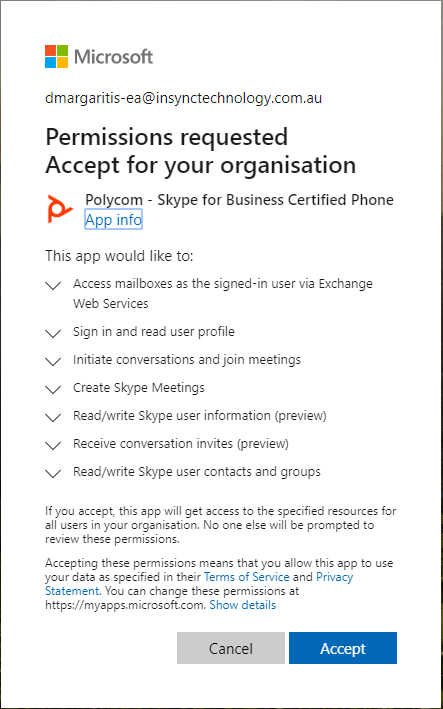
Approve each vendor in use in your organisation
for sign in to Office 365
Roll out updated firmware as it becomes
available
At time of writing, both Polycom (VVX, Trio), Yealink (All 3PIP Devices) and AudioCodes have firmware available that has the App ID baked in, still waiting on Crestron. Hopefully they release updates with plenty of time before the January 2020 cut off. Also note that approval must be completed prior to rolling out updated firmware: You can do that today!
In order to approve each vendor, a Tenant admin must do the
following:



























 dmunified