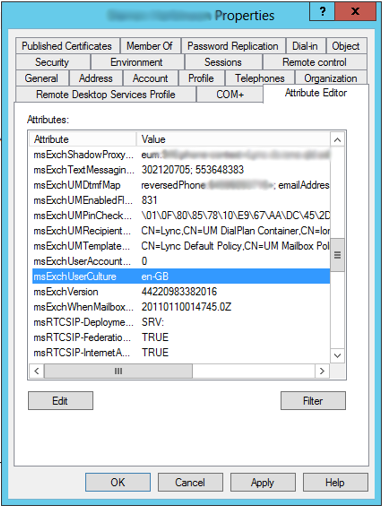
Last week I had a client report that two users (out of around 300) were experiencing issues when calling into Exchange Unified Messaging. Although the Australian (en-AU) Language pack had been deployed, these users would still hear the US (en-US) language prompts. As the issue was specific to only two users, I had a look at their AD attributes, see if anything was different from other users. One value stood out as irregular:
These users had en-GB configured for the msExchUserCulture attribute. As only the default en-US and en-AU language packs were deployed, Unified Messaging was falling back to defaults when the region was incorrectly configured. One explanation as to why this was the case could be a user signing into Outlook Web App for the first time, and selecting the wrong region (thanks Dan).
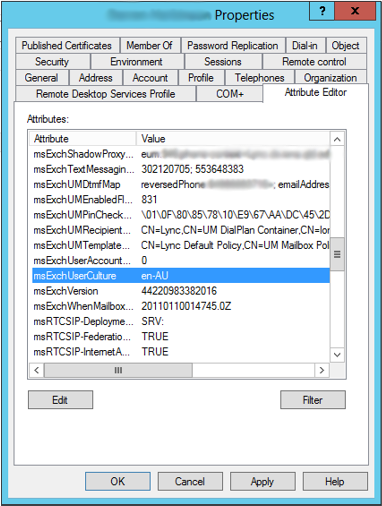
Manually updating the value to en-AU resolved the issue without the need to disable/enable Unified Messaging for the user:
Small issue, simple fix, but interesting none the less.
UPDATE: Run the following from an elevated Windows PowerShell session to resolve this issue:
Skype for Business 2015
powershell.exe –noexit –command “cd $env:UserProfile; Import-Module ‘C:\Program Files\Common Files\Skype for Business Server 2015\Modules\SkypeForBusiness\SkypeForBusiness.psd1’”
The last few days I’ve been working on getting Lync deployed into my Hyper-V lab, on Server 2012 R2
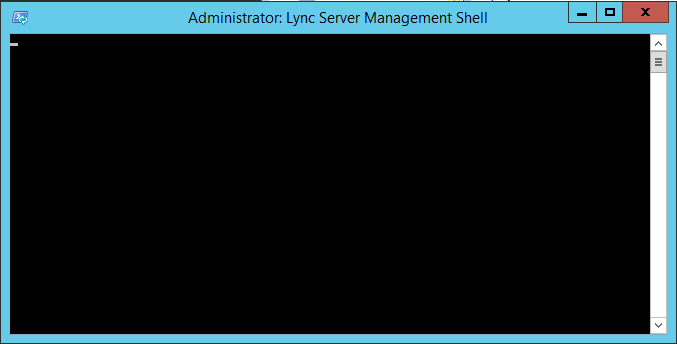
After deploying the usual prerequisites and Lync 2013 Core Components, I noticed something unusual. I was unable to get a prompt from the Lync Management Shell CLI:
Looking closer at the shortcut installed on the Start Menu (C:\ProgramData\Microsoft\Windows\Start Menu\Programs\Microsoft Lync Server 2013), I noticed that a closing quotation mark was missing from the Target. At this point I wasn’t sure if this was a problem, but worth investigating:
Copying the command and running it from a standard PowerShell instance confirmed it, with no Lync Management Shell prompt returned, but rather a sign of an incomplete string:
Updating the command with the closing quotation mark on the end gave me the result I was after, returning a prompt:
Note the difference in command, with the additional quotation mark at the end of the second command:
To test, I ran the Lync cmdlet Get-CsManagementStoreReplicationStatus, which returned what I was expecting:
Now… What’s interesting is that if I go back to the same Lync Management Shell shortcut, without making any changes to the Target properties of the shortcut whatsoever, the Management Shell returns a prompt as expected:
We’re back in business.
Not sure if this is a Server 2012 R2 bug, or something specific with my lab, but at least it’s an easy fix.


 dmunified