Exciting news is at hand. Telstra and Microsoft have today announced Telstra Calling for Office 365!
What does this mean?
Unlike other global regions such as the US and UK, if PSTN calling was desired for use with Cloud Based Skype for Business Online users, you had two choices:
On-Premises PSTN breakout via Hybrid Skype for Business Server/Skype for Business Online
On-Premises PSTN breakout via the deployment of Cloud Connector Edition
As of today’s announcement, this will no longer be a requirement – you will be able to obtain (or port) phone numbers directly from Microsoft/Telstra. This has been on the road map for quite some time, so it’s great to see this finally being an option in Australia.
It’s day 2 at Microsoft Ignite Orlando, and we’ve had the announcement many of us in the industry have been waiting for: Skype for Business Server 2019 will be released towards the end of 2018.
What does this mean?
After yesterday’s announcement, many were wondering what this meant for on-premises Skype for Business deployments. There’s still plenty scenarios out there where on-premises makes sense. Is your investment in your on-premises environment protected? In short, yes.
It’s great to see that Microsoft is investing in another refresh of Skype for Business server. Whilst I do expect the bulk of investment will be within Microsoft cloud offerings, this does ensure that all organisations have more time to get cloud ready, more time to work through existing investments in on premises solutions, and allows more time to ramp down in a controlled manner.
What are the Specifics?
Upgrading to Skype for Business Server 2019
In-place upgrades that were supported when upgrading to Skype for Business Server 2015 will not be supported when upgrading to Server 2019
Upgrade side by side from Lync 2013 or Skype for Business Server 2015 both supported
Prerequisites: Windows Server 2016 & SQL 2016
Will support side by side deployment with Cloud Connector Edition (CCE)
Standard Edition or Enterprise Edition?
Easy question to answer: Skype for Business Server 2019 will not include a Standard Edition server deployment option.
Wait what?
Whilst this announcement did raise a few murmurs, it will be supported to deploy Enterprise edition with a single server node. This will mean that a separate back end SQL server will be required for a single server deployment, but I think most can live with this. I think the idea here is to ensure customers in the ‘smaller’ end of the market look to the cloud as a viable option, rather than deploy more on-premises Standard Edition servers, whilst ensuring large enterprise customers can still leverage all that’s typical of an Enterprise edition deployment.
Cloud Services for On-Premises Users
This is probably the most useful & important announcement. When deployed in a hybrid topology (which is not a requirement by the way, Skype for Business Server 2019 can be deployed on-premises only), on-premises users will be able to leverage the same apps that cloud users do. For example, Cloud PBX users use Azure VM instead of Exchange Unified Messaging for voicemail support, as well as cloud based Call Queues and Auto Attendants. With SfB Server 2019, on-premises users will be able to leverage these also.
What else?
SfB Server 2019 will be based on a version of the cloud based code of Skype for Business Online
Backwards compatibility with UCWA/UCMA will be included, ensuring smooth transition for customers using custom developed applications, 3rd party add ons
Whilst a single Enterprise edition server can be deployed, the focus for SMBs will be to utilise Office 365 where possible
No more Silverlight! Will be deprecated
Hybrid aware Office 365 Portal for server 2019, simplifying user management across Skype for Business On-Premises/Online/Teams
Improved interoperability/migration to Teams
Director server role to be deprecated
Call Analytics and Retention in one portal for all users – IT Pro experience for all troubleshooting, service management metrics, combined single view of what’s going on across all users regardless of where they are: Teams, SfB On-Prem, SfB Online
Hybrid Modern Authentication support for all users regardless of location
Hybrid will ensure interop between SfB online and Teams with migration paths to move to Teams
Cloud Connector edition not going away, will be able to coexist with Server 2019
MS working on direct gateway to online (Teams) without the need for server components – i.e. no CCE, direct trunk to Teams
TLS 1.0/1.1 will be deprecated in 2019, working on it for server 2015 also, targeted for CU7 in 2015
New web meeting experience being developed with WebRTC support
SBA support with SfB server 2019: will support coexistence with SfB server 2015 SBAs.
Using SBAs with the cloud? Not on the immediate roadmap. The guidance (both formal and informal) here from Microsoft for a period of time has been to utilise network level redundancy/resiliency rather than build out large SBA networks.
All rather exciting. Stay tuned for further updates throughout the week.
Damien Margaritis is the Principal Consultant for the Modern Workplace practice at Insync Technology: an innovative Microsoft systems integrator. Damien is also involved with organising the Melbourne Skype for Business User Group, held quarterly at Microsoft’s Melbourne offices.
News out of Microsoft Ignite Orlando this morning: Microsoft Teams is set to replace Skype for Business as the primary collaboration/teamwork platform – eventually. This came as no surprise to many, given the slip up that occurred last month.
Rest assured that this change will not be forced onto end users, and, for the time being, Teams will only be an option to replacing Skype for Business users homed to Office 365 only: on-premises Skype for Business environments/users will not be affected. That makes sense, as typically it’s on-premises environments that have additional complexity to deal with, such as telephony, video conferencing or custom application interoperability that may not be possible in the cloud just yet.
Office 365 administrators will be able to select from three different policy options to control the migration to Teams:
Side By Side (Teams and Skype for Business running together)
Side by Side with Notify (you can use both, but you will receive a banner at the top of the Skype for Business client advising that you can now use Teams)
Teams Only (Skype for Business client will only be used to join Skype for Business meetings)
Please excuse the terrible image quality, there will be higher quality slides released during Ignite.
What does this mean for Skype for Business Server/Hybrid?
Here’s the slide showing what to expect with the next version of Skype for Business server. Note the target date of availability: Q4 2018. key takeaways:
Will support SfB Enterprise Voice on-premises for the foreseeable future
Will introduce cloud analytics/voice apps into on-premises server environments
Improved Teams interoperability
Skype for Business Features in Teams
Here’s some of the traditionally Skype for Business features and capabilities that will soon appear in the Teams client (demonstrated in today’s session):
Import your Skype for Business buddy list groups and contacts directly into Teams
Single presence model across Skype for Business and Teams (no more out of sync presence)
Calls tab built into Teams, with contacts, speed dials, suggested contacts, etc
Exchange Voicemail tab, presumably using Azure Voicemail
Full PSTN dialler (assumes PSTN calling availability for this feature to function)
Call transfer within Teams
Create Teams Online Meeting directly within Teams thread, recording of meeting saved to thread (very cool)
Search for words said in meeting to jump to, utilises speech recognition, transcription (AI/Machine learning capabilities, also very cool) – really using the power of Microsoft Stream embedded into Teams
There’s still a ton on unknowns regarding the Teams announcement. What does this mean for Skype for Business Online certified devices, such as Polycom group, Polycom Trio? What about Skype Room System? Will it become a Teams Room System? Is a new app on the way for Surface Hub? Will I be able to integrate Cloud Connector Edition with Teams?
Additional Notes from Today’s Session
Is this Teams thing ready for me?
Security and Compliance
Diverse Data Centres
Conditional Access & MAM support
Retention Policies
E-discovery and Audit (Audit Log search data that’s in Microsoft Graph)
New Teams and SfB Admin Centre, built from the ground up
Nothing changes with calling plans, PSTN conferencing, call queues etc when migrating to Teams
Interop with Skype Room System, as well as interop services from Polycom/Pexip/BlueJeans to come
How do I transition my users between environments?
Use the new and improved Skype for Business & Teams Admin portal
Select users and set Teams upgrade status:
Side By Side (Teams and Skype for Business running together)
Side by Side with Notify (you can use both, but you will receive a banner at the top of the Skype for Business client)
Teams Only (Skype for Business client will only be used to join Skype for Business meetings
If select Teams Only, SfB client will only join SfB meetings only, everything else is moved to Teams
Will be able to have some users on Teams, some on SfB, calls between, transfers etc work
What about devices?
A new player to SRS endpoints, and a couple of new players to the conferencing interop space:
Damien Margaritis is the Principal Consultant for the Modern Workplace practice at Insync Technology: an innovative Microsoft systems integrator. Damien is also involved with organising the Melbourne Skype for Business User Group, held quarterly at Microsoft’s Melbourne offices.
Towards the end of 2015, it was with great joy that the world welcomed the Polycom Trio 8800 conference room device into being. Prior to this, the conference phone of choice for Lync/Skype for Business deployments was the Polycom CX3000: a somewhat ageing platform that was still running Lync Phone Edition software, which Microsoft is no longer actively developing. Under the hood, the new Trio was running a version of Polycom UCS software, which also supports Polycom’s range of Lync/Skype for Business certified VVX handsets. We now had a conference room device that no longer relied on Microsoft’s Phone Edition software.
As well as being a welcome update, the Trio 8800 also had a few surprises. At launch, it was discovered that not only was the Trio 8800 an audio device, but pair it with a Visual+ module and USB camera, it was also video capable. This fit well with Polycom’s mantra at the time (make every space a meeting space), as the Trio came in at the right price point and feature set to ensure organisations would be more inclined to enable enable smaller spaces for video conferencing that may have otherwise not been enabled.
Whilst it was great to see a such a great edition to the Polycom ecosystem, it did mean that, for a customer that was simply after an audio only conference phone, the price point was no longer where it needed to be if purchasing the Trio 8800 as an audio only device. In addition to this, Polycom is now shipping the MSR series Skype Room System V2 solutions, where I may want to pair an audio only Trio and a separate dedicated USB camera (I can’t pair Visual+ with a Skype Room System.)
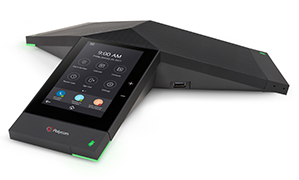
Enter the Trio 8500. Slightly more petite than the Trio 8800, the Trio 8500 is built with a similar aesthetic to the 8800.
Hard black plastic with smooth glass edges, it’s pretty much the standard for conference phone look and feel, and the venerable old ‘spider phone’ is synonymous with conference phones.
We’ve had a Beta unit for approximately a month and have been putting it through its paces both in our own environment and with a few customers.
The new Trio 8500 is definitely suited as a direct replacement for any customer that was buying CX3000 Conference Phones – the differentiator being that users that want a more premium audio/video experience with more extensibility for more features and camera support will need to buy the Trio 8800, specifically around AirPlay and Miracast support.
Below you can see some close ups of the Trio 8500 unit itself, as well as a comparison shot of a Trio 8500 versus Trio 8800 in size.
Trio 8500
Secured USB Cable – great move!
Single Ethernet Port and two Expansion Mic Interfaces
Trio 8800 on left, Trio 8500 on right
Features and Capabilities of RealPresence Trio Family
The following table outlines the key differences between the 8800 and the 8500:
Feature
Trio 8800
Trio 8500
Placing, answering, and managing audio calls
Yes
Yes
Initiating, joining and managing audio conference calls
Yes
Yes
Recording audio calls
Yes
Yes
Viewing and joining scheduled Calendar meetings
Yes
Yes
Managing contacts, call lists, and directories
Yes
Yes
Adjusting call and system settings
Yes
Yes
Pairing with Bluetooth-enabled devices
Yes
Yes
Connecting USB devices
Yes
Yes
Checking voicemail messages
Yes
Yes
Pairing with the RealPresence Trio Visual+ content and video accessory
Yes
No
Placing, answering, and managing video calls
Yes
No
Sharing content during video calls
Yes
No
Sharing content from a Apple® AirPlay® or Miracast® certified device
Yes
No
Pairing with Bluetooth and Near Field Communication (NFC)
Yes
No
Secure USB Tethering (USB cable securely attached to Trio unit)
No
Yes
Dual Ethernet ports
Yes
No
Support extension microphones (2)
Yes
Yes
All in all, a great addition to the family and will provide your standard conference rooms with quality audio on both transmit and receive. We really love the secured USB cable (a bugbear with the Trio 8800) ensures you won’t lose the USB connection if someone wants to use the unit as a USB speakerphone. The lack of additional Ethernet ports will annoy some customers, but most of our customers are happy not to provide Ethernet connectivity to conference rooms that are used by both internal and external staff.
As always, if you need assistance with working out the right device or experience for your organisation, get in touch!
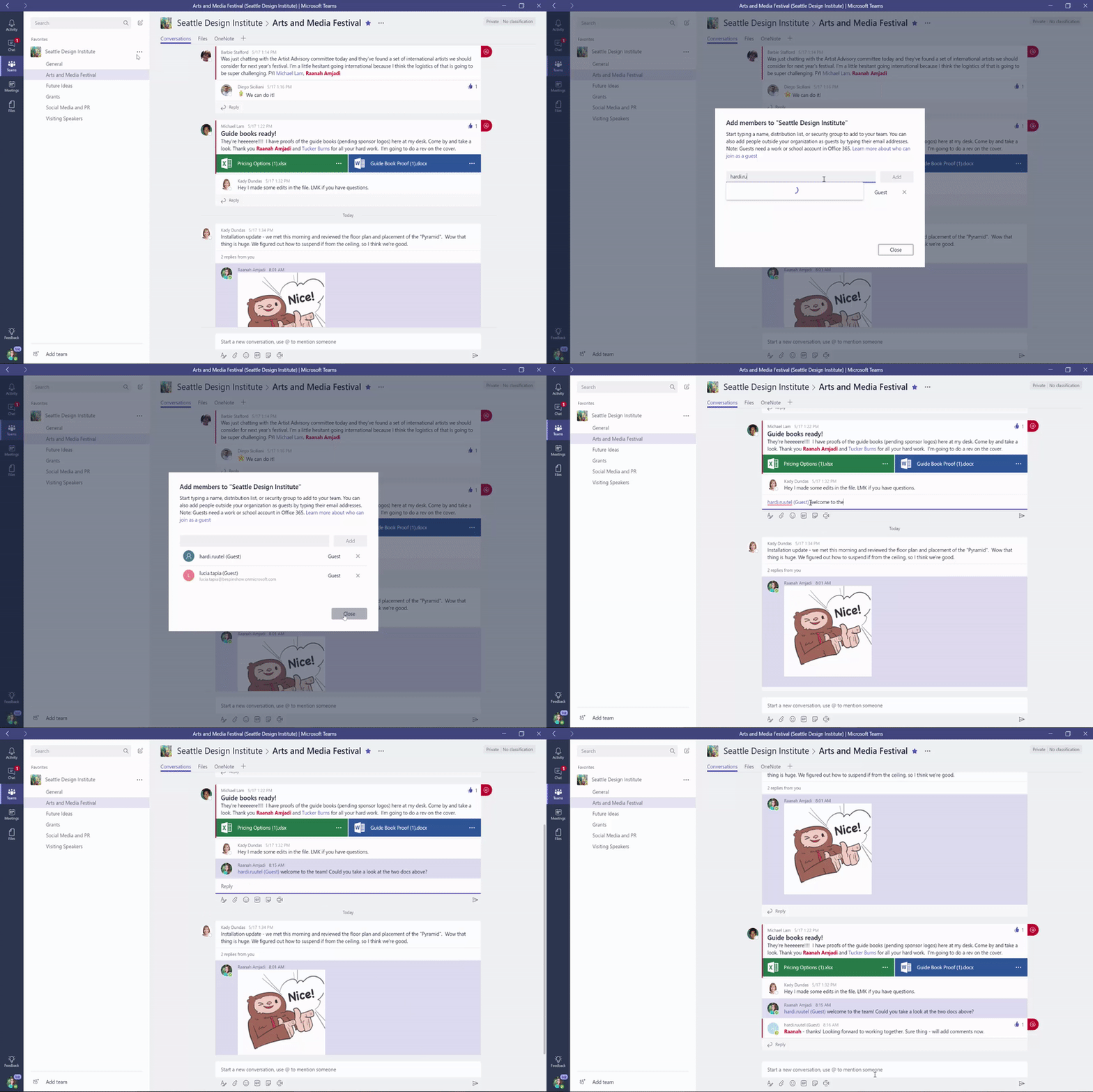
Since its inception, there’s been one feature at the top of most people’s Microsoft Teams wish list: Guest access.
Today, I can report that the wait is finally over! You can now add anyone (err, anyone with an Azure Active Directory account…) as a guest to a Team. I’m expecting this will be extended in the not too distant future to also include basic Microsoft accounts (outlook.com etc) to also be added as a guest to a Team. This feature had been slated for release around June this year, so it’s great to see it has finally made it to release. We’ve been structuring a new customer communications process for projects, managed services, etc – around Teams – and finally the missing piece was dropped into the puzzle today.
This is of course made even more interesting by the slip of the tongue last week regarding Skype for Business becoming Microsoft Teams. Whilst no official announcement from Microsoft one way or the other, I’ll be front and centre at Microsoft Ignite this year where I expect to learn more. Keep an eye out for my Microsoft Ignite blog updates. A cynical person would suggest this might have been brought forward from Ignite to take some heat out of the Skype for Business transition leak.. but that would be a cynical person.
Couple of gotchas that we’ve noticed so far:
Your guest user must have an Office 365 subscription – the presuming factor here is if you’re using Azure AD, there’s a high likelihood that you have Office 365 services. There are pocket cases at the moment and it will be interesting to see how this is dealt with the introduction of being able to invite Microsoft Account (outlook.com/LiveID) accounts as these won’t be tied to any form of Office 365 (typically)
When you become a guest of another ‘Team’ that is outside your organisation, it will show up in your Teams client as a separate account. Hence, you’ll need to switch accounts between your ‘Home’ Team and the ‘Guest’ Team. Works like Yammer in that you have to swap networks to see messages. Looks like there will be consolidated notifications in the client so you can see which Teams need your attention.
Note: This feature is being rolled out progressively across Office 365 Tenants. If you don’t yet have the ability to enable guest access, just wait a little longer.
Damien Margaritis is the Principal Consultant for the Modern Workplace practice at Insync Technology: an innovative Microsoft systems integrator. Damien is also involved with organising the Melbourne Skype for Business User Group, held quarterly at Microsoft’s Melbourne offices.
Last week, Sonus released software version 6.1.3 build 474 for their SBC Edge 1000/2000 session border controllers. Whilst I don’t usually rush out and deploy fresh out of the oven updates, in this case there was a pressing requirement for any Sonus CloudLink appliances that were soon to be updating to Microsoft Cloud Connector Edition 2.0.
This advisory was received from Sonus a few days prior to the release of CCE 2.0:
TITLE: Crucial SBC Edge Upgrade to 6.1.3 in Association With Release of Microsoft CCE 2.0
SUMMARY: SBC Edge customers with installed CCEs must upgrade to the new SBC Edge version 6.1.3 on July 18. The upgrade file will be posted on the SBC Edge Download Center. Follow instructions at Upgrading SBC 1000/2000 for details.
This upgrade is necessary for proper operation of the CCE after its 2.0 update.
(Note: The 6.1.3 upgrade must be applied in order to be able to re-deploy a system a system that was running an earlier version of CCE that got auto-updated to CCE 2.0, and this should occur only if you change a parameter after the CCE 2.0 auto-update).
For CCE hybrid environments, installing 6.1.3 did not cause any issues. This is because Microsoft do not include a user’s extension number in the SIP INVITE when routing calls via CCE. For on-premises deployments however, there has been a change to how extensions are handled by the SBC.
Extension Handling
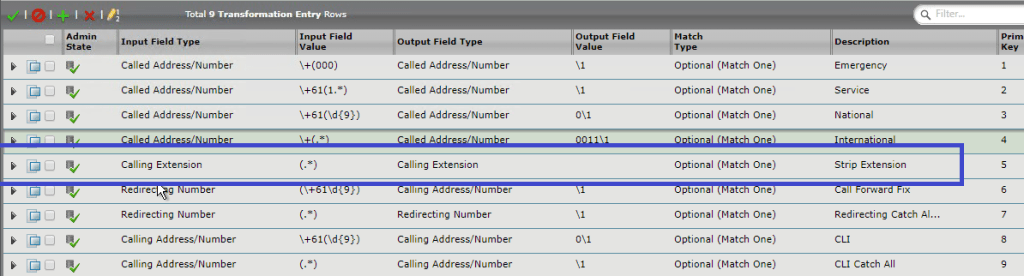
Prior to 6.1.3, the extension component of a user’s Line URI was handled using the dedicated “Calling Extension” field type. Using the entry highlighted below would ensure that, if present, extensions were stripped from a user’s phone number prior to further manipulation taking place. the Input Field Value of (.*) would match “something” or “nothing”, meaning that the table would still be valid regardless of an extension being presented or not:
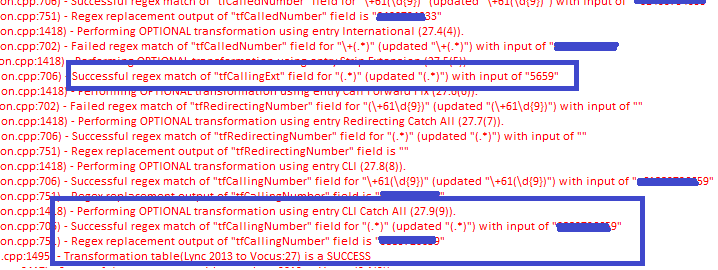
Here’s a trace prior to 6.1.3 showing the extension being handled independently by the Calling Extension field and subsequently being stripped off:
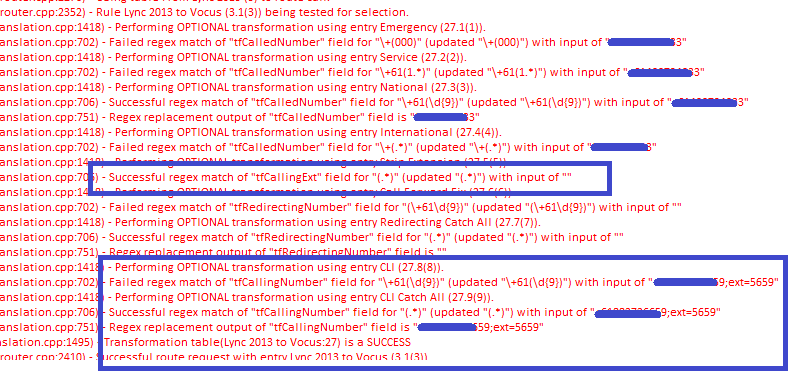
This trace is of the same call flow once the SBC has been updated to version 6.1.3. Note the extension number is no longer being stripped from the user’s Line URI:
Following up with Sonus TAC (who are always amazing I might add):
This issue has been caused by a change in code that was to ensure the SBC was compliant with REF 3261. In doing so there have been some negative affects with respect to Calling/Address Number and Calling Extension manipulation via the Transformation tables.
With this change it appears the we are no longer able to remove the Calling Extension using the Calling Extension Input Field, and on the Calling/Address Number we are no longer ignoring the ;ext=nnnn in the user part of the from header when looking at the Calling/Address number.
We have engaged engineering on this issue and need to evaluate how we will address the overall problem that has been created.
For clients that still use ISDN trunks, this may not be a major issue. Even if the calling number is not correctly manipulated, the ISDN trunk will still make the outbound call. At worst, a caller’s direct in dial number may not be presented, instead replaced with the main (pilot) number of the ISDN Trunk. However, if the telco trunk is SIP, many providers will drop any outbound calls that originate from phone numbers it does not recognise as part of the known number range. Not stripping the extension number now becomes a problem.
Workaround
If you want to update to 6.1.3 and are still supporting an on-premises Lync/Skype for Business environment, adding the following entry to your transformation table will ensure that the extension is stripped, whilst still ensuring the table is valid if the extension is not present:
Damien Margaritis is the Principal Consultant for Productivity at Insync Technology, an innovative systems integrator focused on Systems Management, Productivity (including Unified Communications) and Cloud solutions. Damien is also involved with organising the Melbourne Skype for Business User Group, held quarterly at Microsoft’s Melbourne office.










 dmunified