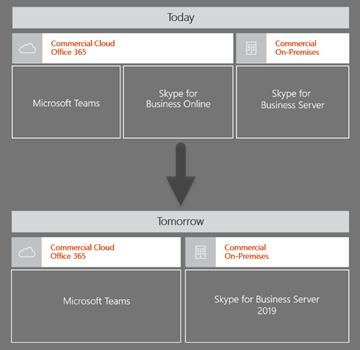
Unless you’ve been hiding away from the world for the last couple of years, chances are you’ve heard about all the goodness that is Microsoft Teams. You may also be aware that, on a long enough time frame, Skype for Business Online will eventually be deprecated, with Microsoft Teams becoming the single client available in Office 365 to handle all your communication and collaboration needs.
As depicted above, there is of course another Skype for Business (SfB) topology that’s out there supporting SfB users today, and that’s Skype for Business Server On-Premises. At the end of last year (2018), we saw the release of the latest on-premises server version: SfB Server 2019, with mainstream support through to 2023 (and expected extended support through to 2025). The key takeaway here is that there will continue to be Skype for Business users in one shape or another for some time.
Why Still On-Premises?
There’s a number of reasons why an organisation may choose to continue to use Skype for Business Server on-premises rather than move to a pure cloud offering. There may be specific features that are available on-premises that haven’t made their way into Office 365 (yet). They may also be utilising an on-premises bolt on application provided by a 3rd party vendor, such as Polycom for Video Conferencing interop or Enghouse for a Skype for Business native Contact Centre solution that means they need to remain on-premises until 3rd party cloud offerings catch up. Or they may simply have a large and complex voice environment that’s going to take some time to migrate to pure cloud services, with users well bedded in with Skype for Business Enterprise Voice for telephony and Chat for Instant Messaging (IM).
For the purposes of this article, let’s imagine that we’re dealing with an organisation that falls into the latter category. They have seen what’s available within Microsoft Teams, they like it, but they need to keep voice and chat modalities within Skype for Business Server on-premises for a while longer. For Meetings and Collaboration however, the organisation is keen to take advantage of the Teams meeting experience, as well as all the collaboration capabilities that don’t exist within the Skype for Business Server platform. It’s also important to ensure there’s only a single way to do things: having overlapping modalities from Skype for Business and Teams will ultimately lead to end user confusion and a less than ideal experience.
An Introduction to Meetings First
Developed to handle precisely the use case outlined above, Meetings first allows an organisation to split the Unified Communications modalities offered between Skype for Business and Microsoft Teams: Calling and Chat remains in Skype for Business, with Meetings and Collaboration provided from Teams. Enabling Meetings First will also remove buttons from each client, ensuring there’s no confusion as to what client is used for what. This includes reaching into Outlook and removing the Skype for Business Online Meeting button, leaving only one way to create an online meeting: via Teams.
Understanding Coexistence and Interoperability
Before I run through Meetings First configuration, it’s important to understand how coexistence and interoperability work when Skype for Business and Microsoft Teams is enabled within a single Office 365 Tenant. If you are running both clients, and haven’t changed a thing, you’ll most likely be running in “Islands Mode”. In this mode:
No connection between Skype for Business and Teams
An IM sent from Skype arrives in Skype client
An IM sent from Teams arrives in Teams client
Federated IMs (from people outside your org) are always received in the Skype for Business client
This includes an IM sent from a Federated Teams client, this will also arrive in the Skype for Business client
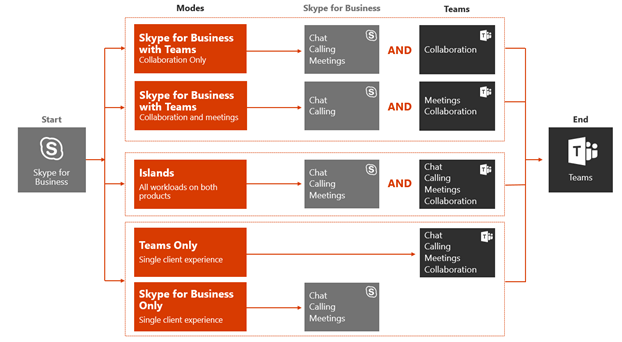
For all other “modes”, what you choose will have an effect on where your chat messages are directed, where my calls ring, and which meeting options you have. Here’s a diagram from Microsoft that explains this logic further:
Look at the modes above, there’s one that matches what I’ve described is the expected outcome for Meetings First: Skype for Business with Teams Collaboration and Meetings:
Now that we know which mode to choose, let’s run through setup for a single user.
Setup
Whilst coexistence and interoperability modes are configurable globally for all users, for this example I’ll be modifying configuration for a single user:
From the Office 365 Admin Portal, open the Microsoft Teams Admin Centre
From the Users menu, search for the user you want to move across to Meetings First, and select
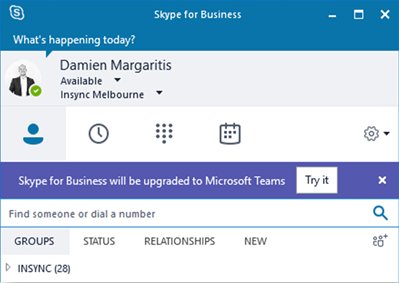
From Teams Upgrade, select Skype for Business with Teams Collaboration and Meetings. Optionally, select Notify the Skype for Business User if you want a Teams notify banner to appear in a user’s Skype for Business client, nudging them towards Teams
After the above configuration has been completed, you may need to wait some time for the changes to take effect. It took approximately 2 hours for my clients to update.
User Experience
Once everything’s had time to marinate, the first thing you will notice is the Teams Upgrade notify banner that will appear in the Skype for Business client. This is the only noticeable change you’ll see SfB side:
On the Teams side however, things are a little different. Notice that the calls and chat buttons have disappeared:
If you open Outlook, you will also notice that the New Skype Meeting button is also gone, ensuring all new meetings are created in Microsoft Teams:
At this stage, I’ve successfully configured my end user to use Skype for Business for Calls and Chats, and Microsoft Teams for Collaboration and Meetings. All new meetings will now be Teams meetings!
But what about all their existing Skype for Business meetings? What happens to them?
Introduction to the Meeting Migration Service
Probably the most useful thing I’ve come across in a long while, Microsoft now have a Meetings Migration Service (MMS) to take care of meeting invite updates. Superb. This service is not used solely for Meetings First: it’s used whenever a meeting invite need to be automatically updated, including:
When a user is migrated from on-premises to the cloud (to SfB Online or Teams)
When an admin makes a change to the user’s audio-conferencing settings
When an online user is upgraded to Teams only from SfBO (cloud to cloud)
It’s worth noting that this service can also be disabled at the tenant level, with meeting migrations manually triggered via PowerShell for a given user.
When can’t MMS be used?
The meeting migration service can’t be used if either of the following apply:
The user’s mailbox is hosted in Exchange on-premises
The user is being migrated from the cloud to Skype for Business Server on-premises
In these scenarios, Microsoft has made available a client side meeting migration tool, available here.
Once I updated my user’s configuration to support Meetings First, a check of the meeting migration status showed a pending migration:
About an hour later, the migration request had been completed
A check of my meetings does indeed show my Skype for Business meetings have been converted to Teams meetings automatically. A meeting update is sent to all meeting participants to accept new meeting details, and the room I invited automatically accepted the updated meeting invite:
If you’re looking to dip your toes into Teams meetings and collaboration, but still have on-premises infrastructure you can’t get away from just yet, Meetings First might be just for you. I encourage you to get familiar with coexistence and interop options available: these will help you make the transition from Skype for Business to Microsoft Teams at a cadence that’s right for you.
Microsoft’s Ignite conference has come and gone for another year, and it wouldn’t be too much of a stretch to say that 2018 was the year of Microsoft Teams. There were over 60 sessions dedicated to Teams (with a single solitary session to cover Skype for Business – Server 2019), clearly articulating Microsoft’s confidence and vision with Teams as the go to chat-based workspace in Office 365: an experience that brings together people, conversations and content — along with the tools that teams need — allowing them to collaborate to achieve more.
However, with momentum behind Teams building at an exponential
rate, one area that has been seriously lacking was a well-defined Microsoft
Teams device portfolio. For any organisation that plans to utilise the full
communications stack within Microsoft Teams, be it for people, collaboration spaces
or meeting rooms, it is of course important to have access to a range of
devices that are guaranteed to provide a rich and consistent end user experience.
We’ve had this in the past with both Lync and Skype for Business: an ecosystem
of certified devices that allow us to extend Unified Communications
capabilities out to almost any use case: headsets or phones for end users,
video conferencing units for meeting rooms, and Surface Hubs for collaboration
spaces.
But what about for Teams?
Thankfully, it was great to see that Ignite 2018
was also the year of Teams devices. The expo floor had dozens of Teams devices
on display, some from vendors that have played in this space already, and some from
relative newcomers.
But first, a recap of where we’ve come from.
Back to the Future
Going back to the very beginning, the very first devices
that were released to support telephony for Office Communications Server (OCS)
2007 were the LG-Nortel IP8540 or Polycom CX700 phones, also known as Tanjay devices. Software wise, both of
these devices ran the same code base: Windows CE for the Operating System, with
a Microsoft developed and supported OCS application installed and running:
When Microsoft released Lync Server 2010, a new range of
devices made their debut that were running Microsoft’s next version of
telephony device software: Lync Phone Edition. Like the Tanjay devices, these
phones were manufactured by multiple vendors (Aastra, HP and Polycom), and were
also running a combination of Windows CE for the Operating System, with the Lync
Phone Edition application installed and running on top.
The Move to Third Party Devices
Having deployed thousands of these devices, I would say that Lync Phone Edition devices were broadly considered a success. However, while they filled an obvious use case when deploying telephony capabilities as part of a broader UC strategy, they weren’t without their issues. What they made up for in simplicity, they lacked in basic telephony features that organisations would expect a phone to offer. For example, lack of back-end device management, paging, simple call transfer & customised buttons were some of the more common complaints. What Microsoft really needed was a range of devices that could be used as a telephony endpoint for Lync and later Skype for Business, but also support a more advanced telephony feature set that people were missing.
3PIP
3PIP, or Third Party
Interoperability Program, was a way for Microsoft to relinquish
responsibility for the development of software for endpoint devices. With the
3PIP model, partners (such as Polycom, AudioCodes and Yealink) could develop
devices based on their own software base that would register to Lync and Skype
for Business environments, whilst still supporting a broader feature set as was
being requested by customers.
To provide a distinction between the original Aries devices and 3PIP devices, Microsoft developed two distinct device categories: “Optimized for Lync” and “Compatible with Lync”. From TomCostelloe’s 2013 blog:
Optimized for Lync
Powered by Lync Phone
Edition these phones have full support to PBX functionalities, access to
calendar and contacts, rich conferencing, extended functionalities when
connected to the PC, and integrated security and manageability
Compatible with Lync
Compatible IP phones
run manufacturer OS and do not require gateways for interoperability. They are
fully tested and qualified to provide direct connectivity, core call
functionality, presence awareness, and server management and provisioning
When deploying with either Lync or Skype for Business Server
on-premises, we now had two classification of device we could deploy to support
both basic, and more advanced telephony requirements.
The Introduction to Cloud Voice
Towards the end of 2015, Microsoft announced their first venture into offering voice services natively from Office 365. Originally known as Cloud PBX, this capability meant that an organisation could have users homed to Skype for Business Online and be able to make and receive phone calls. Today, this is known as Phone System for Office 365.
Now that cloud homed used had this additional capability, it was important that devices certified for use with Lync and Skype for Business on-premises would also be supported with Office 365. This would allow for organisations to migrate some or all of their users to Skype for Business Online, while still being able to retain their desk phone.
The End of Optimized for Lync Device Support
For some time now, both “Optimized” and “Compatible” devices have been supported for use with Skype for Business Online. However, with the deprecation of TLS 1.0 support in Office 365 imminent, Lync Phone Edition (i.e.“Optimized for Lync”) devices will no longer be supported (more on that here). “Compatible with Lync” devices, such as the Polycom VVX range of phones, will continue to be supported for use with Skype for Business Online.
What about my existing 3PIP phones? Can I use them with Teams?
Yes. All 3PIP phones that are currently certified for Skype
for Business Online will be supported with Microsoft Teams. The way this will
be achieved is via a SIP gateway that Microsoft have deployed at the edge of
Teams that will allow SIP devices to register. Native Teams devices will not
use this gateway, as Teams native devices don’t have a SIP stack at all: they
communicate via HTTPS.
Video Conferencing Device Support for Skype for Business Online
So far, this article has covered audio devices only. Of course, we also needed access to video conferencing devices that were supported for use in Microsoft Unified Communications environments. To support these use cases, Polycom partnered up with Microsoft and released Lync Server support for their HDX series endpoints, which were eventually superseded by the Polycom Group series. It was the latter that received certification to be used as a video conferencing endpoint for both Skype for Business Server 2015 and Skype for Business Online environments. This occurred mid-2017.
There’s an important caveat to the Teams SIP gateway scenario outlined above: it will only support audio streams. Most affected by this will be the Polycom Group and Polycom Trio with Collaboration Kit devices that have been deployed with Skype for Business Online. Polycom Trio phones will be getting a Microsoft Teams app,but will only support audio streams. So again, at time of writing, no native video support for either Polycom Group or Polycom Trio with Microsoft Teams.These devices can however join Microsoft Teams meetings if they join via a video interop service (more on that here).
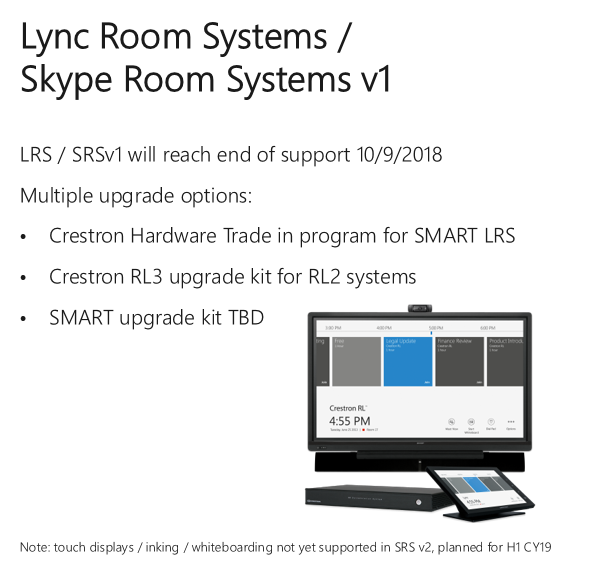
What about Lync Room System/Skype Room System v1?
If you happened to be an organisation that invested in LyncRoom System or Skype Room System v1, these were also platforms that ranMicrosoft OS with Microsoft provided room system software. If you’re using aCreston RL1 system, you’re out of luck: no upgrade options for these to workwith Teams. If you’re using RL2, there will be an option to upgrade to RL3 thatwill support Teams. SMART upgrade kits still TBA.
Why, you might ask,
have I gone to all this effort to outline the history of device support with
OCS, Lync and Skype for Business?
As the title of this section suggests, with the move toMicrosoft Teams we see Microsoft making a transition back to the originalmodel: Microsoft code running on devices manufactured by third parties. Personally, I think this is a good move for a number of reasons:
Control\Consistency of End User Experience
With the 3PIP model, Microsoft was no
longer in control of the code base running on certified devices. The meant that
users would be presented with a different look, feel and experience depending
on the model and brand of endpoint they chose to use for a particular use case.
Lack of
Feature Parity
Depending on the 3PIP device you’re using,
you may not have the same feature set as another vendor’s device. If using a
mix of vendors to achieve the desired end user experience, this can lead to
confusion and more complex training requirements.
Inconsistent
Delivery of New Features
From time to time, Microsoft will change
how a certain feature is delivered, or may introduce new features to their product
line. With the 3PIP model, this may mean re-architecting of software to support
this change, or it may mean that it’s not possible to code new features into an
existing hardware platform.
There’s
no SIP in Teams
Prior to Microsoft Teams, any device that registered against Skype for Business on-premises or Online did so using the SIP protocol. Teams however is built using web-based REST protocols, meaning any devices that previously registered to Lync or Skype for Business via SIP would not be able to register natively to Teams.
I should point out that the move back to end to end Microsoft control of the software layer started to occur prior to announcements of native Teams devices at Ignite this year. Microsoft’s own Surface Hub collaboration devices, as well as SkypeRoom System v2 video conferencing endpoints both run variants of Windows 10, with Microsoft applications installed and running on top. Initially,these could only be registered against Skype for Business, but now can be updated to allow registration against Microsoft Teams as well. Case in point: The fact that the OS of both devices was Windows 10 means that it was relatively easy for Microsoft to add Teams support and to continue with further development and addition of features.
The Microsoft Teams App across All Devices
Now that we’re clear on the direction Microsoft is taking
when it comes to Teams native devices, Let’s take a closer look at what’s on
offer. First up, there are two categories of device that will be running the
Microsoft Teams application.
Microsoft Teams app running on Android OS (Teams
phones)
Microsoft Teams app running on Windows 10 (Skype
Room System v2, Surface Hub)
This is a slight departure to the early days, in that
Android plays a part in providing a platform for the Teams application to run
on, not just a Microsoft provided OS. There were already a number of handsets
that were using this model prior to Teams (Yealink have run Android with the
Skype for Business app for some time, the Polycom Trio also runs Android), but
this will be a first where all phones that are to function with Teams will be
running Android with Teams code over the top.
Microsoft Teams Device Portfolio
Now that we’ve covered off on the history, what does theecosystem look like moving forward? We can break Teams device offerings intothree broad categories:
Room Systems
As mentioned earlier, a Microsoft native Skype Room System(SRS) has been available for a couple of years now. First to market with this was Logitech with their SmartDock offering, followed by Polycom with their MSR range, and finally Crestron with their SR offering. Whilst each vendor came up with their own design for their desktop dock units, they all contained the same compute: A Surface Pro 4 or 5 running Windows 10 Enterprise and Skype Room System software. When first released, the use of a Surface Pro as the touch screen and compute was a hard requirement from Microsoft: Vendors had no choice but to use a Surface Pro as the core of their Skype Room System offering. Whilst this approach may have appeared to be a good idea at the time, it did introduce some issues. For example, as the compute and touch screen for the solution was one and the same thing, it did sometimes make cabling a problem. I would need to get HDMI and USB from the table unit back to my screens at the front of the room. Logitech did release a subsequent product that provided a solution to this, but still required a point to point Cat6 lead between table and front of room. Probably also worth noting that, although the solution works well, a Surface Pro is essentially a consumer device: it wasn’t designed to be used as an always-on video conferencing endpoint. Microsoft have since relaxed the Surface pro requirement, with vendors now free to develop alternative form factors:
As you can see, there’s much greater choice of deployment options than we had with the initial release of Skype Room System v2. Here, I’ll go into more detail on two vendor offerings: Logitech and Crestron.
Peripheral Ecosystem – Logitech
Logitech didn’t have a new room system dock on display, but they did have their latest modular peripheral solution: Logitech Rally.
This comes in at the top end of Logitech’s existing range of Microsoft certified personal and meeting room solutions, allowing for much greater flexibility in room configuration. They have achieved this by modelling the solution around a table hub and a display hub, connected to each other with a single Cat6 lead. At the display hub end, A Rally 4k camera and one or (optionally) two speakers are plugged in, and at the table hub end up to seven mic pods can be deployed. For tidier cabling at the table end, the mic pods can also be used with an optional splitter. This allows for multiple mics to be used but with a single cable into each. It is also supported not to use the splitters and daisy chain each mic pod from one another.
The Rally solution also includes Logitech’s latest foray into intelligent proactive technologies that improves the overall experience: Logitech RightSense. This is a suite of capabilities that encompasses three main technologies:
Logitech RightSight
Essentially an auto-framing feature, RightSight ensures
everyone is visible in the meeting, and removed the need for a meeting
participant to manually frame room participants. This is similar to what
Polycom had been doing with their Producer camera tracking technology, but this
is the first time we’ve seen it on a more cost-effective USB peripheral device
that can be used with Microsoft Teams.
Logitech RightLight
Logitech RightLight optimises light balance and colour to
prioritize the appearance of faces and render natural-looking skin tones, even
in dim or backlit conditions.
Logitech RightSound
Logitech RightSound improves vocal clarity by suppressing
background noise and echo, auto-levelling voices, and focusing on active
speakers so that everyone in the meeting can hear and be heard.
The Rally system has been designed to work with any compute
module, it’s simply a USB hub and HDMI extender. Compute can also be located at
the table (as it is when deployed with Logitech SmartDock), or at the front of
the room. This is outlined in the Logitech Rally Setup Guide that ships with
the Rally kit (apologies for the quality of image, I can’t find this online
yet):
If should also be noted that the Rally solution can be deployed in rooms where Logitech Flex has already been used to simply cable management. This may be a requirement if Flex is being used to support AV pass-through: one feature that Rally does not support. Here’s how it fits together:
Smart Building Ecosystem – Crestron
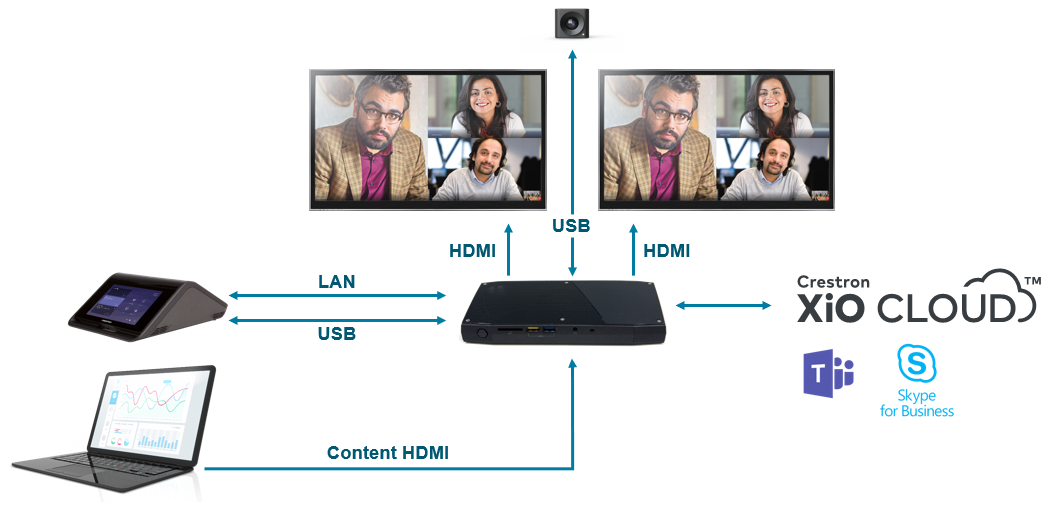
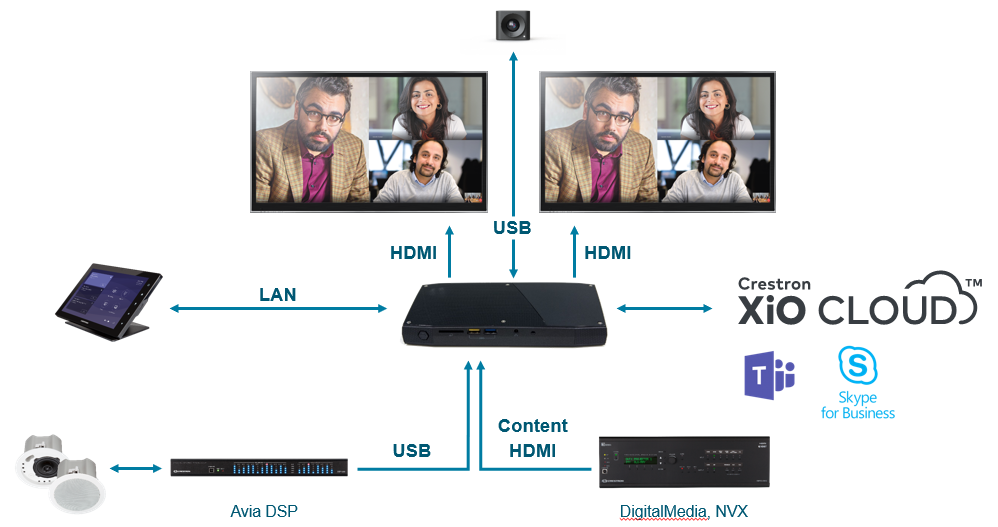
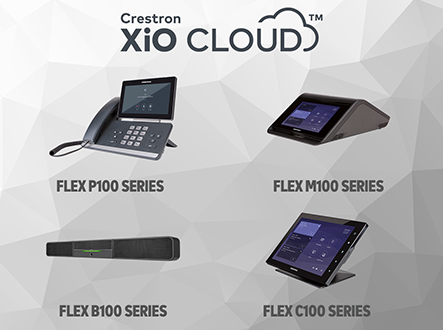
Creston are a company that are perhaps better known for their room automation solutions and room booking panels. That said, they have had room system offerings available for a number of years, starting with the Crestron RL series and more recently with the SR series. However, as discussed earlier in this piece, the SR series did adhere to the initial Microsoft Skype Room System requirement: Surface Pro inside a vendor manufactured chassis. At Ignite, we saw the next generation room system solutions on display: Crestron Flex. These solutions make a departure from the Surface Pro approach, with a Windows 10 PC that Crestron are referring to as the “UCEngine” providing the core compute services that’s then bundled with peripherals that suite the deployment scenario.
The UC Engine
The UC engine provides the following benefits over the
Surface Pro at table approach:
Mounts behind the display for simple
installation
Is an appliance grade fanless PC Running Windows
10 IoT
Can be provisioned via Crestron’s XiO Cloud
XiO Cloud
One of the biggest pain points with existing Skype Room
System deployments has been the lack of back-end management or analytics. Sure,
I could use Intune and OMS to get some insights and software management
capabilities, but options were limited. With Crestron’s XiO cloud solution, an
improvement is on the horizon.
XiO cloud is Crestron’s IoT based deployment and management
platform. It’s built on Azure, and actually won Crestron Microsoft Partner of
the Year in the “Internet of Things” category.
With XiO Cloud:
Take advantage of capabilities natively built
into Crestron Flex solutions
Deploy quickly and securely
Reduce installation time
Manage remotely and proactively
Update settings and firmware from anywhere via a
centralised dashboard
Monitor instantly
Resolve events remotely to improve device uptime
Evolve confidently
Make sure your workplace technology supports how
people work
Huddly Partnership
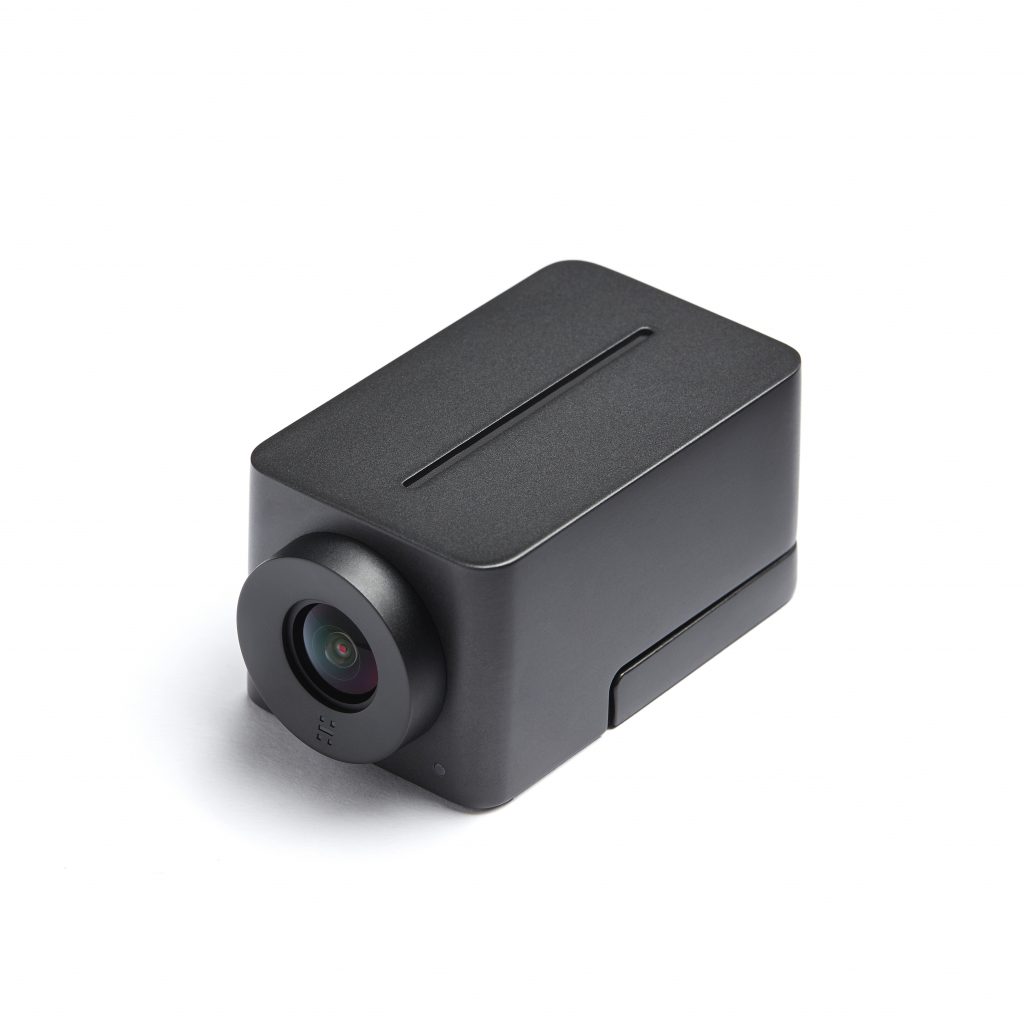
Announced in June this year, Crestron have partnered with Huddly to provide a front of room camera for Flex room systems. The Huddly IQ camera combines hardware, software and AI to deliver a wide-angle video meeting experience.
Huddly IQ Features:
4K Camera for HD image
No motors required for PTZ
Auto cropping\zooming
People counting to Crestron XiO Cloud
150-degree field of view
Deployment Options
With the UC Engine and XiO cloud providing the core of thesolution, there are three deployment bundles that Crestron are going to marketwith:
Small Room – M150
The M150 bundle combines a Crestron Mercury, UC Engine and Huddly IQ camera. Its primary use case is for smaller room sizes.
Medium/Large Room – B100
The B100 introduces a wall mount soundbar to the solution,combining the UC Engine with a touch panel and soundbar. The camera within the soundbar is still a Huddle IQ camera, with mics and speakers also housed within a single unit. This solution is the recommended approach for medium to large room sizes.
Any Size Room – C100
For deployments where the most flexibility is desired, the
C100 series is designed to tack onto either an existing or new Crestron room
deployment. This is the bundle to use if your space requires customer ceiling
speaker and microphones, and/or is a component of a larger automation piece.
Room Phones
For audio only conferencing capabilities, there were three devices on display: Crestron Mercury, Polycom Trio, and the Yealink CP960. These devices all run Android and the Teams native Android app, ensuring you have options when audio is all that’s required:
Personal Devices
Desk Phones
If you still prefer to be tethered to a desk phone when you
make your phone calls, Teams native phones are on the way. As already discussed,
Teams native phones will be running the Teams Android application. This will
ensure a consistent user experience, with screen size being the main
differentiator. I did see a camera module on top of a Yealink Teams phone at
Ignite, but I haven’t seen that announced anywhere as a supported solution
(apologies Sean, this photo was too good not to share):
On display were phones from Yealink (T56A andT58A) and AudioCodes (C450HD),as well as… Crestron. For the eagle eyed out there, you may notice that the Crestron phone looks strikingly similar to the Yealink T58A, and you would be right. Crestron’s phone, which forms part of their broader Flex offering is in fact an OEM device manufactured by Yealink. One differentiator for Crestron however is XiO Cloud: their phone will be manageable from XiO also.
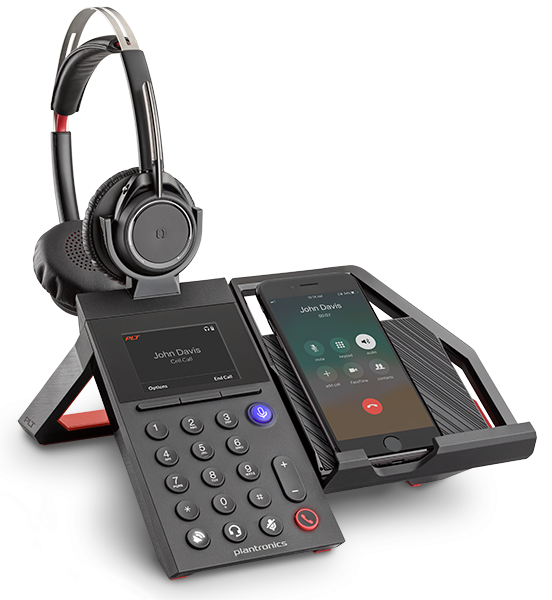
Somewhat of a outlier, I have to admit I have mixed feelings about the PlantronicsElara 60 Series. This is a device that’s aimed at the mobile first market, an on-desk solution that essentially allows you to turn your smart phone into a desktop collaboration device. The Elara has a dedicated Teams button (the purple one) that allows you to do things like launch the Teams app (i.e.bring it to the foreground) or to view Microsoft Teams notifications. Roadmap features also include being able to press this button and use Cortana voice recognition to dial. Some models also support wireless QI charging for smart phones that support it. The headset is also modular, with a few different options and wearing styles available, check out the link above for the full range of configuration options.
Bluetooth Devices
There are of course many Bluetooth devices on the market that were certified for Lync and Skype for Business. That said, only two devices were specifically called out as having a Microsoft Teams certified version in the works: the Jabra Speak 710 and the Jabra Evolve 65T. The Speak 710 has been around for a while, with the Evolve 65Ts being a UC certified update to the existing Elite range of wireless earbuds.
At Ignite, Ilya Bukshteyn, Microsoft’s Partner Director of
Devices for Microsoft Teams, had the following to say about the Speak 710:
“As a Certified for
Microsoft Teams device, the Jabra Speak 710 integration with Teams allows users
to quickly and conveniently access our software and intelligent communication
tools while continuing to deliver crystal clear communications and
conversations on Teams meetings and calls.”
Jabra are achieving this by introducing a Teams specific
button on the Speak 710 that will act much the same way at the Teams button
does on the Plantronics Elara 60: Bringing the Teams client to the foreground
when pressed, notifying when messages have been received, and allowing voice
dialling via Cortana.
What’s the go with Surface Hub?
Released a couple of years ago, Microsoft’s Surface Hub was an all in one collaboration device that included video conferencing capabilities, but was so much more. It was a device built with Office 365 in mind, designed for teamwork. It came in two sizes: 55 and 84 inch, and was quickly becoming the collaboration device of choice for any organisation that had invested in Office 365 as the core of their Modern Workplace strategy.
For anyone wanting one of these, you’re out of luck. These are no longer available for purchase and are due to be replaced by Surface Hub 2 that will be shipping mid next year (we hope). If you haven’t seen the launch video, it’s worth a look. For those that have Surface Hubs today, the Microsoft Teams Surface Hub app is now available in the Microsoft Store.
One caveat for when Surface Hub 2 does eventually ship. Initially, Surface Hub 2 will ship with Surface Hub version 1 software. This will be known as Surface Hub 2S and won’t have all the features you see in the promo video, things like multi-panel support, multi-user sign in and dynamic rotate. That will be coming in 2020, where existing Surface Hub 2S units will be field upgradeable with a new module. This final version will be called Surface Hub 2X
If I want a big touch screen, what are my options?
Another category of device that was on display at Ignite was the Windows Collaboration Display (WCD). Announced in June 2018, these devices are all in one offerings from Sharp and Avocor that include a touch screen, camera, speakers, mics and, interestingly, IoT sensors to gather environmental information (like occupancy, temperature and ambient light levels) and report it to the Azure cloud. These devices are essentially a USB-C docking station: To use, a user simply brings along their own USB-C port equipped device and plugs it in. I could also use standard HDMI and USB-A if I’m not using a USB-C device, but this of course wouldn’t be quite as streamlined.
Whilst the WCD approach might suite some, it’s a specific use case where a user is happy to bring their own compute and use integrated speaker, mic and camera (and the IoT sensors if you really want to). Sure, you could glue a Surface Go to the back of it, but not exactly an enterprise approach.
Avocor’s Windows
Collaboration Display range are known as the W series, and currently ships in a
single size: 65 inch. A 55 inch model is slated for 2019. Apart from the W series,
Avocor also have two other series of touch screen, the E series and the F
series. The E series comes in as an entry level device, with the F series being
the top of the line offering. The E and F series devices are touch screens
only: they don’t have cameras, mics, speakers or IoT sensors like the WCD range
do. Both the E and F series come in 65, 75 and 86 inch screen sizes.
The F series is somewhat unique, in that it has been given permission by Microsoft to be referred to as a “Surface Hub Alternative”. To achieve this, the F Series range has an included OPS slot which can optionally ship with a NUC with UC Workspace’s QuickLaunch software. Touch screen plus NUC plus highly configurable software interface: It’s not a Surface Hub, but it’s definitely worthy of consideration, particularly if you’re looking for a single large screen format for your collaboration space.
Surface Hub 2 will
eventually support multi screen deployment scenarios, but not until 2020 (when
Surface Hub 2X is released) and not without the annoyance of screen bezels
between each display.
Touch Screen Support coming to
Room Systems
It’s worth noting
that come early next year, the Teams Room Systems will be supporting the
Microsoft Whiteboard app, and will support front
of room inking. If you’re using Skype/Teams Room Systems today and want to
take advantage of this new capability, an Avocor touch screen would be a good
addition to your solution to ensure you’re ready to take advantage of this.
Teams Device Management Portal
Now that we’ve covered off on several new devices that will be available for use with Microsoft Teams, it would be nice if we could manage them all from a single place. Also announced at Ignite was the soon to be available Device management tab from within the Teams and Skype for Business Admin centre. This isn’t available yet, but interestingly there is a Microsoft Docs article that has appeared that covers off on some of the proposed capabilities. In short, you will be able to do things like view and manage device inventory, update, restart, and monitor diagnostics for devices, as well as create and assign configuration profiles to a device or groups of devices. Very handy. Let’s hope this isn’t too far away.
Cloud Video Interop
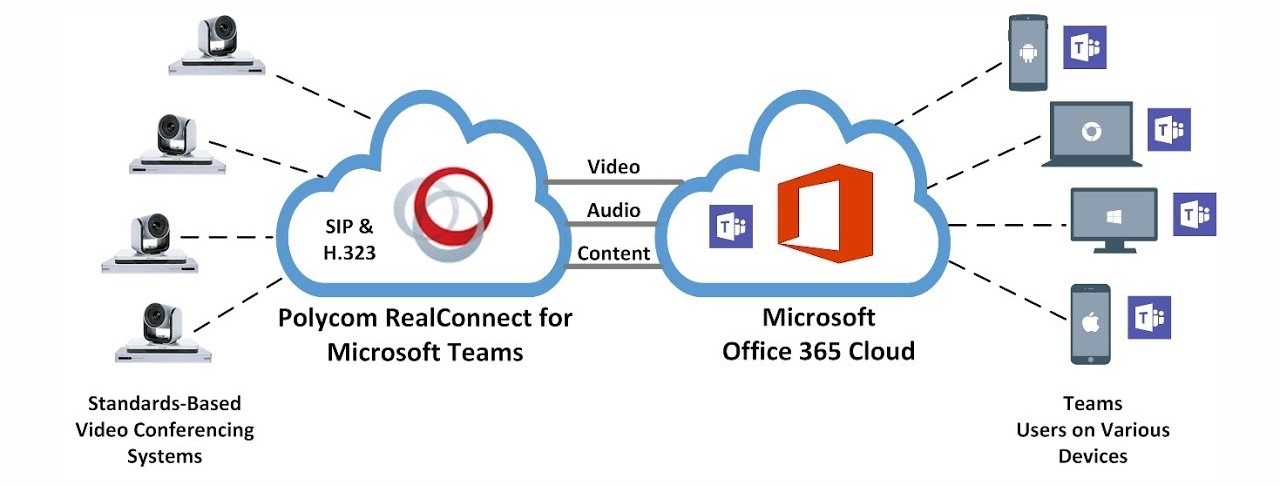
All video devices we’ve covered above have been native Microsoft Teams devices. If I’m creating Teams online meetings, other participants will be able to join from other Teams audio or video devices, via the Teams client, or via the Teams web app. But what if I want participants to join my Teams meetings from non-Teams native endpoints? Standards based endpoints from vendors like Cisco or Lifesize? This is where CloudVideo Interop (CVI) for Microsoft Teams can help. This offering from Polycom, BlueJeans and Pexip essentially provides a method for “standards based” SIP or H.323 endpoints to join Microsoft Teams meetings hosted in Office 365.
To make this work, Microsoft developed a Teams interop bot that resides in Azure. Each of the three interop partners communicate with this in order to join a Teams meeting. Polycom and BlueJeans have a similar offering, in that both have a fully hosted and managed cloud solution. The Pexip solution is a little different, in that an existing or privately hosted Pexip environment can interface with the interop bot that’s located in Azure. An organisation could also deploy Pexip Infinity into Azure as well, but it would not be a Pexip hosted and managed instance.
End user experience
One benefit of this
approach to video interop is the simplicity. From an end user experience who is
creating Microsoft Teams online meetings, nothing changes. They still open Outlook,
create the online meeting, invite rooms and people, and send. The subtle difference
is the addition of additional meeting join information at the bottom on the
meeting invite. This also works from the Teams mobile app: invites created and
sent from a mobile device also contain additional CVI join info:
Device Feature Roadmap
Compared to what was available only a few short months ago,the device space for Microsoft Teams is looking a lot healthier. But what features are still to come?
Proximity Based
Meeting Join (or “BYOM”)
If you’re using Skype Room Systems today and have updated to
a relatively recent code base, you’ll notice an additional configuration option
appear under admin settings: “Bluetooth Beaconing”
This feature isn’t live yet, but when available will allow
you to cast your own meeting onto a room system from the Teams mobile or
desktop client. This ad-hoc pairing will make it much simpler to find a room
and join my meeting without having to have first booked the room beforehand. Very
nice.
Dual Content Display for Teams Meetings
Dual display has been a feature for Skype for Business
meetings on Room Systems for some time, but at present Teams meetings joined
from a room system will display on a single screen only. This should be
resolved by the end of calendar year
Whiteboard viewing, inking
and editing
A great addition, Whiteboarding is coming to room systems!
By the end of the year we’re expecting to be able to view the Microsoft whiteboard
app on a room system, with Front of Room inking and editing slated for the
first half of 2019.
On-console PTZ
control
Don’t want to use a separate remote control to operate a
pan/tilt/zoom capable camera? The device roadmap mentions having this
capability early next year.
On-console PowerPoint
control
A feature that exists if I join a Skype for Business meeting
on a room system, this capability will also be added for when I join Teams
meetings.
Additional FoR video
layouts
Today, options are limited to control what is displayed on
what screen. When using dual screens, one screen is video from far end
participants, the other is content. Expect to see some more options soon, e.g.
display content on both front of room screens.
Cortana voice
interactions for Teams-enabled devices
Including IP phones and conference room devices, enabling
you to easily make a call, join a meeting or add other people to a meeting in
Teams using spoken natural language.
I hope this has been a useful article that helps you understand what’s on offer in the Microsoft Teams device world. As things change/come to market, I plan to keep this as up to date as possible.
Ignite has come and gone for 2018, and this year did not disappoint. Microsoft Teams has been front and centre, lots of announcements and a wide array of brand new Teams native endpoints including Bluetooth devices, phones, and the next generation of Skype Room Systems (name change perhaps?).
Below you’ll find a summary of key announcements/news to share, stay tuned over the next few weeks to get more detailed reviews:
Devices
Surface Hub 2
Whilst we were already aware of the estimated shipping date of Surface Hub 2, what was a surprise was that while the hardware will be released in Q2 of 2019, many of the new software features will require a hardware and software update set to launch in 2020. If you want a Hub next year, you’ll be getting it with Surface Hub 1 software for now.
Yealink
Yealink unveiled their full portfolio of Teams certified devices this week, showing off a native Teams desk phones, a Teams conference phone and their Skype Room Systems.
Known as Flex, this was probably the most rounded solution on display. Crestron unveiled their Teams native Teams phones and Skype Room Systems. Their phone offering is simply an “OEMd” Yealink T58A, however one thing they have that Yealink don’t is manageability from the Crestron XiO Cloud. More on that in a full post next week. Biggest benefit I see with Crestron solution is we can now finally use a touch panel on the table that does not require cabling back to a PC NUC, and isn’t a Surface Pro: it simply patches into a standard PoE port and communicates with the codec over the network. Yes!
In an earlier post, I covered off on the configuration of Direct Routing for Microsoft Teams when using a Ribbon SBC Edge appliance. At that time, the service had just entered public preview and was not quite ready for production deployment. With last week’s announcement, this is no longer the case: Direct Routing for Microsoft Teams is now Generally Available!
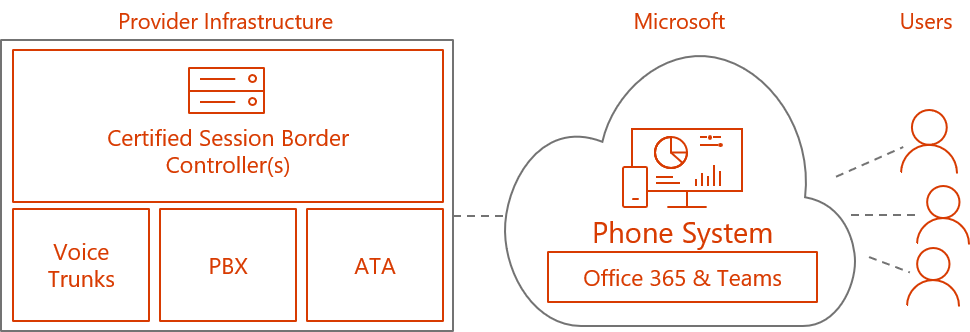
In the official announcement, Microsoft covered off on a couple of different deployment scenarios. The first (as already covered off during the public preview) is a customer deployed scenario, where SBC infrastructure is internally hosted, and is used to support Direct Routing for a single Office 365 Tenant. The second scenario I found of more interest: partner deployed scenarios:
With this announcement, we now have another way to enable telephony services in the cloud for Microsoft Teams: Direct Routing via carrier provider managed infrastructure an organisation does not need to manage themselves, and can purchased as a service from a supported provider.
Note that, as opposed to Microsoft (or Telstra if you’re in Australia) Calling Plans, Direct Routing lights up calling capabilities within the Microsoft Teams client only. Calling Plans have the advantage of enabling calling capabilities for both Skype for Business Online and Microsoft Teams environments at the same time.
At time of writing, the following providers have tested hosted Direct Routing in their environments and will be providing initial offerings:
Damien Margaritis is the Principal Consultant for the Modern Workplace practice at Insync Technology, an innovative systems integrator focused on Systems Management, Productivity (including Unified Communications) and Cloud solutions. Damien is also involved with organising the Melbourne Skype for Business User Group, held quarterly at Microsoft’s Melbourne offices.
UPDATE: Microsoft have changed their stance on support for TLS 1.0 and 1.1 within Office 365 post October 31st 2018. From this date, TLS 1.0/1.1 will not be supported, but devices still using these will not be blocked from connecting to Office 365. Read more about it here.
Ahhhh fond memories. I recall with much joy the first time I deployed Lync Phone Edition (LPE) devices, all those years ago (not that long ago: 2010 to be precise). In the Lync world, for many years these were the only devices you could deploy for end users, meeting rooms or common areas where a physical handset was a requirement.
How times have changed.
The approach Microsoft took to providing devices that natively registered to Lync was simple: Microsoft provided the code (known as Aries, which ran on Windows CE 6.0), and vendors (Polycom, HP, Aastra) provided the functional phone components around it: Microsoft controlled the software stack (responsible for support and updates), and the vendors looked after the rest. These devices were known as Lync “Optimized” devices. However, it soon became apparent that making phones was not core to Microsoft’s business, and there were plenty vendors out there that did it better. It was around the end of 2011 that we first began to see “Compatible with Lync” handsets from Polycom and others start to hit the market.
As covered by Polycom’s Jeff Schertz here, “Compatible with Lync” handsets were devices that moved away from using a Microsoft provided and supported codebase, and towards using devices manufactured by 3rd parties that understood the finer nuances of telephony design. The software stack was owned and developed by each vendor, with each undertaking Third Party Interoperability Program (3PIP) certification before their devices were given the seal of approval from Microsoft to register against Lync. Looking at the broader ecosystem of 3rd party software and devices that integrate with Skype for Business, this was the model Microsoft moved forward with until recently, where we have begun to see the Microsoft developed and supported software stack start to take centre stage again, Surface Hub, Skype Room System, Microsoft Teams devices… (a topic for another blog…)
So, since 2011, we have had handsets available that were not based on Aries code which we could deploy to end users. LPE device support continued, with Support for LPE devices registering natively to Skype for Business Online also supported. This however will soon cease to be the case.
The Discontinuation of Support for TLS 1.0 and 1.1 in Office 365
As outlined here, Microsoft is dropping support for Transport Layer Security (TLS) versions 1.0 and 1.1 in Office 365 from October 31st 2018.
Why is this an issue you ask?
Windows CE 6.0 does not support anything above TLS 1.0. This is of course the underlying Operating System in use on LPE devices, so as of the end of October, if you have LPE devices, they will no longer be able to register against Skype for Business Online.
But I’m still using on-premises Lync/Skype for Business. Does this affect me?
If you’re still using on-premises Lync/Skype for Business infrastructure to support your end users, you have some wiggle room, but also take into account where your Exchange environment is. Are you using Lync/Skype for Business on-premises but Exchange Online? Your phones will sigh in, but any Exchange interop (voicemail, meeting invites etc) will cease to function. I would also add that it would be considered best practice to disable TLS 1.0/1.1 on your on-premise servers and enjoy added piece of mind of using a stronger security suite. Optional of course.
What devices are affected?
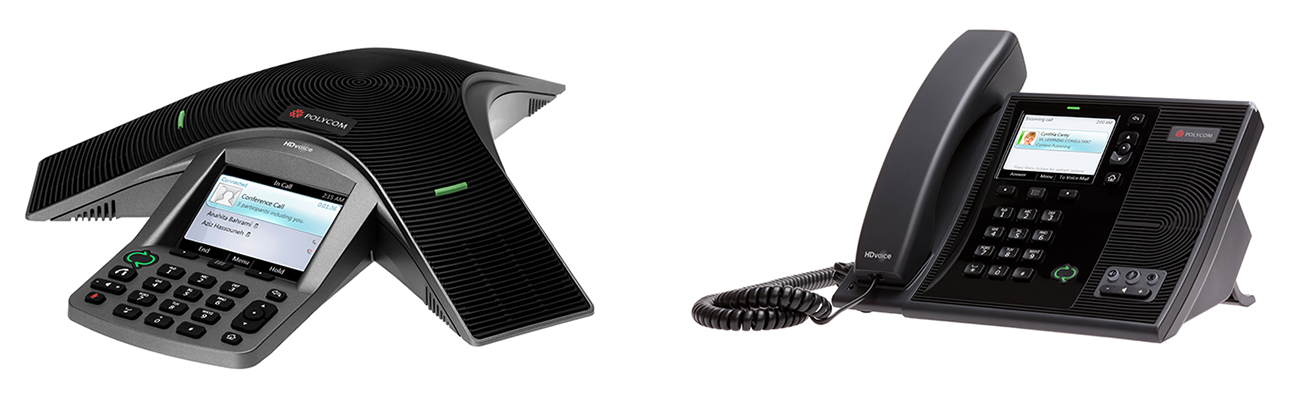
Polycom: CX500, CX600, and CX3000
Hewlett-Packard: 4110 and 4120
Mitel-Aastra 6721ip and 6725ip
I Use On-Premises Lync/Skype for Business: How many LPE devices do I have?
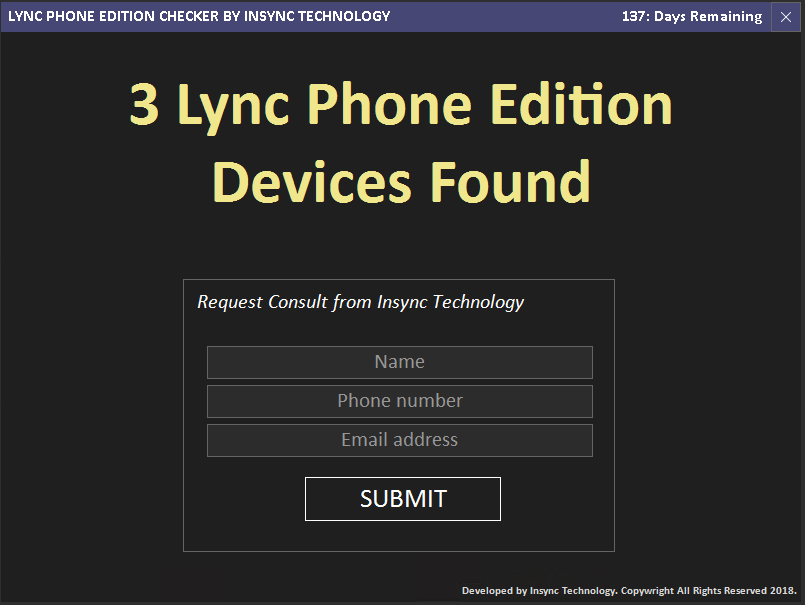
A very good question, and I’m glad you asked. Luckily, the team at Insync Technology have put together a free tool that will tell you exactly how many LPE devices you have out there! So simple!
Damien Margaritis is the Principal Consultant for the Modern Workplace practice at Insync Technology: an innovative Microsoft systems integrator. Damien is also organises the Melbourne Skype for Business User Group, held quarterly at Microsoft’s Melbourne offices.
In essence, this means that it is now possible to configure a SIP Trunk directly from a supported on-premises Session Border Controller (SBC) to Microsoft Teams via the internet.
Microsoft’s Enterprise Voice Strategy for the Cloud
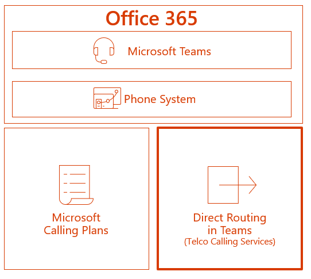
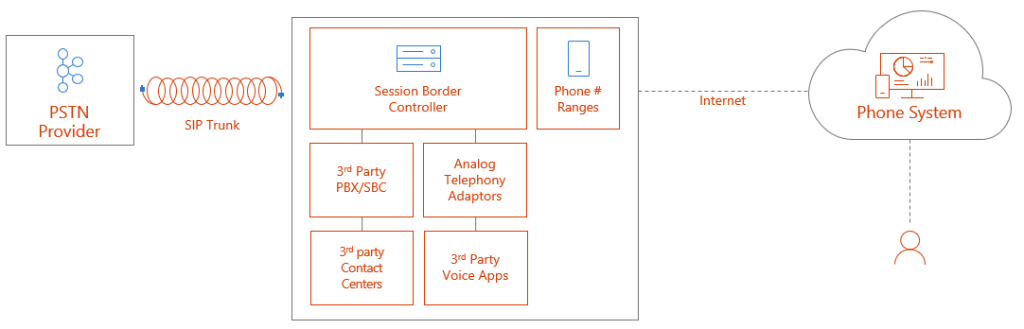
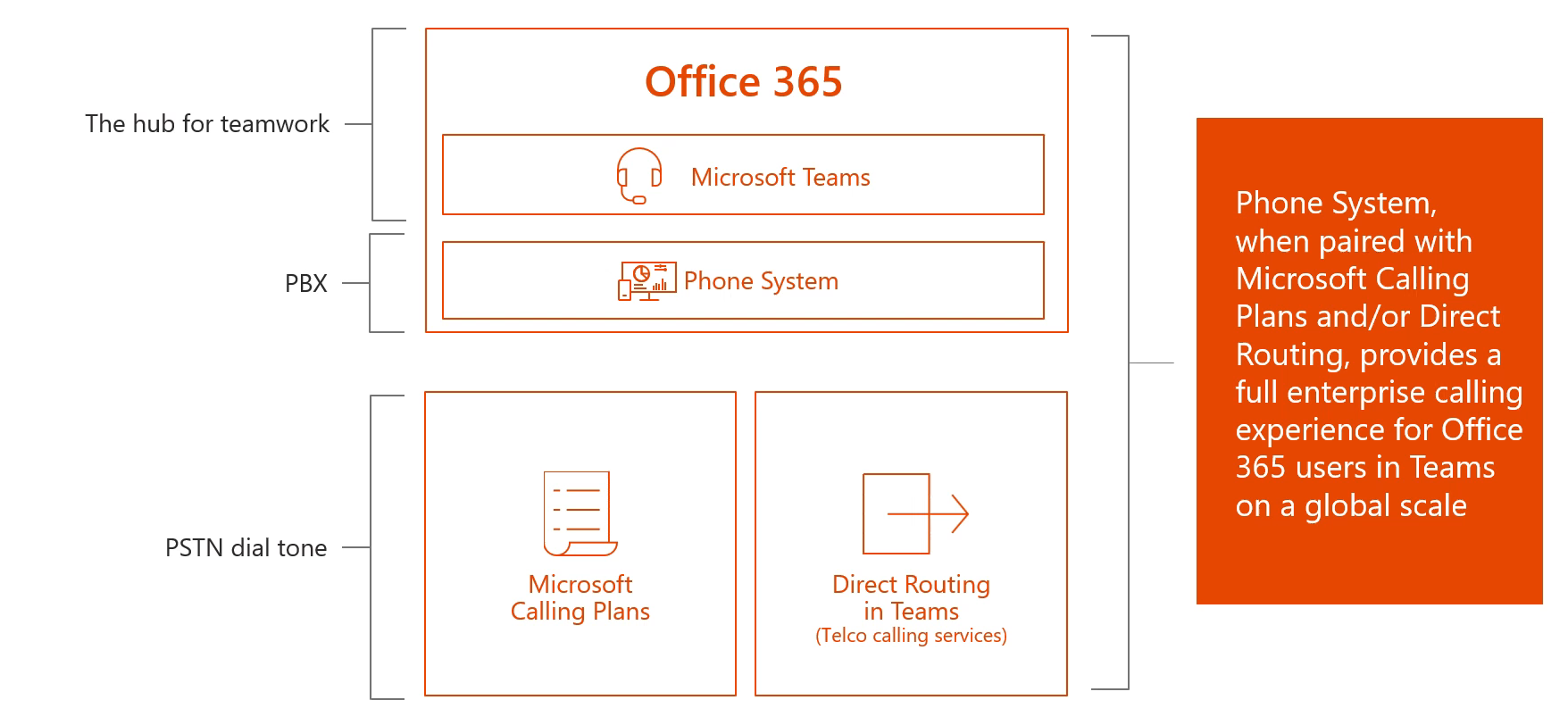
To understand how this fits into the overall picture, the diagram below outlines the main components that come together to enable PSTN connectivity for Office 365 in Australia. This diagram assumes I do not have an on-premises Skype for Business server deployed, and simply want to enable voice services for users homed within Office 365 with minimal on-premises infrastructure:
To summarise the options for PSTN connectivity available today:
There are two platforms in the Microsoft cloud that can provide voice services: Skype for Business & Microsoft Teams
To enable PBX like capabilities in either, users must have a Phone System license
To enable connectivity to the PSTN network, there are three options:
Direct routing for Teams – enables PSTN connectivity for Microsoft Teams only. Requires on-premises infrastructure (SBC).
Telstra Calling for Office 365 – enables PSTN connectivity for both Skype for Business Online and Microsoft Teams. A pure cloud offering.
Cloud Connector Edition (CCE) – enables PSTN connectivity for Skype for Business Online only. Requires on-premises infrastructure (SBC & Hyper-V Host with VMs).
How does Direct Routing Differ from CCE?
Microsoft Cloud Connector edition was a great way to enable PSTN connectivity for Skype for Business Online users, particularly as native cloud calling plans are only now available in Australia. However, CCE will support PSTN connectivity forSkype for Business Online only, not Microsoft Teams. The other key differentiator with Direct Routing is that I no longer need to deploy the Cloud Connector Edition virtual machines as well as an SBC to provide connectivity to the Office 365 cloud: a certified SBC is all that is required.
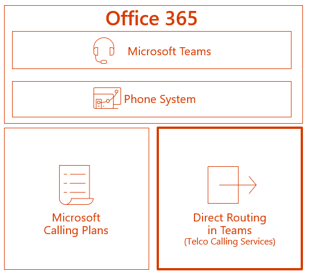
Another major difference with Direct Routing is that it can be deployed side by side with Telstra Calling for Office 365 Calling Plans. This means we now have greater flexibility in deployment options: I can choose to have some calls route via on-premises infrastructure, and other calls to route to the PSTN network direct from the cloud via Telstra Calling. This is useful in environments where I may want to route some calls to existing on-premises infrastructure (call centres, analogue endpoints, other 3rd party telephony infrastructure), but have the bulk of my organisation’s PSTN calls route via a Telstra Calling Plan (ignore “Microsoft Calling Plan” in the diagram below, in Australia it’s known as a Telstra Calling Plan):
Call Routing Options with Microsoft Teams
Now that there are two ways I can route calls to the PSTN from Microsoft Teams at the same time, how do I control what routes where?
Per User Call Routing
Using this approach, users are configured to route all their calls via Direct Routing or via a Telstra Calling Plan. In this example, one user is assigned a Calling Plan (pure cloud), the other a Direct Routing policy (via on-premises SBC):
Route Based on Dial Pattern
Using this approach, calls are routed via Telstra Calling plan or Direct Routing based on the number dialled. For example, if I dial numbers associated with an on-premises call centre, these route via Direct Routing, all other calls route via a Telstra Calling Plan:
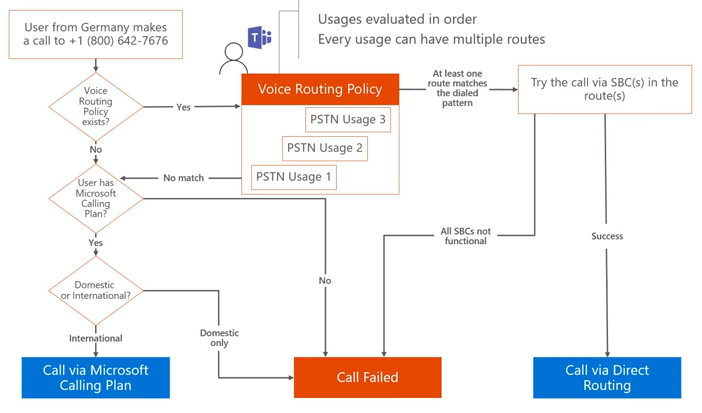
Call Flow Logic
In the above example, calls route one of two ways depending on the number dialled. But what’s the logic? How does it “know” to route via a calling plan if Direct Routing fails to find a match? The following diagram outlines the decision tree when a user makes a phone call. As long as the user is licensed for Telstra Calling from within the Office 365 portal, the call will automatically route if no matching Direct Routes are found:
Direct Routing: How to Configure
In this section, I will walk through end to end configuration that enables Direct Routing with Microsoft Teams from an on-premises SIP Trunk, via a Ribbon SBC Edge 1000. This section assumes you have an intimate knowledge of Ribbon SBC configuration!
What Do I Need?
The following diagram gives a good overview of all the requirements needed to enable Direct Routing:
For more details on planning and configuring direct routing, check out the following Microsoft Docs:
In order to support direct routing, a single public IP address is required that must be presented to the SBC. In my example configuration below, I created a new dedicated one-to-one NAT on the perimeter firewall: 121.50.209.233 <> 192.168.1.187. The private address was then bound as an additional IP address to Ethernet 1:
FQDNs and Firewall Port Requirements
The connection point for Direct Routing are the following three FQDNs:
sip.pstnhub.microsoft.com – Global FQDN – must be tried first. When the SBC sends a request to resolve this name, the Microsoft Azure DNS servers return an IP address pointing to the primary Azure datacenter assigned to the SBC. The assignment is based on performance metrics of the datacenters and geographical proximity to the SBC. The IP address returned corresponds to the primary FQDN
sip2.pstnhub.microsoft.com – Secondary FQDN – geographically maps to the second priority region
sip3.pstnhub.microsoft.com – Tertiary FQDN – geographically maps to the third priority region
Placing these three FQDNs in order is required to:
Provide optimal experience (less loaded and closest to the SBC datacentre assigned by querying the first FQDN)
Provide failover when connection from an SBC is established to a datacentre that is experiencing a temporary issue
The FQDNs sip.pstnhub.microsoft.com, sip2.pstnhub.microsoft.com and sip3.pstnhub.microsoft.com will be resolved to one of the following IP addresses:
52.114.148.0
52.114.132.46
52.114.75.24
52.114.76.76
52.114.7.24
52.114.14.70
52.114.20.29
52.114.16.74
If your firewall supports DNS name resolution, the FQDN sip-all.pstnhub.microsoft.com resolves to all IP addresses listed above.
Note: The firewall port requirements below assume media bypass is not enabled. For additional port requirements for media bypass scenarios, see Plan for media bypass with Direct Routing
The following firewall ports are required to be open for all the above IP addresses:
Traffic
From
To
Source Port
Destination Port
Description
SIP/TLS
Teams SIP Proxy
(IP addresses above)
Ribbon SBC
1024-65535 TCP
Defined on SBC
SIP signalling from Teams to Ribbon SBC. In example below, destination port selected for SIP signalling is 5061.
SIP/TLS
Ribbon SBC
Teams SIP Proxy
(IP addresses above)
1024-65535 TCP
5061 TCP
SIP signalling from Ribbon SBC to Teams.
UDP/SRTP
Teams Media Processor 52.112.0.0/14 52.120.0.0/14
Ribbon SBC
3478-3481 & 49152-53247 UDP
Defined on SBC
Media from Teams to Ribbon SBC. The destination port is configurable on the SBC.
UDP/SRTP
Ribbon SBC
Teams Media Processor 52.112.0.0/14 52.120.0.0/14
Defined on SBC
3478-3481 & 49152-53247 UDP
Media from Ribbon SBC to Teams. The source port is configurable on the SBC.
DNS Requirements
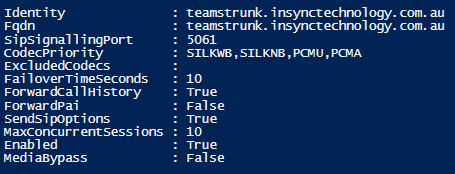
Before moving onto the configuration steps below, make sure you have created a public DNS A record for your Direct Routing trunk FQDNs. In this example, I created an A record for teamstrunk.insynctechnology.com.au pointing at 121.50.209.233.
Step 1: Office 365 Tenant Direct Routing Configuration
Ensure the following general node level setting have been configured:
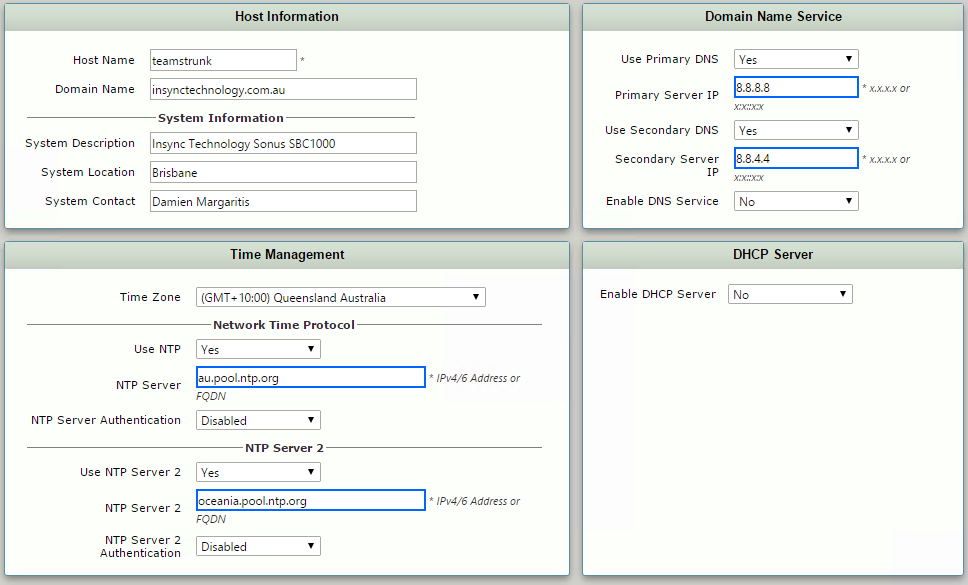
From the SBC Web GUI, navigate to System > Node-Level Settings
Check NTP configured and time is correct (TLS trunk will not negotiate if time is incorrect)
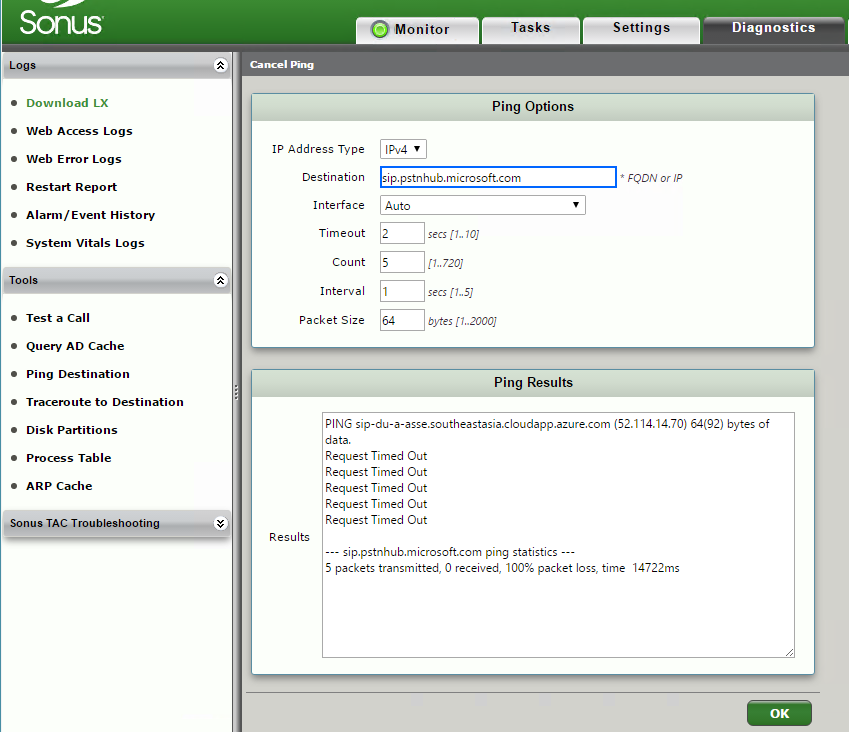
DNS Server configured. To test DNS resolution, make sure the following can be resolved: sip.pstnhub.microsoft.com (test from Diagnostics > Ping Destination)
Note: Don’t expect a valid ICMP response, all we care about is a valid DNS resolution (the above example shows a successful resolution).
Certificates
The SIP Trunk I’ll be configuring between the SBC and Microsoft Teams must be a secure TLS trunk. To support this, a public certificate is required.
Important: Ribbon SBC Edge series appliances can only support one certificate installed at a time. If you’re planning to use an existing Edge series SBC for Direct Routing to Teams, you may already be using a certificate to support TLS trunks. If that’s the case, you’ll need to either revert to using TCP for existing trunks before updating the certificate, or adding your SBC’s FQDN to the public certificate that you plan to use for Direct Routing to Teams.
Request Certificate
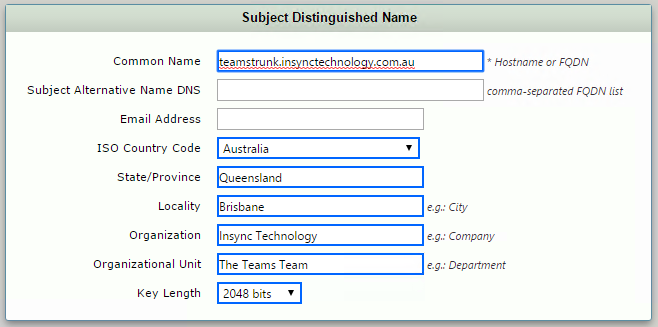
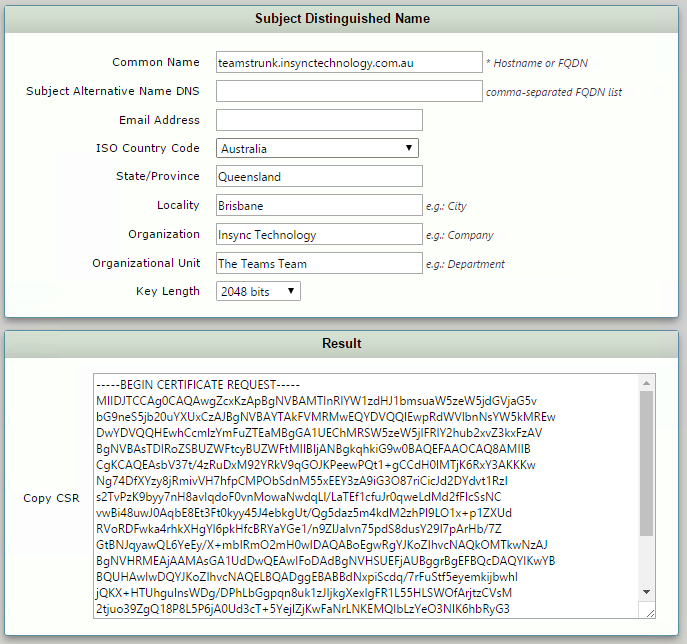
From the SBC Web GUI, navigate to Settings > Security > SBC Certificates
Make sure to also obtain Trusted Root and Intermediary certificates from your public certification authority, as these will need to be imported to the Ribbon SBC also
Apply Certificates
After receiving the certificates from the certification authority, install the SBC certificate and the Root/Intermediate certificates:
From the SBC Web GUI, navigate to Settings > Security > SBC Certificates > Trusted Root Certificates
At the top left of the page click “import” and select the trusted root and (if applicable) any intermediate certificates
Validate that the certificate installed correctly
From the SBC Web GUI, navigate to Settings > Security > SBC Certificates > Sonus Certificate
At the top of the page click Import > X.509 Signed Certificate and install
Validate that the certificate installed correctly
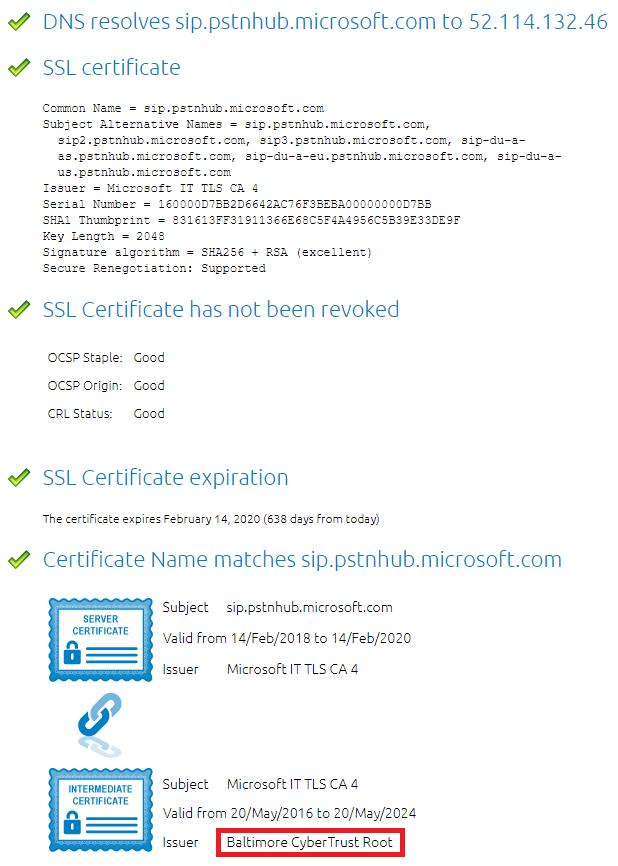
Deploy Baltimore Trusted Root Certificate
The Microsoft Phone System Hybrid Voice Connectivity Interface has DNS name sip.pstnhub.microsoft.com. This interface uses a public certificate provided by Cyber Baltimore CyberTrust Root, which will also need to be trusted by your SBC:
From the SBC Web GUI, navigate to Settings > Security > SBC Certificates > Trusted Root Certificates
At the top left of the page click “import” and select the Baltimore trusted root cert
Validate that the certificate installed correctly
TLS Configuration
Create TLS Profile
The TLS profile defines the crypto parameters for the SIP protocol. To create a new TLS profile:
From the SBC Web GUI, navigate to Settings > Security > TLS Profiles
At the top left corner of the main pane click “+” and add a new TLS Profile
Parameter
Value
Description
MS Phone System TLS Profile
TLS Protocol
TLS 1.2 Only
Handshake Inactivity Timeout
30
Validate Client FQDN
Disabled
SIP Profile Configuration
SIP profiles allows configuring such parameters as SIP Headers customizations, options tags etc.
From the SBC Web GUI, navigate to Settings > SIP > SIP Profiles
At the top left corner click “+” and add a new SIP profile
Parameter
Value
Description
MS Phone System SIP Profile
FQDN in From Header
Sonus SBC FQDN
FQDN In Contact Header
Sonus SBC FQDN
Origin Field name
Ribbon SBC FQDN
Media Configuration
Configure Media Crypto Profile
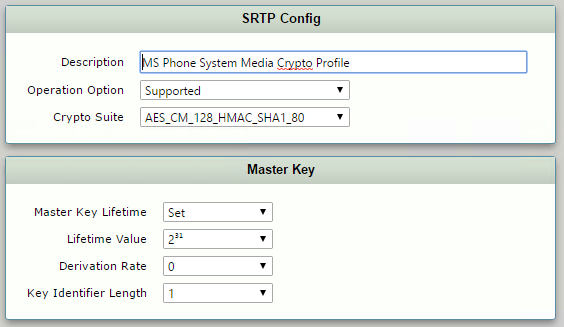
The Media Crypto Profile defines the encryption mechanism to use between the SBC and Microsoft Phone System Interface. To add a Media Crypto Profile:
From the SBC Web GUI, navigate to Settings > Media > Media Crypto Profiles
At the top left corner click “+” and add a new Media Crypto Profile
Parameter
Value
Description
MS Phone System Media Crypto Profile
Operation Option
Supported
Crypto Suite
AES_CM_128_HMAC_SHA1_80
Configure Media List
The Media List defines the codecs and if the crypto mechanism will be used. To create a media Profile:
From the SBC Web GUI, navigate to Settings > Media > Media List
At the top left corner click “+” and add a new Media List:
Parameter
Value
Description
MS Phone System Media List
Media Profiles List
Default G711a
Default G711u
Crypto Profile ID
MS Phone System Media Crypto Profile
Configure SIP Server Table
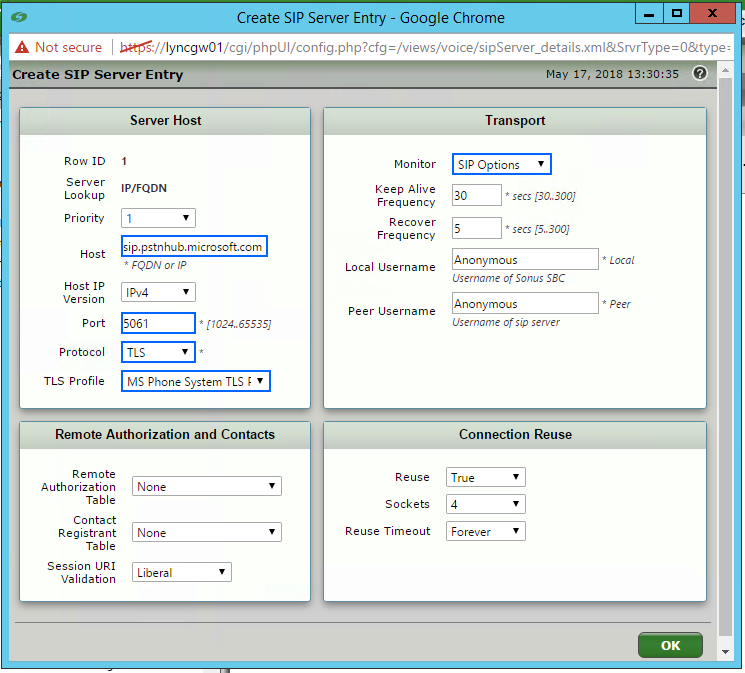
The SIP server table defines the information about the SIP interfaces connected to the Sonus SBC. To add a new SIP Server Table:
From the SBC Web GUI, navigate to Settings > SIP > SIP Server Tables
At the top left corner of the main pane click “+” and add a new SIP Server Table
Name the Table and click save
Click on the new SIP Server Table, and configure the following
Parameter
SBC 1
SBC 2
SBC 3
Priority
1
2
3
Host
sip.pstnhub.microsoft.com
sip2.pstnhub.microsoft.com
sip3.pstnhub.microsoft.com
Port
5061
5061
5061
Protocol
TLS
TLS
TLS
TLS Profile
Microsoft Phone System
Microsoft Phone System
Microsoft Phone System
Monitor
SIP Options
SIP Options
SIP Options
Configure Transformation Tables and Routing Tables
If you’ve made it this far, I would assume you are already familiar with transformation and routing table configuration. For completeness sake, here’s the ones I created for my test Direct Routing number:
Configure Route Table
You will need to route calls both to and from your Microsoft Teams Direct Routing trunk:
Create Signalling Group
To create a new signalling group:
From the SBC Web GUI, navigate to Settings > Signalling Groups
At the top left corner of the main pane click Create SIP Signalling Group
Parameter
Value
Description
MS Phone System
Call Routing Table
From MS Phone System
No. of Channels
10
SIP Profile
MS Phone System SIP Profile
SIP Server Table
MS Phone System Sip Server Table
Load Balancing
Priority
Media List ID
MS Phone System Media List
Signalling Media/Private IP
Ethernet 1 (whichever port you’re using to route to/from Office 365)
Outbound NAT Traversal
Static NAT
NAT Public IP (Signalling/Media)
121.50.209.233
Listen Port
Port: 5061
Protocol: TLS
TLS Profile ID: MS Phone System TLS Profile
Federated IP/FQDN
sip.pstnhub.microsoft.com
sip2.pstnhub.microsoft.com
sip3.pstnhub.microsoft.com
sip-all.pstnhub.microsoft.com
Important: Make sure to add sip-all.pstnhub.microsoft.com to the Federated IP/FQDN list. In testing, I was receiving SIP invites from IP addresses that were not resolvable via the three Microsoft documented “pstnhub” FQDNs. This meant that every third inbound call to Microsoft Teams would fail as the source IP was unknown. adding this additional record was the solution.
Once this has been created, confirm you are sending and receiving SIP Options and 200 OK responses in both directions:
From the SBC Web GUI, navigate to Settings > Signalling Groups
For the MS Phone System Signalling Group, click on Counters
Step 3: Enable Users for Direct Routing with Microsoft Teams
Now that the SBC configuration has been completed, we can now enable our Microsoft Teams users for calls via Direct Routing.
Ensure User is Homed to Office 365
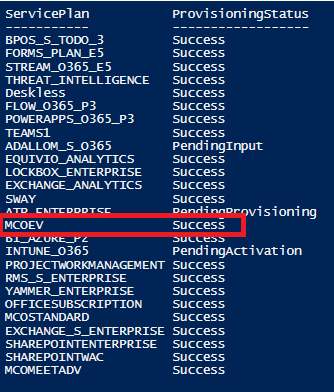
If you are still sporting a hybrid Skype for Business environment, it’s only supported to enable users for Direct Routing with Teams if they are homed in Office 365. To check this, run the following cmdlet and ensure the Registrar Pool fqdn ends in “infra.lync.com:
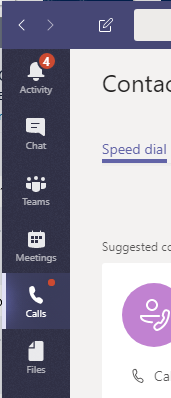
Once configuration has been completed, it may take a while for changes to take effect. The first thing you should notice is the calls button appear in the Teams client:
Once this appears, you should now be able to route calls to and from Microsoft Teams!
Outbound Call from Teams to PSTN
Inbound Call from PSTN to Teams
Resources
A lot of the diagrams for this post came from a great video available on YouTube. Check it out here: Direct Routing in Microsoft Teams
I hope you find this post useful. As usual, ping me with any questions or queries, always happy to help.
Damien Margaritis is the Principal Consultant for the Modern Workplace practice at Insync Technology, an innovative systems integrator focused on Systems Management, Productivity (including Unified Communications) and Cloud solutions. Damien is also involved with organising the Melbourne Skype for Business User Group, held quarterly at Microsoft’s Melbourne offices.














































 dmunified